
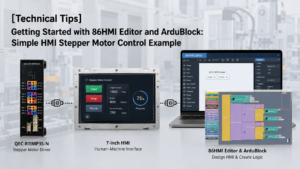
![eShop Article Banner_[Technical Tips] Getting Started with 86HMI Editor and ArduBlock Simple HMI Light Control Example](https://icop-shop.com/wp-content/uploads/2026/06/eShop-Article-Banner_Technical-Tips-Getting-Started-with-86HMI-Editor-and-ArduBlock-Simple-HMI-Light-Control-Example.png)
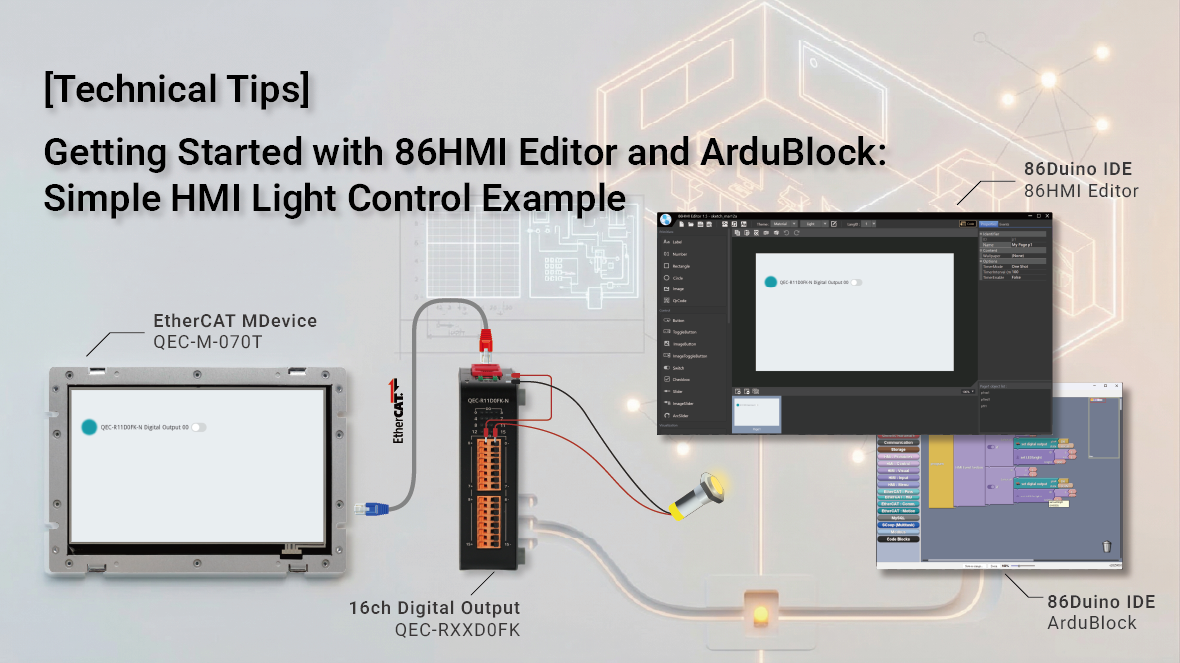
ICOP QEC EtherCAT Solutions provides an integrated development environment that allows engineers to quickly build automation applications combining EtherCAT communication, HMI interaction, and control logic. In this example, we demonstrate a simple EtherCAT digital output control scenario using the QEC-M-070T EtherCAT MDevice HMI controller together with the QEC-R11D0FK-N I/O module. When the user presses the control button on the HMI interface, the system sends a command through EtherCAT to the I/O module to switch the digital output, allowing an external indicator light to turn ON or OFF.
The development workflow combines several ICOP development tools. The EtherCAT network and devices are first scanned using 86EVA, the HMI interface is designed using 86HMI Editor, and the control logic is implemented using ArduBlock. By combining these tools, engineers can rapidly create a complete EtherCAT control application with minimal coding effort.
86Duino IDE
To compile and upload the control program to the QEC controller, the 86Duino IDE is required. The 86Duino IDE provides an Arduino-compatible development environment used to upload programs generated from ArduBlock or written using standard C/C++.
Readers can download the latest version of the 86Duino IDE from the QEC website: 86Duino Coding IDE
For users who are new to the platform, a step-by-step guide is also available to help you set up the development environment and get started with your first project: Getting started with the 86Duino
Hardware Setup
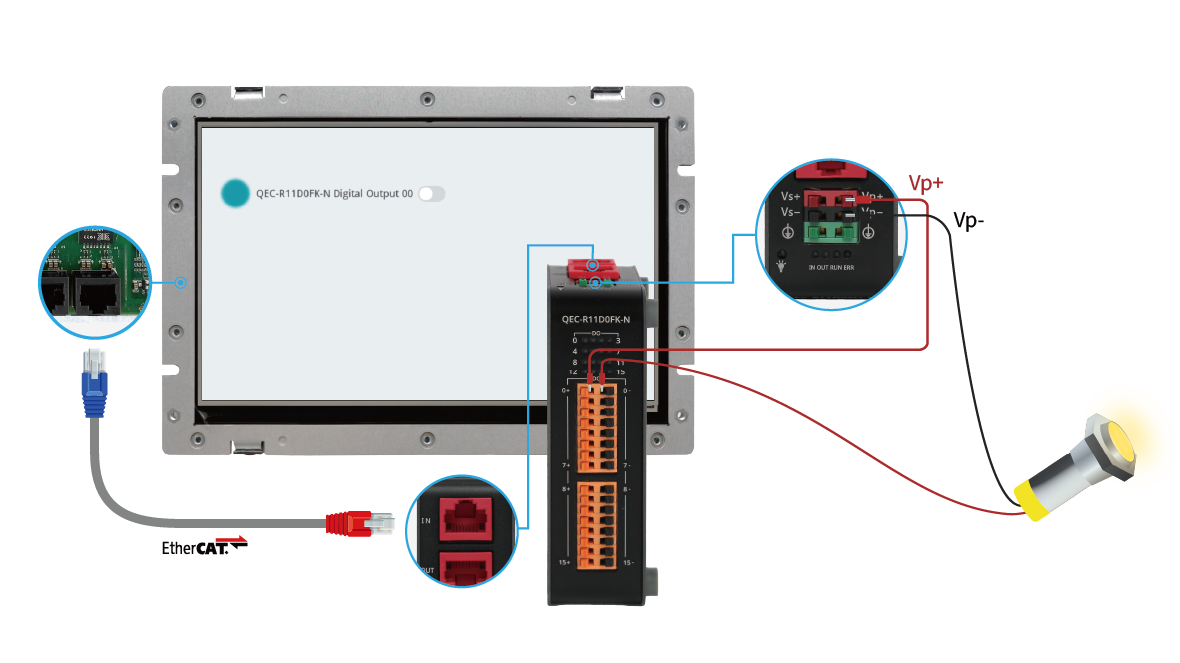
In this demonstration, the system is built using an EtherCAT HMI controller and the digital I/O module. The HMI panel provides the user interface, while the digital I/O module is responsible for handling the digital input and output signals.
The following hardware components are used in this example:
- QEC-M-070T – EtherCAT MDevice HMI solutions used for interface design and control logic execution
- QEC-R11D0FK-N – EtherCAT digital I/O module providing 16-ch digital output
- 24V power supply
- Ethernet cable (for EtherCAT communication)
Implementation Steps
The implementation process can be divided into three main steps. First, the EtherCAT devices are scanned and configured using EVA. Next, the HMI interface is designed using 86HMI Editor. Finally, the control logic is created using ArduBlock to complete the light control function.
Step 1 – 86EVA Configurator
- Set up the development board and port to be used
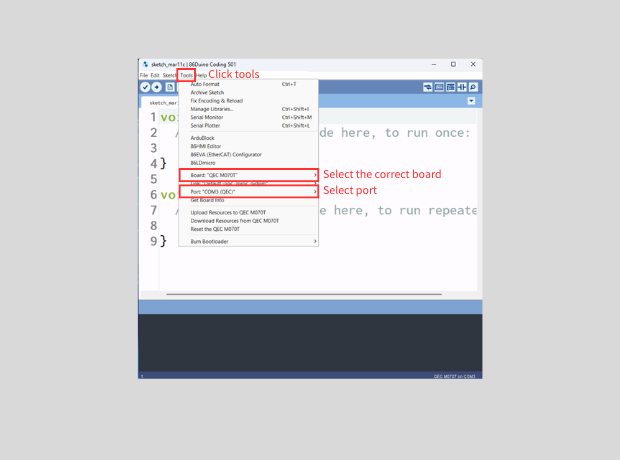
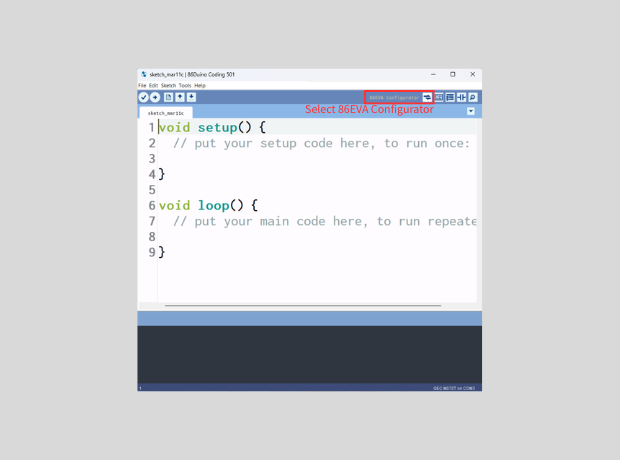
- Click the 86EVA Configuration Tool
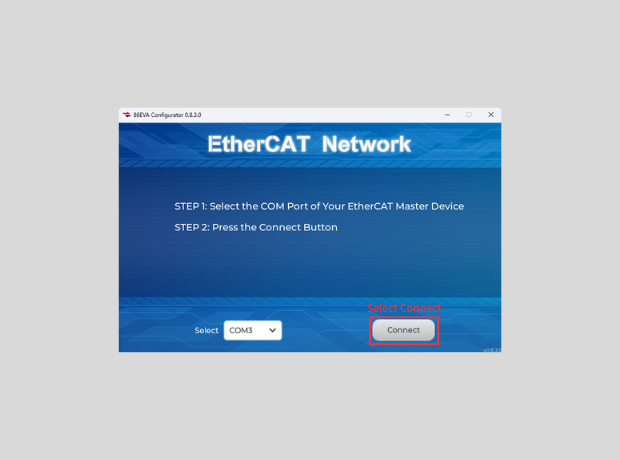
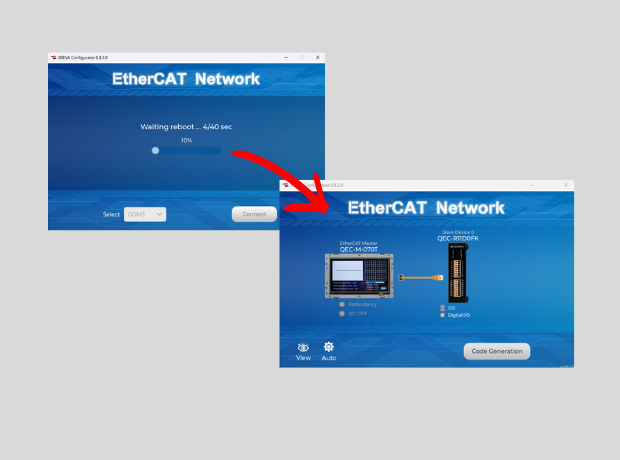
- Click to Connect to scan the device
- Scanning Device Process and Results
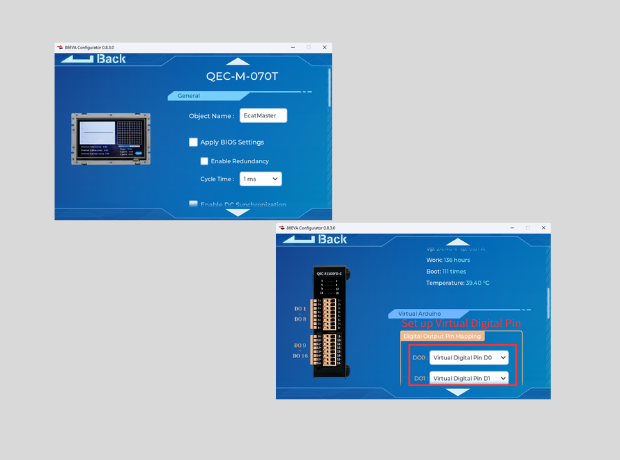
- Configure QEC-M-070T and QEC-R11D0FK-N Parameters
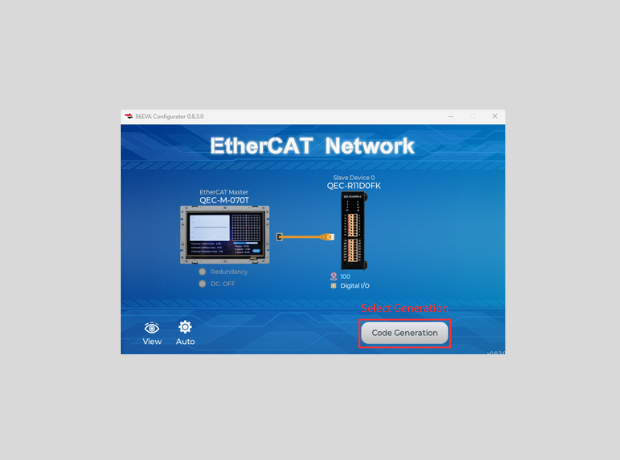
- After completing the setup, click Code Generation
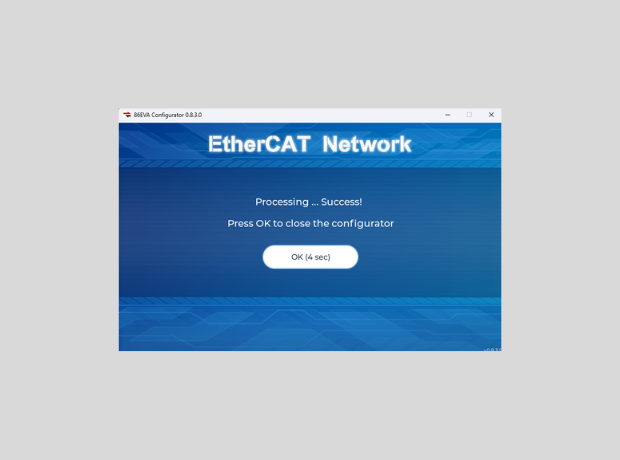
- Scanning is complete
Step 2 – 86HMI Editor UI Design
- Click the 86HMI Editor Tool
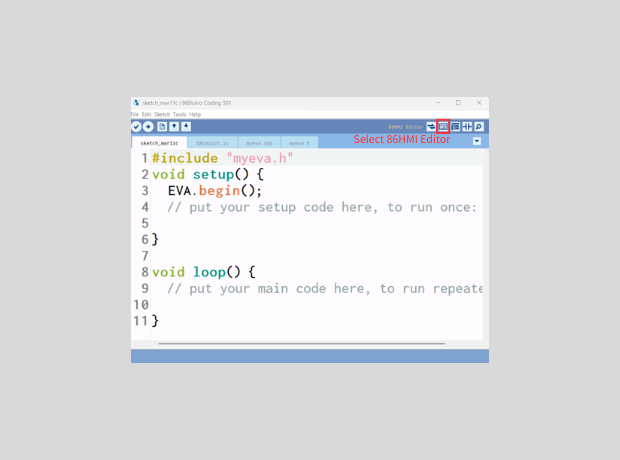
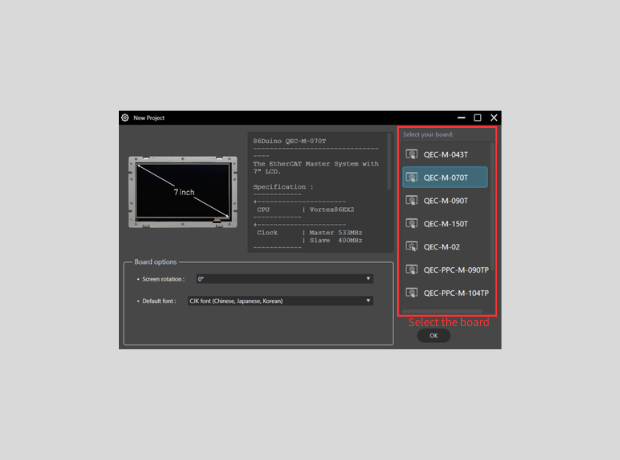
- Select the board
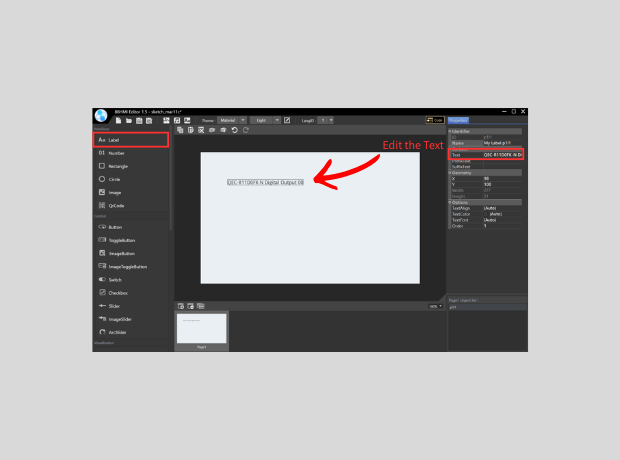
- Edit Text: Label > Text
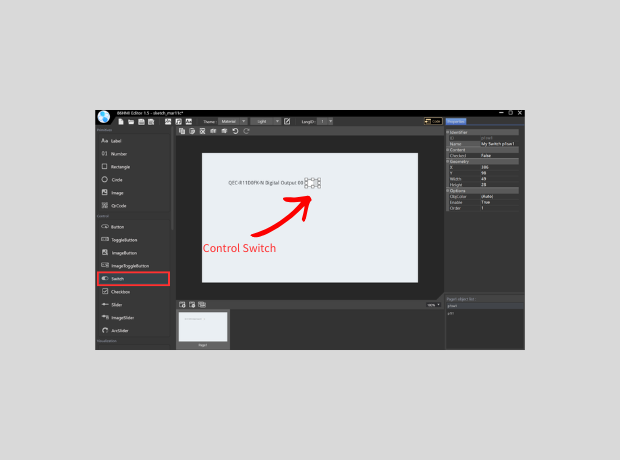
- Add control button: Switch
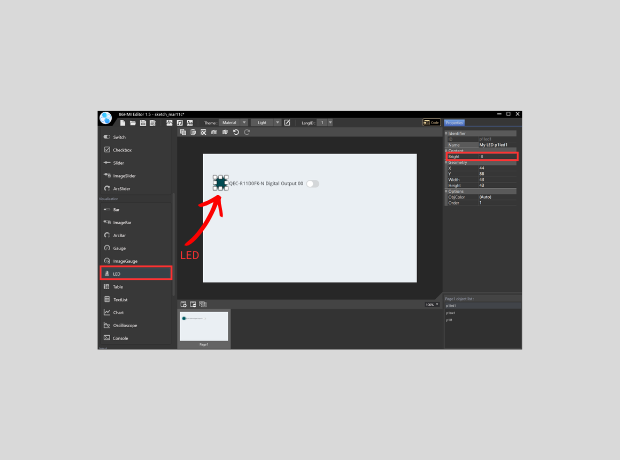
- Add visualization tools: LED (Bright can be set to 0)
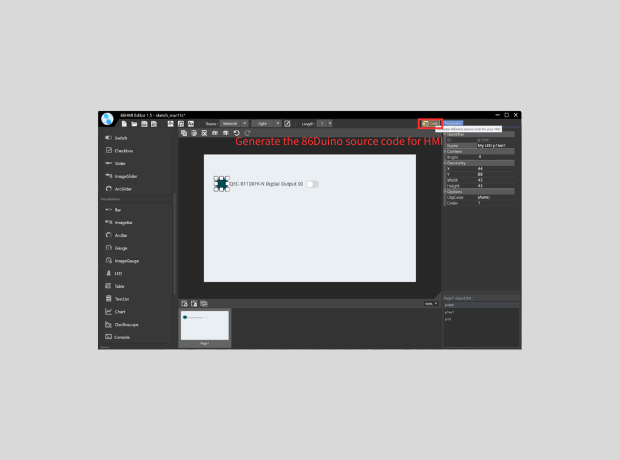
- Upload to Generate Example Content
Step 3 – ArduBlock Programming
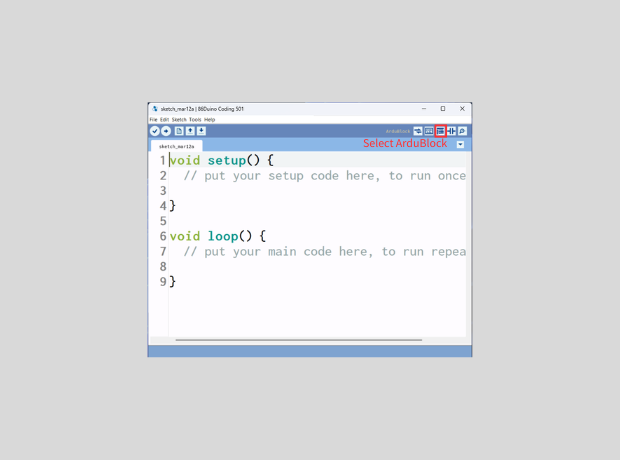
- Click the ArduBlock Tool
- ArduBlock Work Area
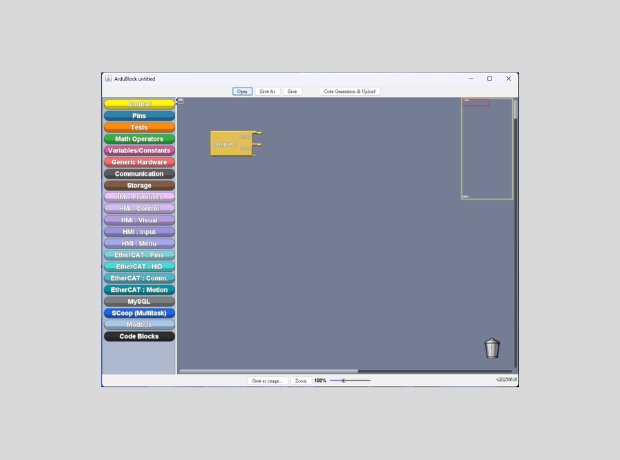
- Add HMI Event Block: HMI.Visual > HMI Event Section
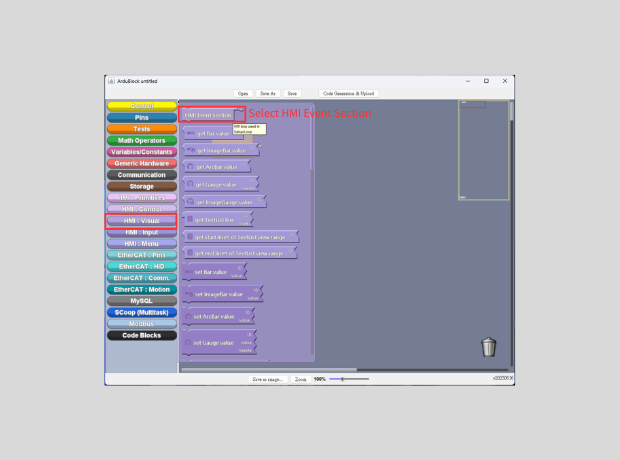
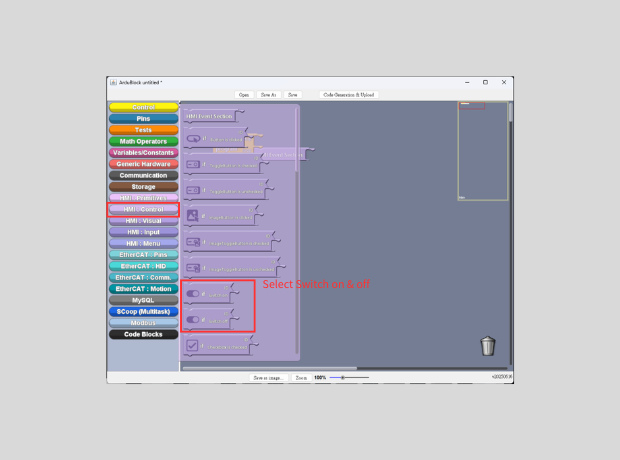
- Add HMI Control Block: if Switch on & off
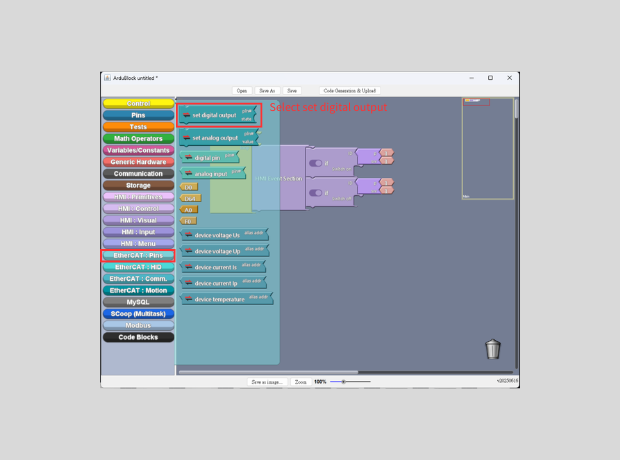
- Add Digital Output Block: EtherCAT.Pins > Set digital output
- Add HMI Visual Block: HMI.Visual > set LED bright
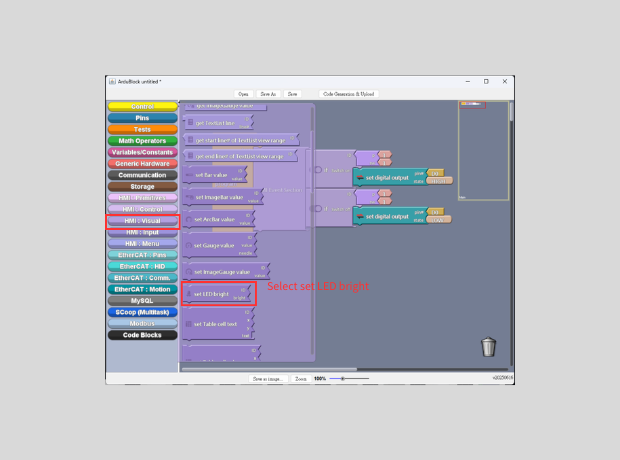
- Set up the Block value as below
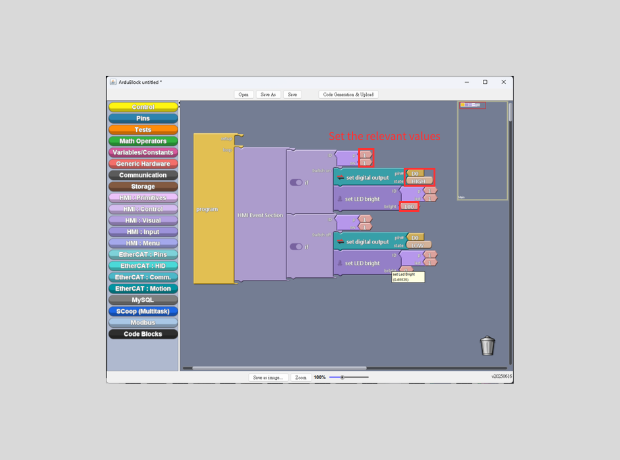
- Upload to Generate Example Content
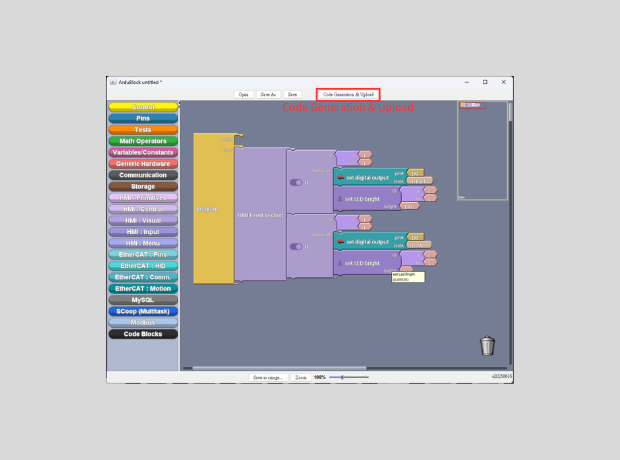
Demonstration Result
- Upload the generated configuration example content to the QEC-M-070T
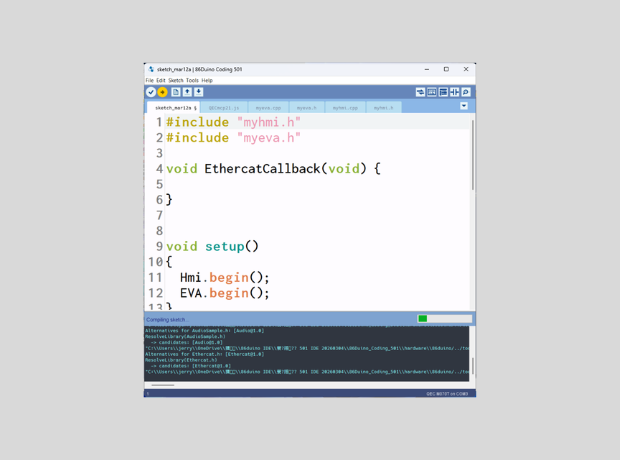
- Results Presentation
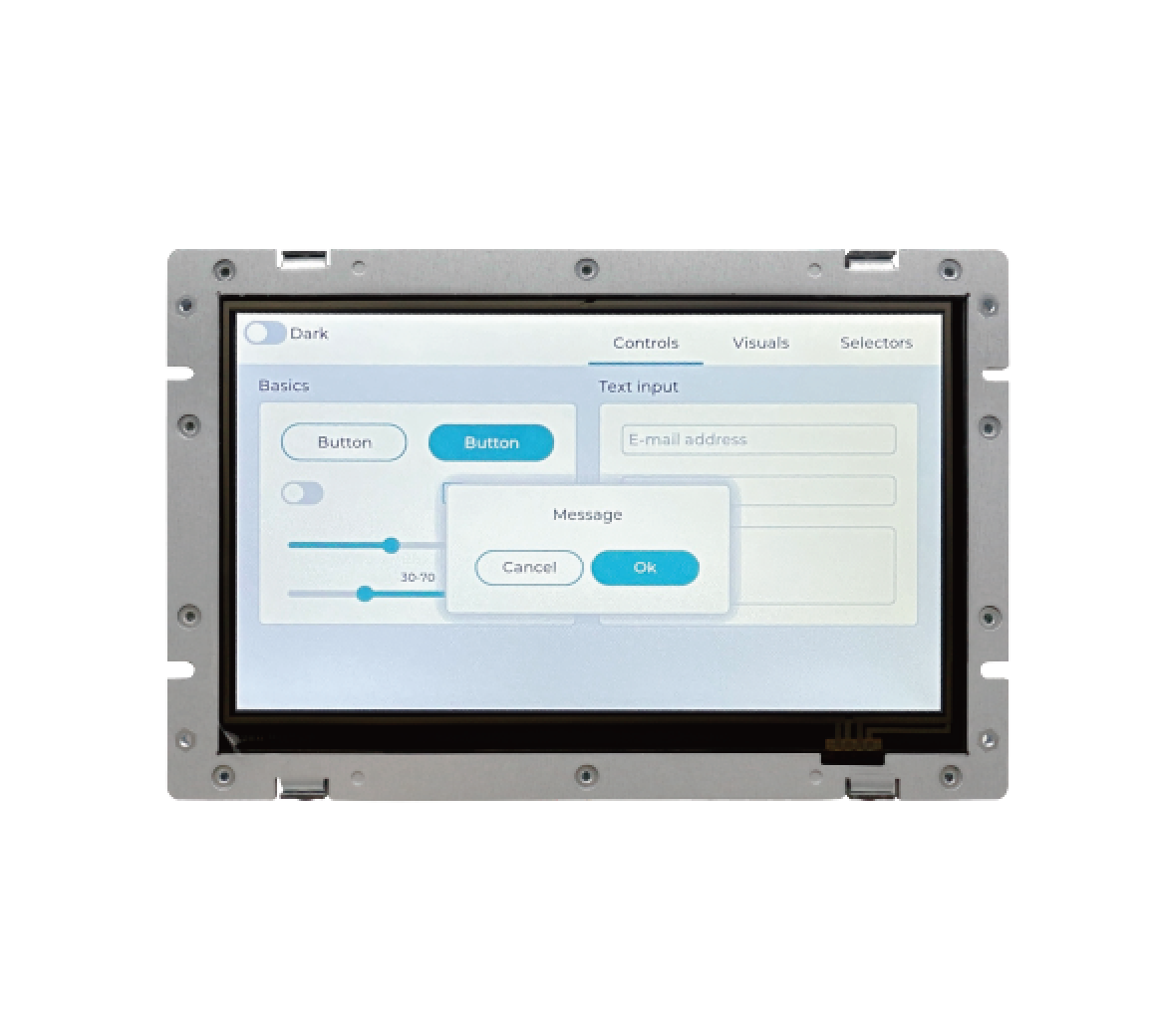
Featured Products QEC-M-070T:
- EtherCAT MDevice Open-frame 7” LCD
- Integrated EtherCAT MDevice on Real-time Dual-Core CPU
- 86Duino Integrated Development Environment (IDE)
- 7″ TFT LCD with Resistive Touchscreen (800×480)
- High Reliability SLC eMMC Storage with HDMI Output for HMI
- Industrial Operating Temperature -20 to +70°C / -30 to +85°C
- Rich Interfaces: 3×LAN, 3×USB, RS232/485, CAN, SPI, I2C, Arduino-Compatible GPIO
- Built-in Voltage, Temperature, and System Status Monitoring
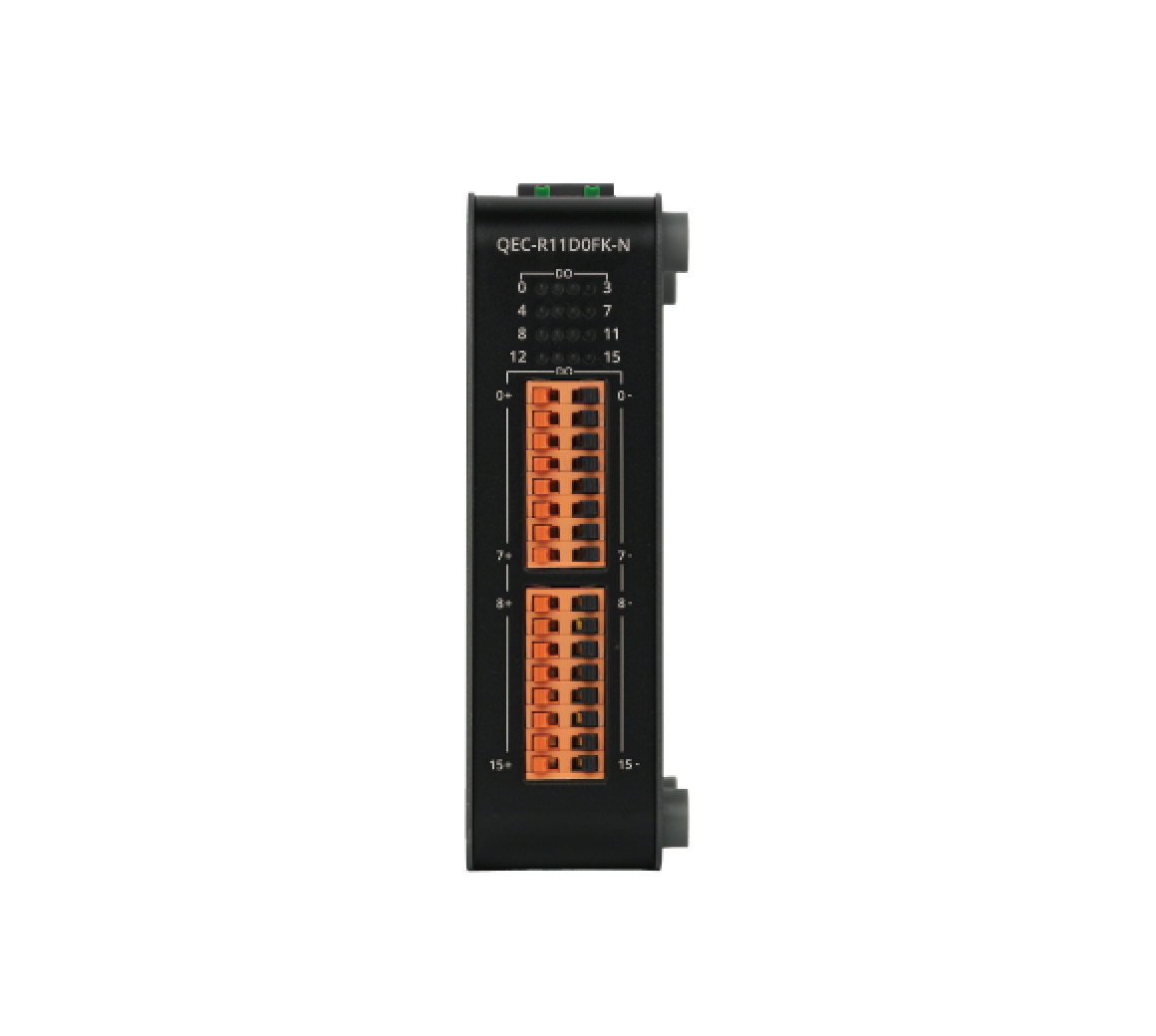
Featured Products QEC-RXXD0F:
- Isolated 16-Channel Digital Output
- Load Voltage Rating Up to 56VDC
- Up to 3750 Vrms Isolation Voltage Protection
- Internal Monitoring Hardware Information
- Support EtherCAT Distributed Clock (DC) Mode
- EtherCAT Conformance test tool verified
- Operating Temperature -20 to +70 °C
For more information or to request a sample, please email us at info@icop.com.tw, contact your nearest ICOP Branches, or get in touch with our Worldwide Official Distributor.
 English
  繁體中文
繁體中文  日本語
日本語