
![[Technical Tips] Upload the LCD BIOS by using the batch file to the VDX boards](https://icop-shop.com/wp-content/uploads/2026/02/Technical-Tips-Upload-the-LCD-BIOS-by-using-the-batch-file-to-the-VDX-boards.png)
This article applies to applications using ICOP motherboards with LCD display functionality. The following instructions use the VDX series motherboard (VDX-6326RD-NF-V2) as an example. In real-world projects and customer applications, LCD display issues such as no image output, abnormal display, or a black screen may occur due to LCD BIOS flashing failures, incompatible BIOS versions, or incorrect resolution and parameter settings during system startup. If these issues are not resolved in a timely manner, they may affect system validation, production processes, and overall project progress. In such cases, re-uploading or updating the LCD BIOS is required.
However, manually entering flashing commands is time-consuming and prone to errors, such as incorrect file paths or parameters, which may result in repeated flashing failures. To improve reliability and efficiency, this article recommends using a Batch File to simply the manual process, reduce errors, and ensure stable results.
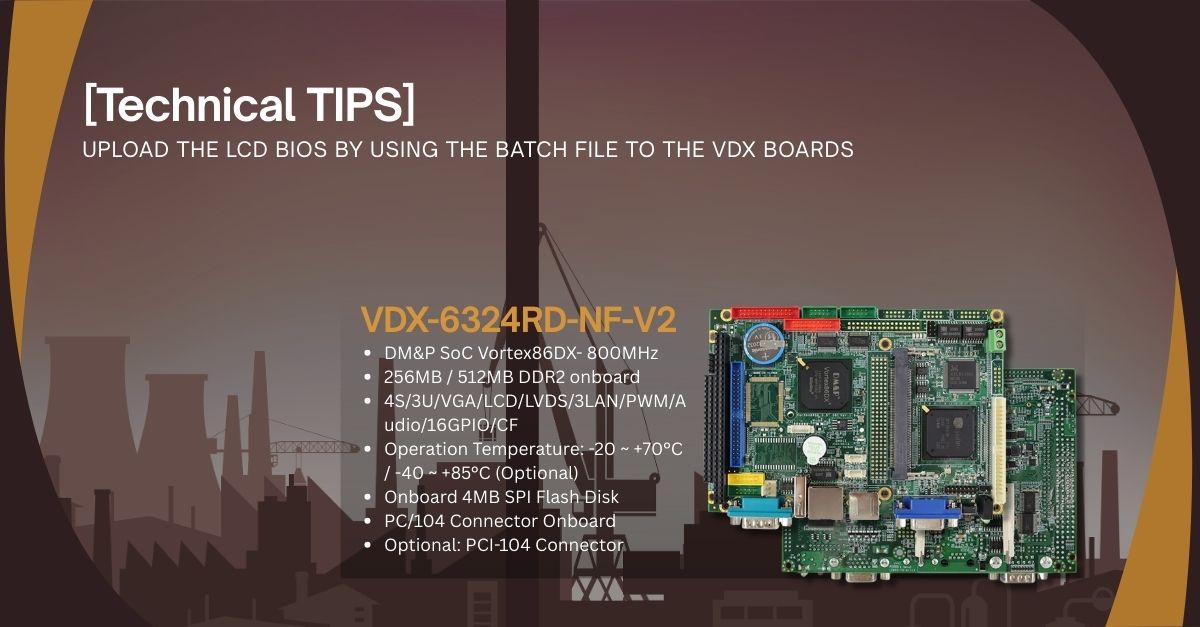
This section will use the VDX Board to provide step-by-step instructions for hardware configuration and LCD BIOS update procedures when using a 640×480 resolution LCD.
Hardware Preparation
- VDX-6326RD-NF-V2
- USB Keyboard
- Power Connector: DC +5V
- USB drive x1 pcs (required capacity 8GB or more)
- 2.0mm 10-pin box header for USB x1
- 2.0mm 16-pin pin header for LVDS x1 (After the update is complete, review the results)
USB Boot Drive and LCD BIOS Preparation
- VDX-6326RD-NF-V2 LCD BIOS (Resolutions: 640*480)
- Tool Rufus
- SPI Flash tool
Create the Batch File
- On the computer desktop, right-click and select Text Document
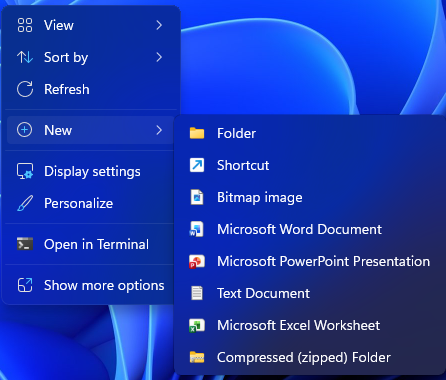
- Name your text file, and it relates to the command when the batch file is launched
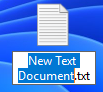
- In this demonstration, we use
aas the text file name

- Click the document and create the text context
SPIFLASH u 26NFB664.rom nomd5
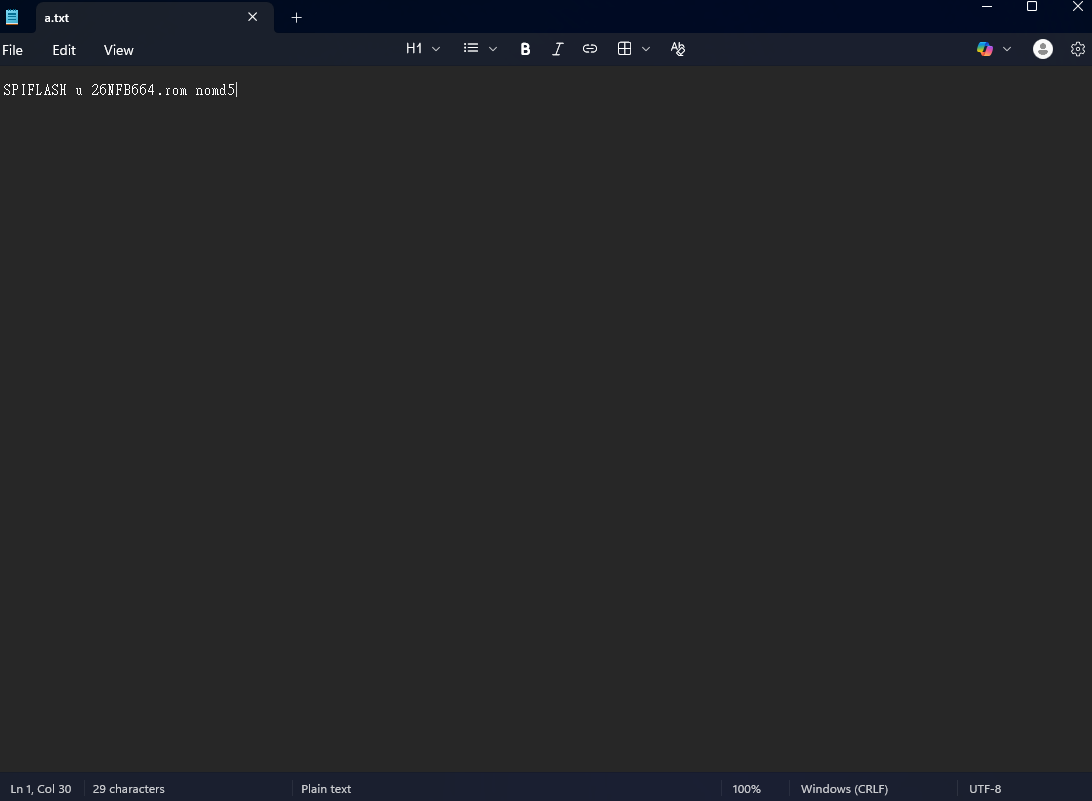
- Save the text content and return to the desktop
- Change the text file name to
a.batand click Yes
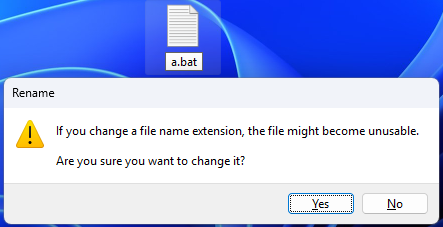
- Batch file configuration completed

Common Parameter Formats for BIOS Flash Tools
| Meaning of Each Field | Description | ||
| SPIFLASH | The specified device type for burning is SPI Flash (the BIOS chip on the motherboard). | ||
| u | Representing Update or Write mode. | ||
| 26NFB664.rom | The BIOS image file to be burned in. | ||
| nomd5 | Indicates skipping MD5 checksum verification. | ||
Use tool Rufus to create the USB Boot Drive
- Connect USB drive to Windows PC, and double click rufus to execute
- Select Boot selection as FreeDOS
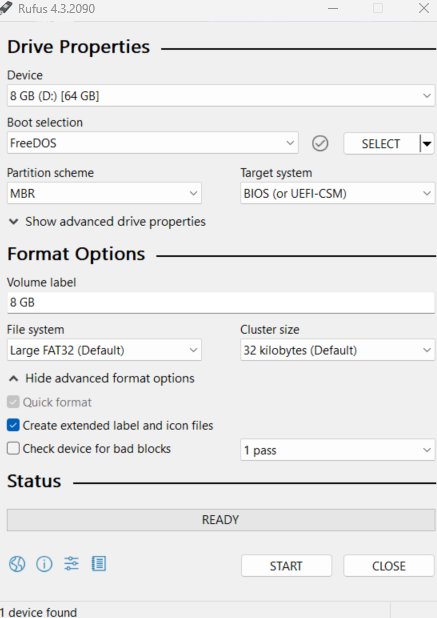
- Click START
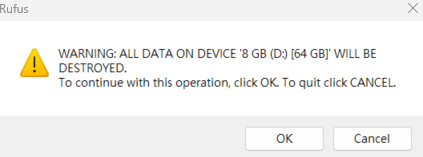
- A warning message appear, click OK to continue this operation
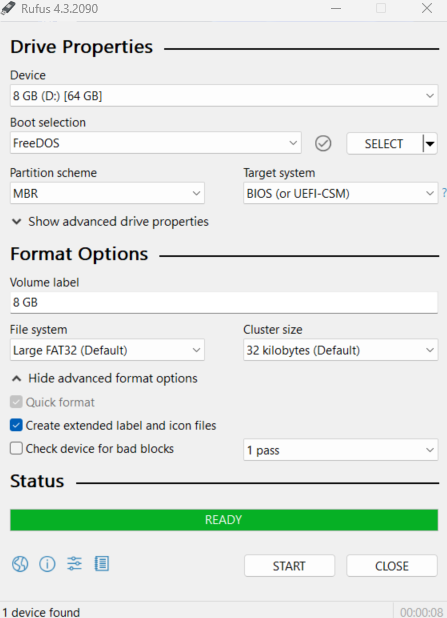
- Click CLOSE and remove USB drive from Windows PC and the USB Boot Drive is created
- Put the
spiflash.exe,a.bat file, and26NFB664.rominto the USB Boot Drive
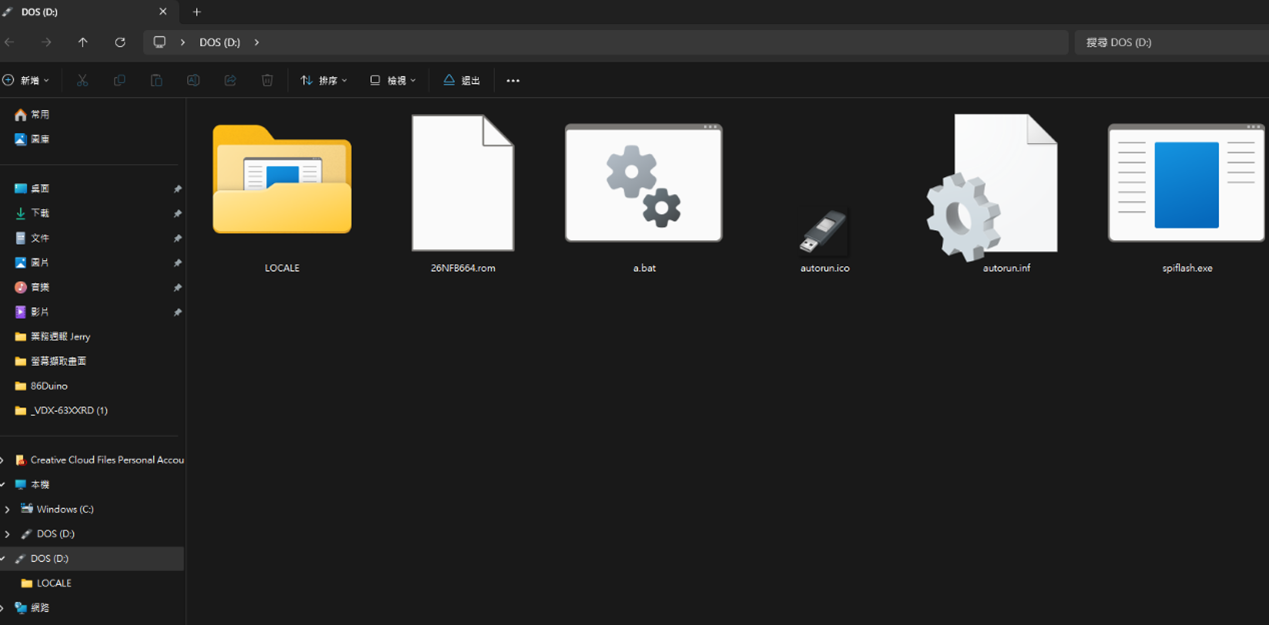
Upload the LCD BIOS to the VDX-6326RD-NF-V2 Board via a batch file
- Insert the USB to the VDX-6326RD-NF-V2 Board
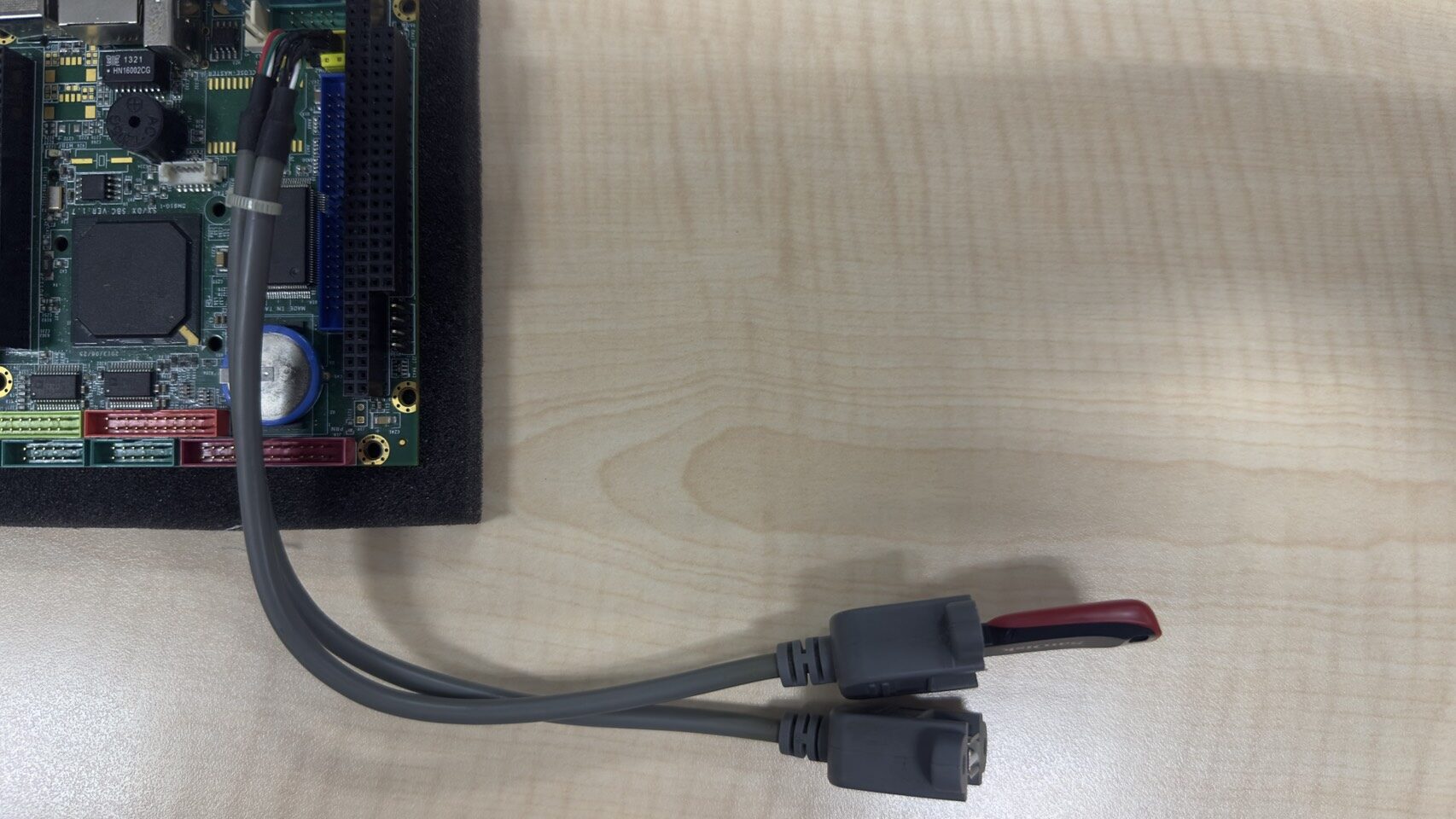
- Connect the USB Keyboard
- When powering on the VDX-6326RD-NF-V2, press the
akey on the keyboard, then pressEnterto execute the batch file update command - Then wait for 10-30 seconds
- Reboot the VDX-6326RD-NF-V2 Board to see the result
Advanced Tip: Use autoexec.bat for One-Click BIOS Update
To further streamline the BIOS update process, you can create a batch file named autoexec.bat and place the BIOS flashing command inside it. When the system boots into DOS or from a USB drive, this file will be executed automatically, allowing the BIOS to be programmed without any manual command input.
This approach is especially useful for production lines, validation labs, or large-scale deployments, as it reduces human error and ensures a fast and consistent flashing process.

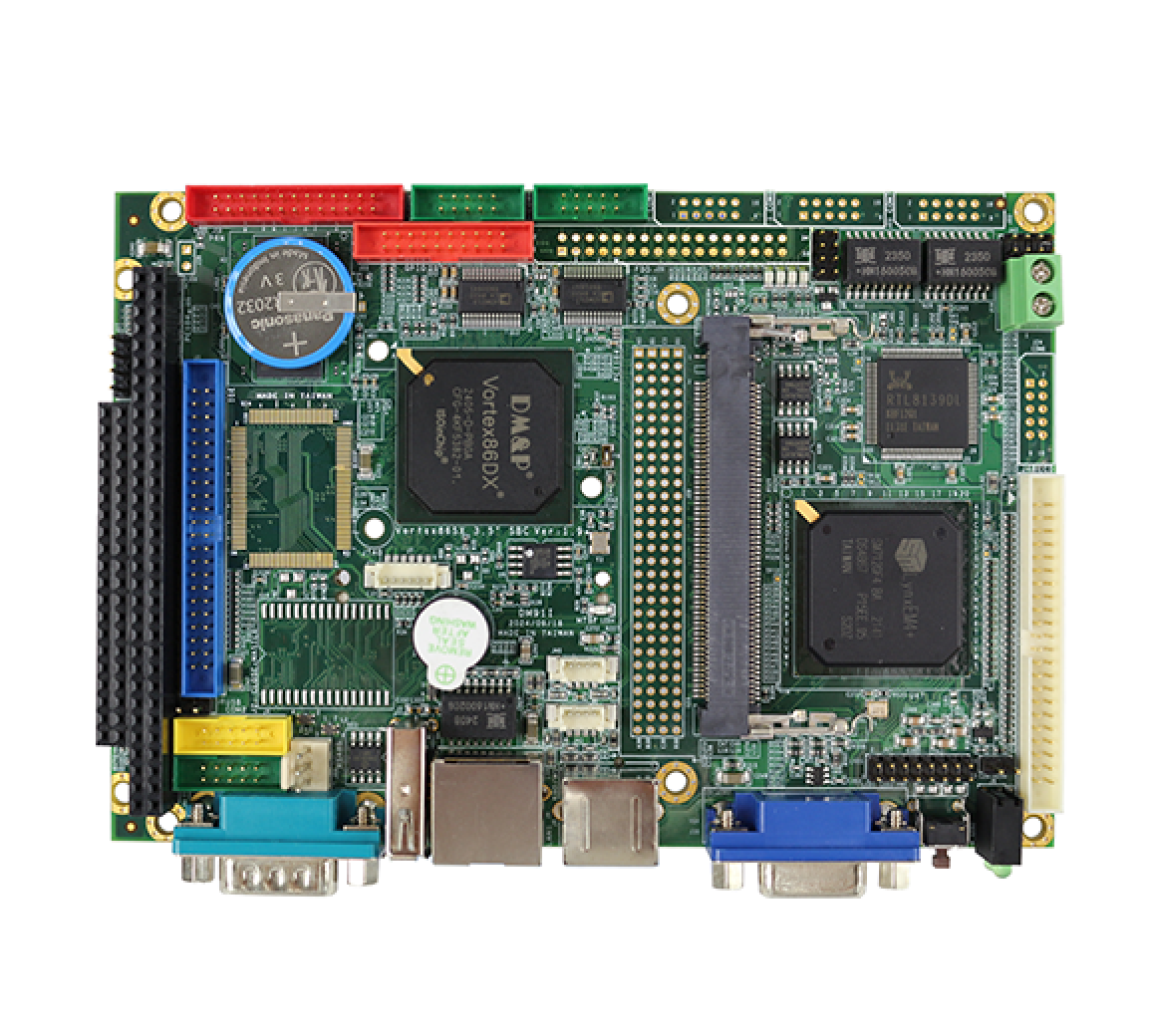
Featured Products VDX-6326RD-NF-V2:
- DM&P SoC Vortex86DX- 800MHz
- 256MB / 512MB DDR2 onboard
- 4S/3U/VGA/LCD/LVDS/3LAN/PWM/Audio/16GPIO/CF
- Operation Temperature: -20 ~ +70°C / -40 ~ +85°C (Optional)
- Onboard 4MB SPI Flash Disk
- PC/104 Connector Onboard
- Optional: PCI-104 Connector
For more information or to request a sample, please email us at info@icop.com.tw, contact your nearest ICOP Branches, or get in touch with our Worldwide Official Distributor.

![[Technical Tips] Upload the LCD BIOS by using the batch file to the VDX boards](https://icop-shop.com/wp-content/uploads/2026/02/Technical-Tips-Upload-the-LCD-BIOS-by-using-the-batch-file-to-the-VDX-boards-300x201.png)
![[Technical tips] Start Guides for QEC-M-01 and SANYO DENKI SANMOTION G Series (CSP PP)](https://icop-shop.com/wp-content/uploads/2026/02/Technical-tips-Start-Guides-for-QEC-M-01-and-SANYO-DENKI-SANMOTION-G-Series-CSP-PP-300x201.png)
 English
  繁體中文
繁體中文  日本語
日本語