
![[Technical Tips] How to install CentOS Stream 9 on EB-58N Mini PC](https://icop-shop.com/wp-content/uploads/2026/02/Technical-Tips-How-to-install-CentOS-Stream-9-on-EB-58N-Mini-PC.png)
This guide walks through the process of installing CentOS Stream 9 on the EB-58 Series Mini PC, covering system prerequisites, known platform limitations, and the complete installation procedure. It also highlights important considerations such as BIOS/UEFI configuration requirements, storage capacity constraints, CPU feature support, and hardware compatibility notes, helping ensure a smooth and predictable installation experience.
Why Use CentOS Stream 9?
CentOS Stream 9 is positioned between Fedora and Red Hat Enterprise Linux (RHEL) within Red Hat’s ecosystem. It is a continuously delivered distribution that closely tracks the next minor release of RHEL, providing early visibility into upcoming changes while maintaining alignment with enterprise Linux standards.
CentOS Stream 9 is well suited if you need:
Strong binary and functional compatibility with RHEL, making it suitable for software development, system validation, and integration workflows targeting enterprise deployments.
- A RHEL-like environment
Adheres to RHEL’s ABI/API stability guarantees throughout its lifecycle, offering a predictable platform for development and long-running services, while recognizing a shorter support horizon compared to RHEL.
- Enterprise-aligned ABI/API stability
CentOS Stream 9 is officially positioned as a development, testing, and pre-production platform within the RHEL ecosystem. Core libraries, drivers, and packages are tested and aligned with enterprise requirements, allowing developers and system integrators to evaluate upcoming RHEL behavior earlier in the release cycle.
- A predictable and forward-looking ecosystem
System Overview and Hardware Capabilities
- ICOP EB-58N
- 輸出螢幕
- USB keyboard
- USB flash drive (≥ 8GB)
- Power supply (DC +12V)
Step-by-Step Installation Guide
- Downloading the CentOS Stream 9 ISO
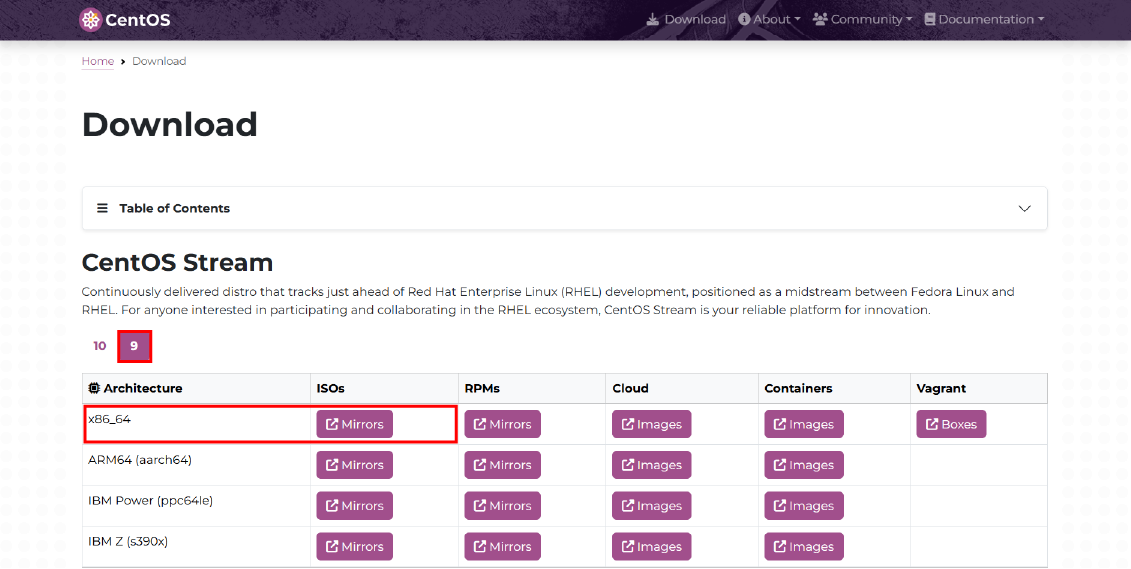
- Visit the official CentOS Stream download page
- Choose CentOS Stream 9
- Select DVD ISO
(Recommended because it includes most packages for offline installation)
- Creating a Bootable USB (Using Fedora)
- 檔案下載 Fedora.
- Insert your USB flash drive.
- Open Fedora and choose .iso file and your USB to creating a bootable USB.
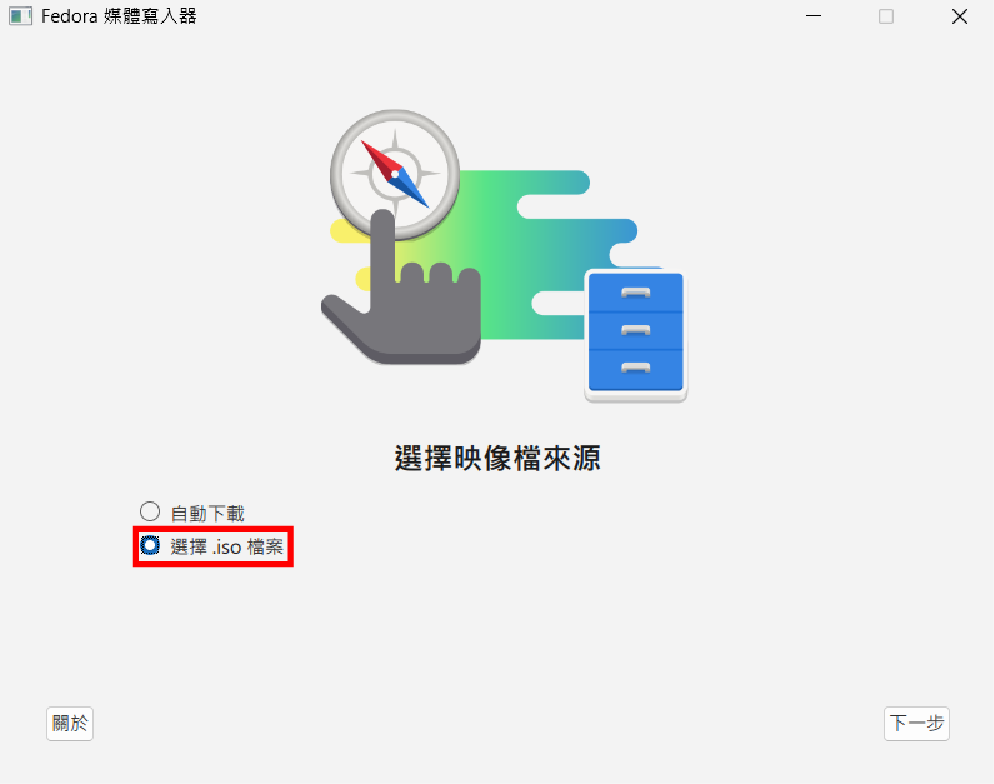
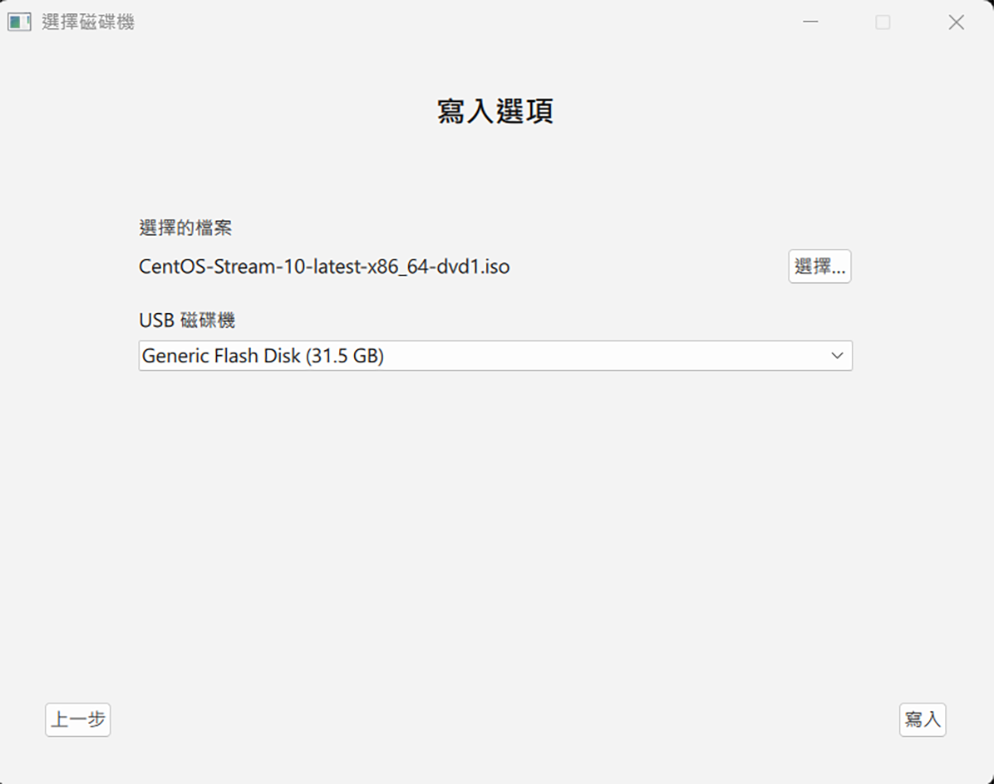
Configuring the EB-58N BIOS
Power on the EB-58N and press Del, Esc, or F2 to enter BIOS.
Check and adjust these settings:
Choose Legacy or UEFI depending on model support.
Enable “USB Boot” or “USB Storage Boot” and enter the boot menu (usually F7, Esc, or F11, depending on BIOS), select the USB drive to boot
Ensure SATA controller is enabled if installing to SSD
Save and exit the BIOS.
- Boot Mode
- USB Boot
- SATA Configuration
Installing CentOS Stream 9
1. Language & Keyboard
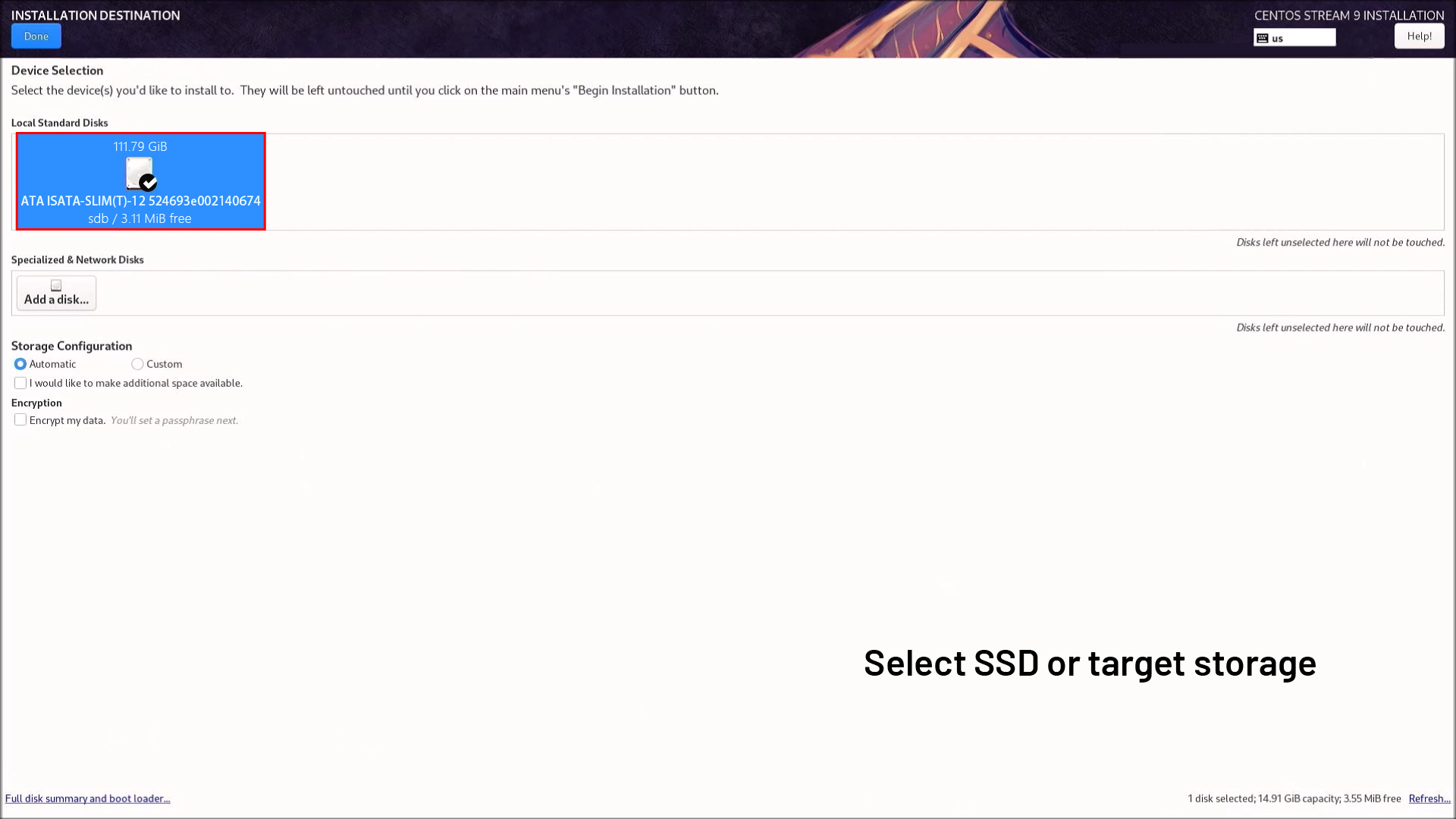
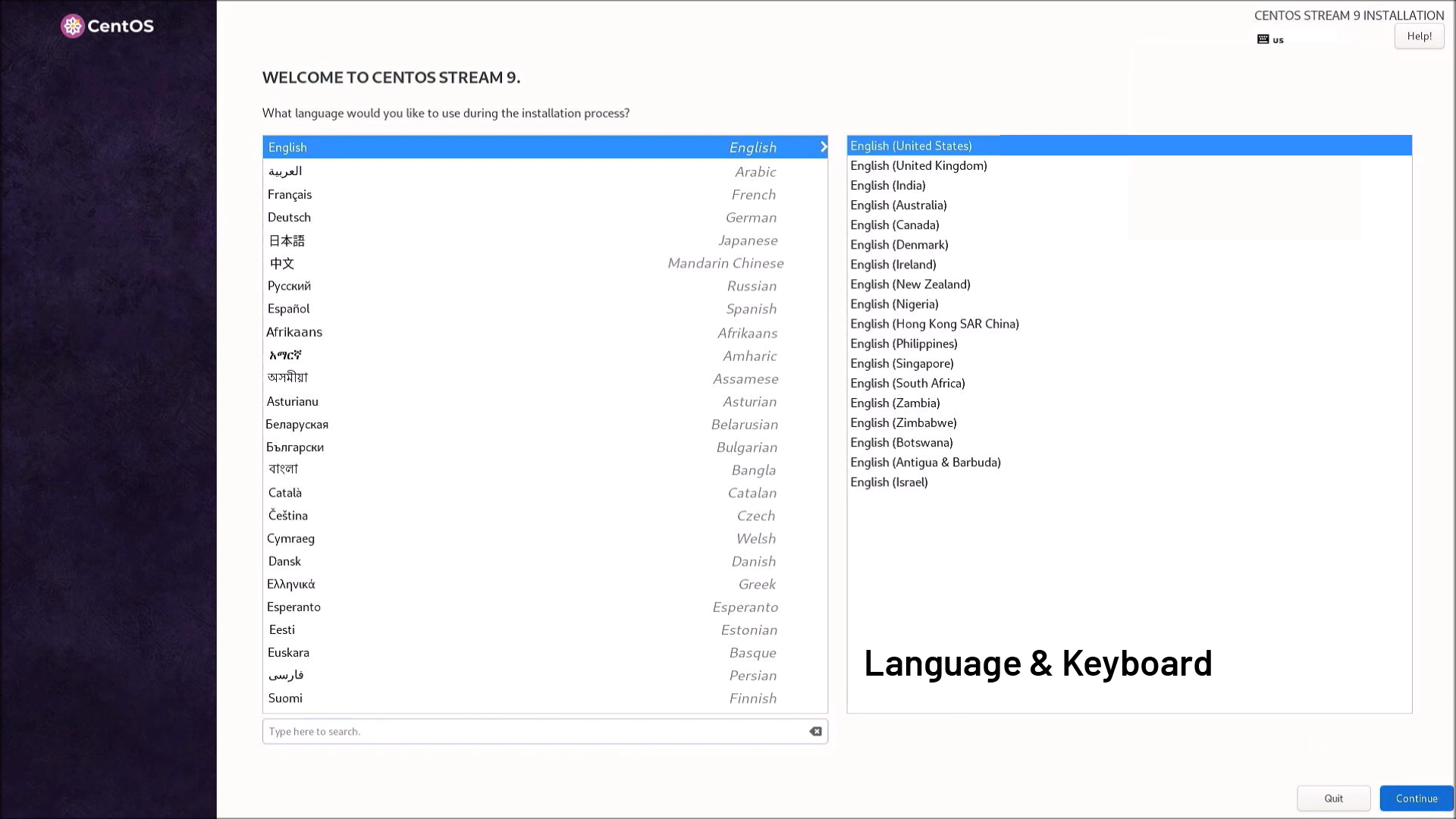 2. Installation Destination
 Select SSD or target storage
 Choose automatic partitioning (recommended) or manual if you need custom layouts
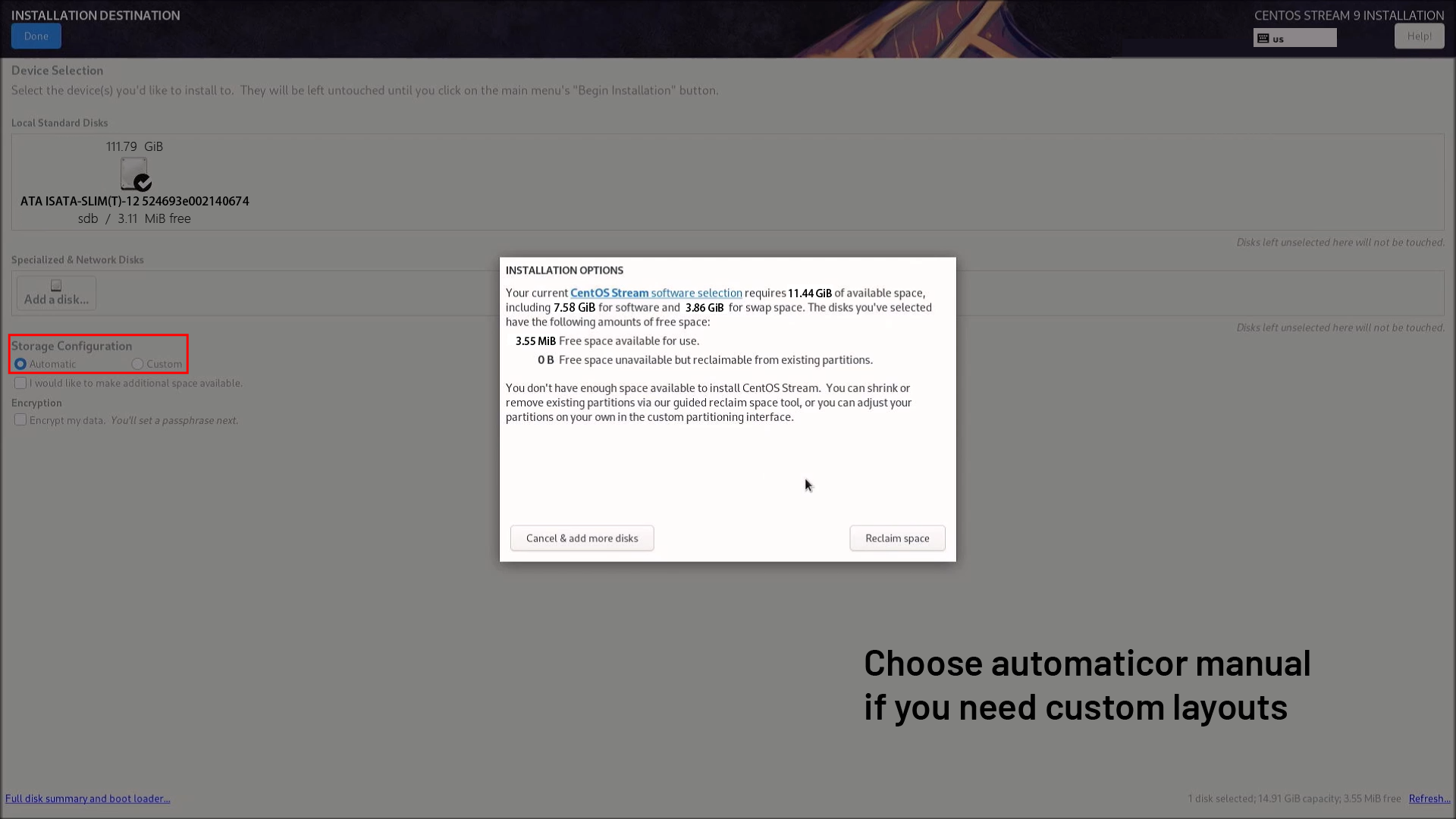 Reclaim space if it is not sufficient
 3. Root Password / User Setup
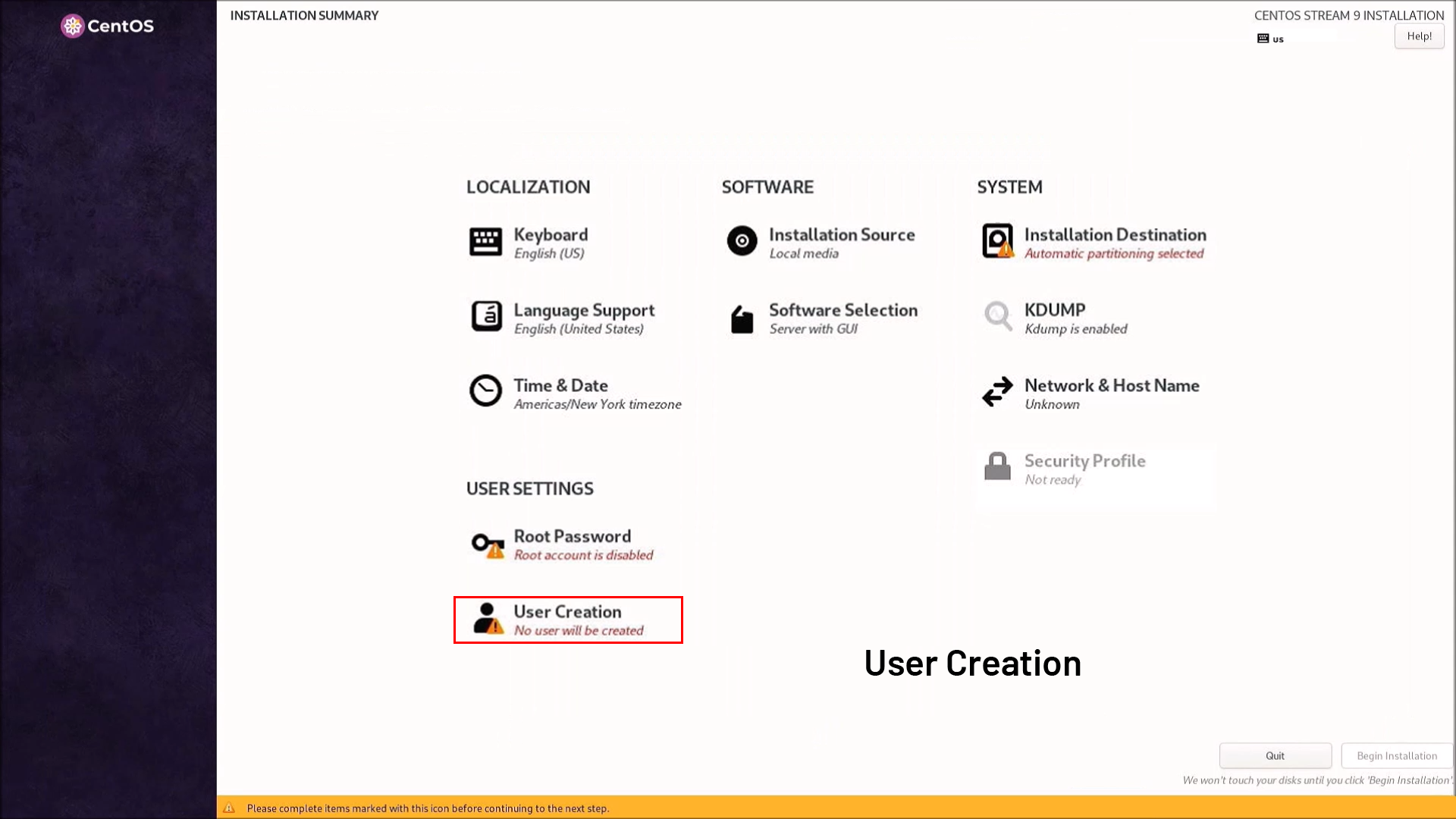
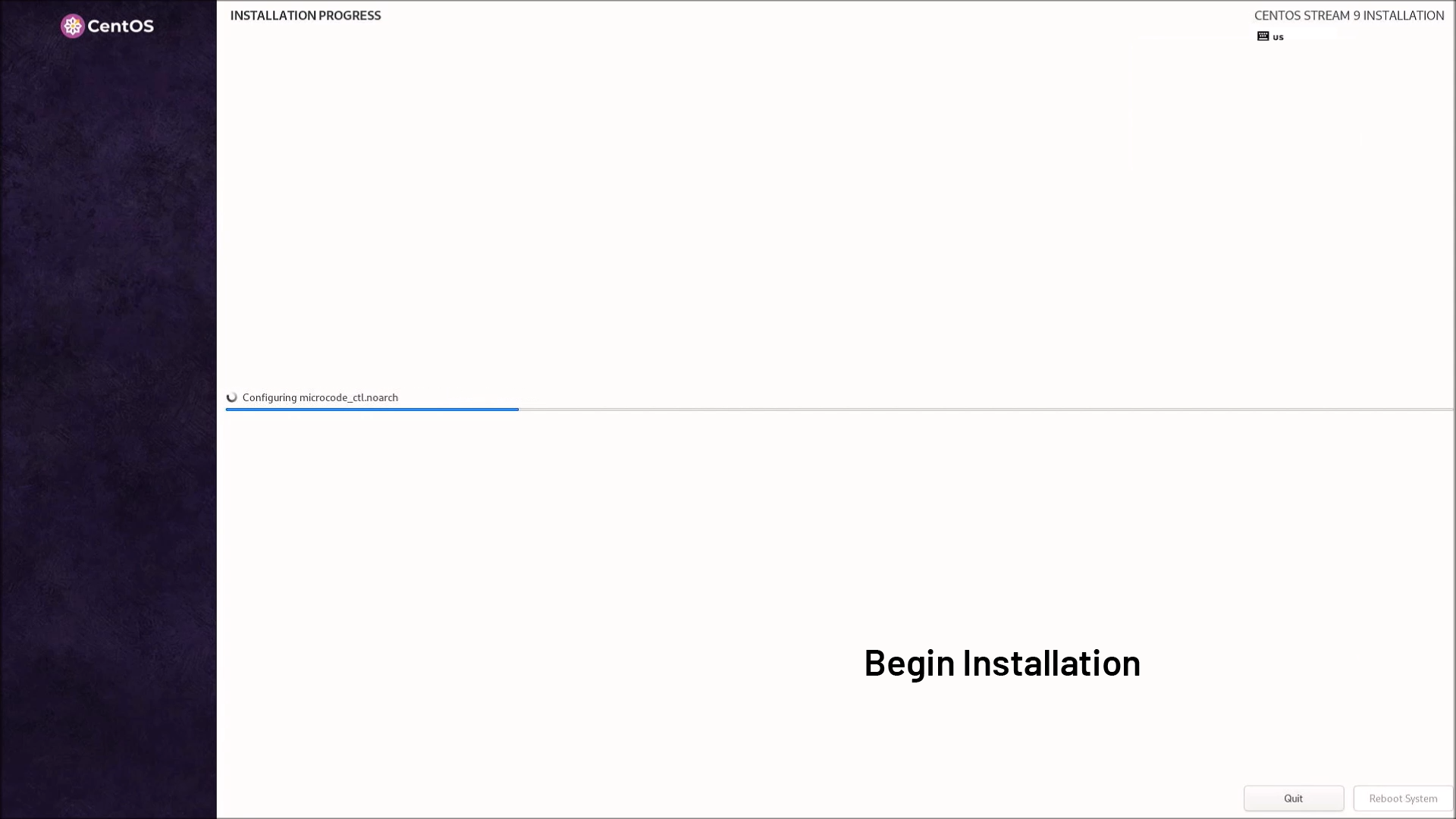
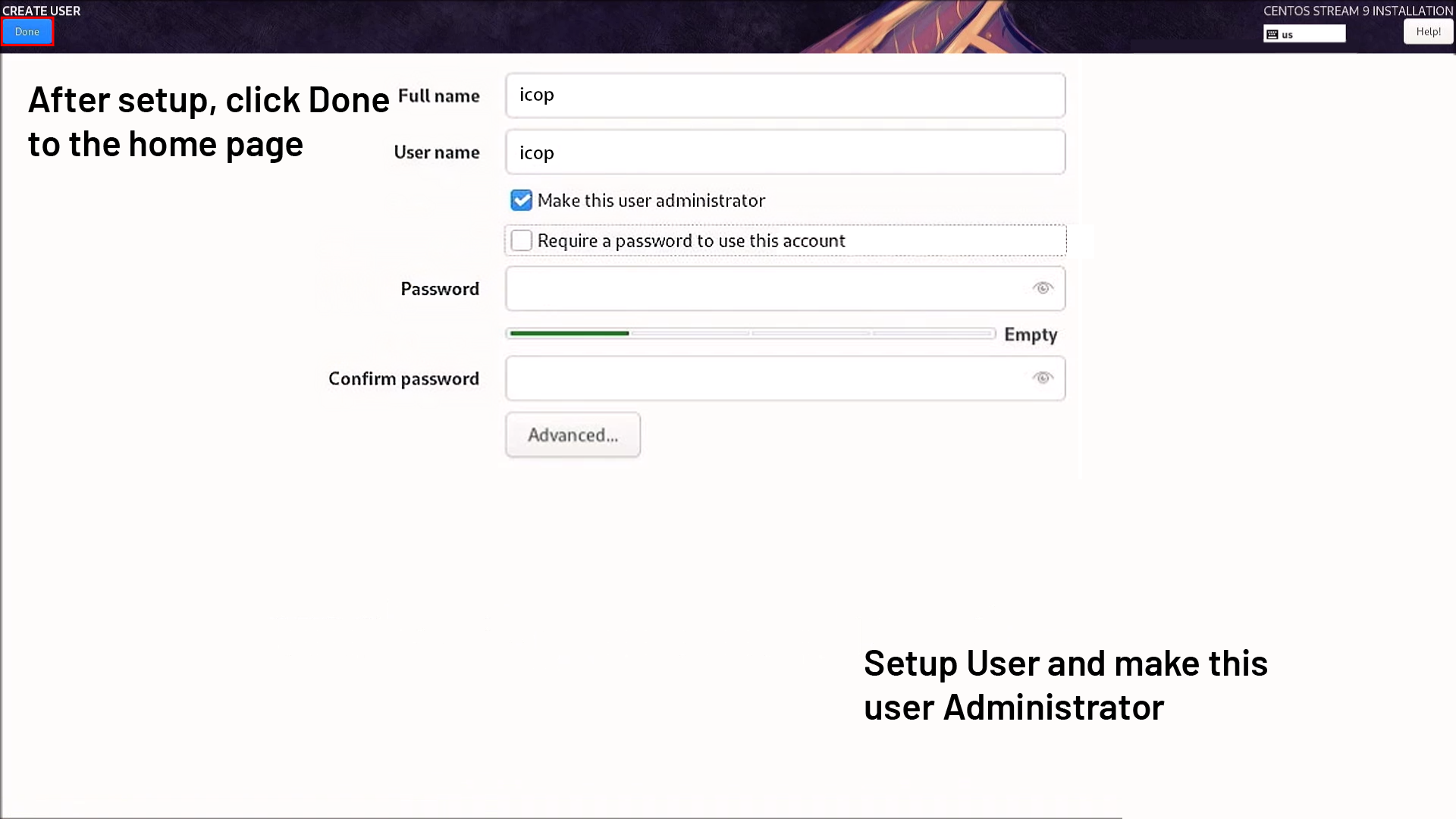 4. Begin Installation
The installer will format, install packages, and configure the system.
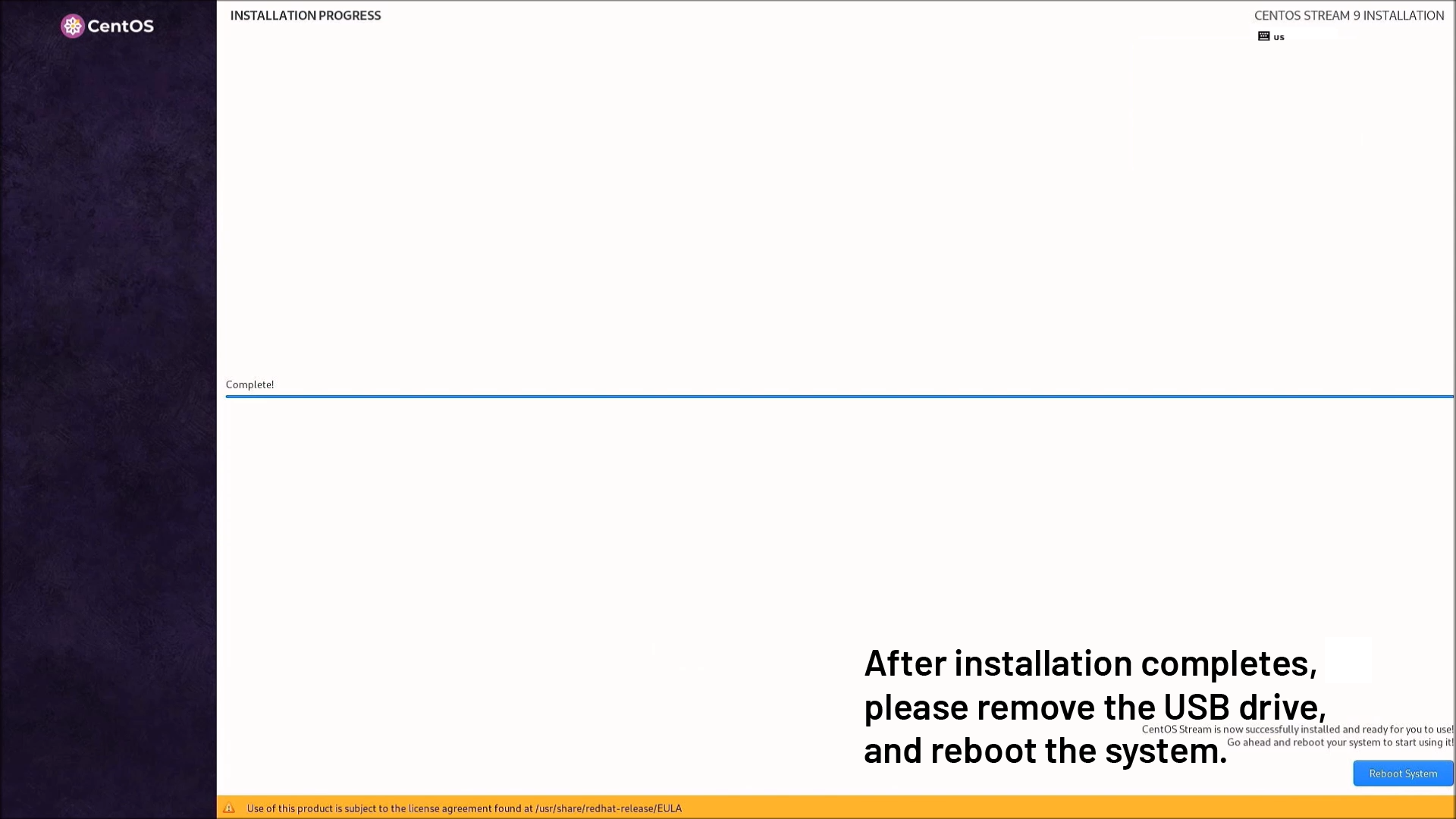
 5. After installation completes, please remove the USB drive, and reboot the system.
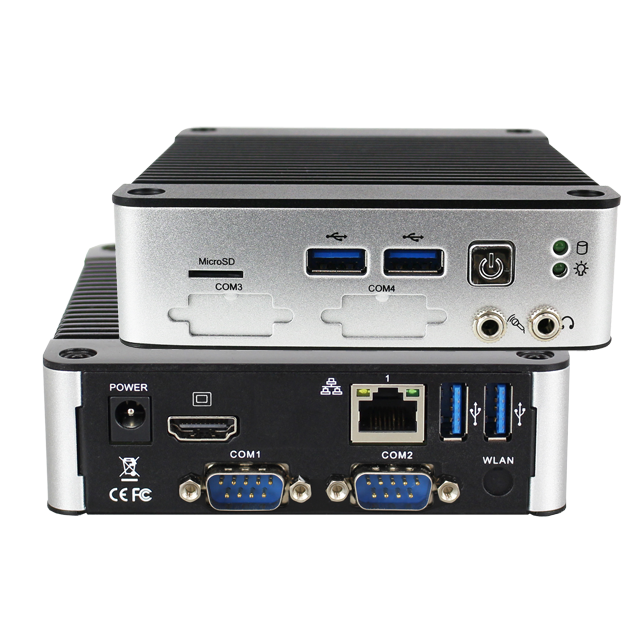
主要特點 EBOX-58N Series:
- Intel®Celeron N3160 Quad-core 1.6GHz,/ 2.24GHz (Burst)
- AMI UEFI BIOS (可切換 Legacy 模式)
- DDR3L SO-DIMM 8GB
- 2S/4U/2GLAN/Mic-in/Line-out/HDMI/SATA/M.2/mSD
- RS-232/RS-485/TTL(Optional)
- TPM (Optional)
- Auto Power On 自動開機
- PXE 網路開機
- 支援 100 x 100mm VESA
- DIN Rail 滑軌支架 (選配)
- 工作溫度: 0 ~ +60°C
如果想了解相關資訊及需求,請點選訊息於此處 info@icop.com.tw,或致電離您最近的 ICOP 分公司,或聯繫我們的 全球官方經銷商。


![[Technical Tips] Upload the LCD BIOS by using the batch file to the VDX boards](https://icop-shop.com/wp-content/uploads/2026/02/Technical-Tips-Upload-the-LCD-BIOS-by-using-the-batch-file-to-the-VDX-boards-300x201.png)
![[Technical tips] Start Guides for QEC-M-01 and SANYO DENKI SANMOTION G Series (CSP PP)](https://icop-shop.com/wp-content/uploads/2026/02/Technical-tips-Start-Guides-for-QEC-M-01-and-SANYO-DENKI-SANMOTION-G-Series-CSP-PP-300x201.png)
 English
  繁體中文
繁體中文  日本語
日本語