
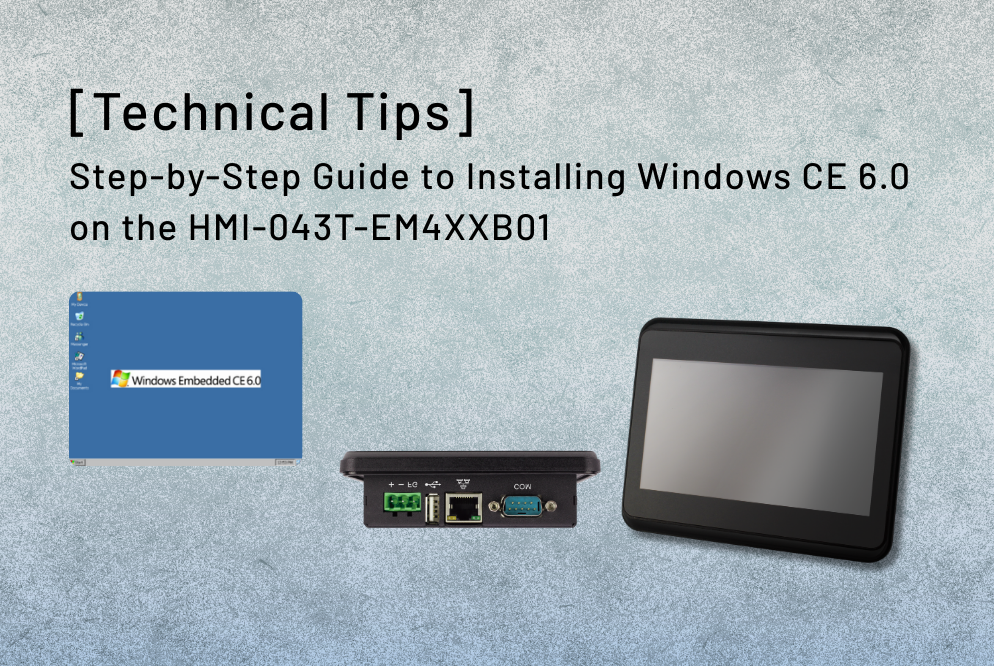
HMI-043T-EM4XX-B01 是一款多功能人機介面(HMI)裝置,廣泛應用於工業自動化領域。透過在該裝置上安裝 Windows CE 6.0 作業系統,使用者可充分釋放其潛能,為嵌入式應用提供輕量且穩定的運作環境。本指南提供關鍵要訣與逐步操作流程,確保安裝過程順暢無虞。
安裝前的準備工作
在開始安裝程序之前,請確保以下事項:
- HMI-043T-EM4XX-B01: 請確認裝置運作正常,並使用正確的電源轉接器供電。
- 一個 USB 隨身碟(至少 512MB,格式化為 FAT/FAT32)。此媒體將用於載入 Windows CE 6.0 安裝檔案。
- 一台具備有效網際網路連線、SD卡讀卡機或USB連接埠的電腦,用於準備可開機的儲存裝置。
- Rufus: 下載並安裝 Rufus 以建立可開機媒體。
下載安裝檔案
請將以下檔案下載至您的電腦:
- Windows CE 6.0 安裝套件
- 針對 HMI-043T-EM4XX-B01 系列產品的專用驅動程式與設定檔,請參閱 ICOP 官網 作業系統支援清單.
步驟 1:使用個人電腦上的 Rufus 準備可開機媒體
要在 HMI-043T-EM4XX-B01 上安裝 Windows CE 6.0,您需要建立可開機的 SD 卡或 USB 隨身碟。本文將使用 USB 隨身碟進行此操作,請參照以下步驟:
- 下載 Win CE6.0_套件
- 您將會看到 FDOS_043.img file, GHOST11.exe 與 NK.bin 於檔案套件內部

- 請解壓縮 FDOS_043.img.xz 圖像檔案(建議在電腦中解壓縮)
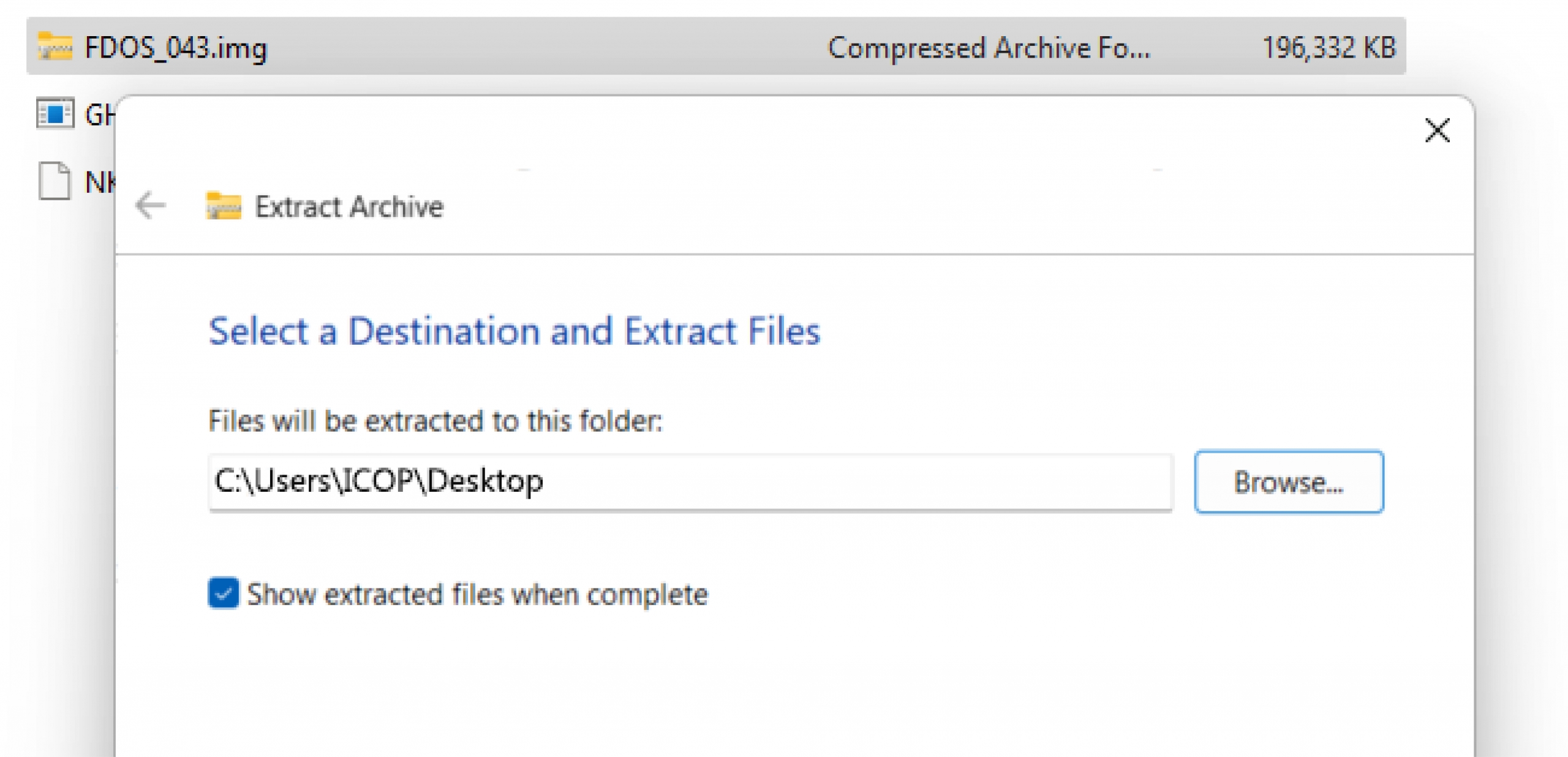
- 雙擊 Rufus.exe 製作一張可開機的FreeDOS光碟
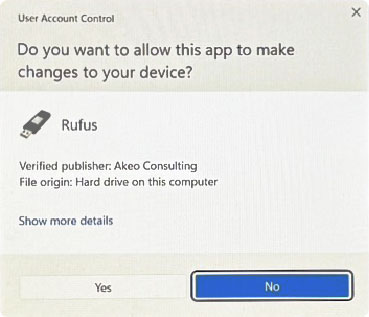
- Rufus 設定:
USB 裝置,Select FDOS_043.img.xz file與START
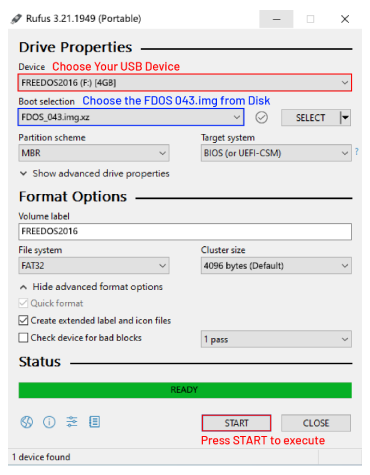
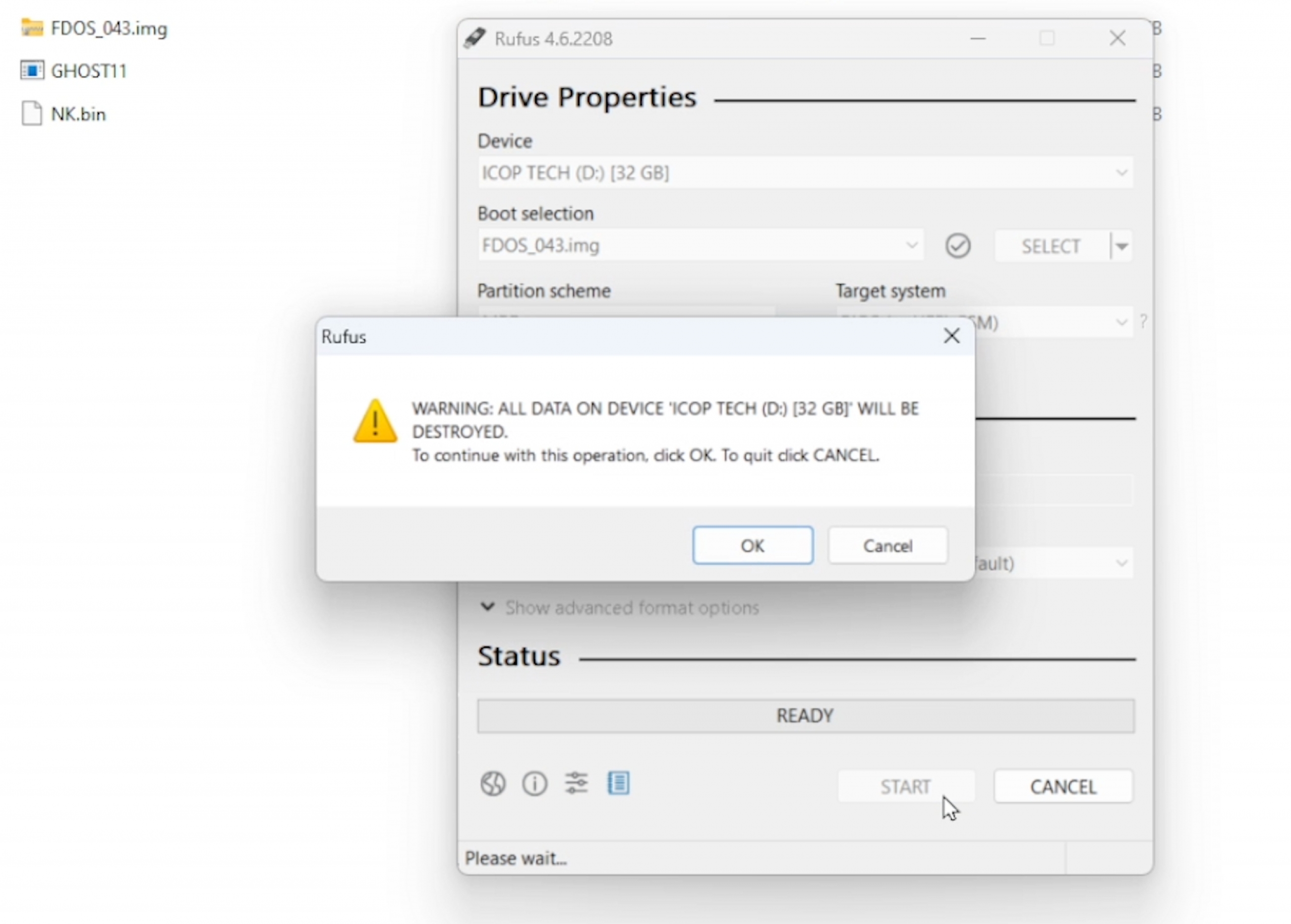
- 點擊
OK至可開機磁碟完成
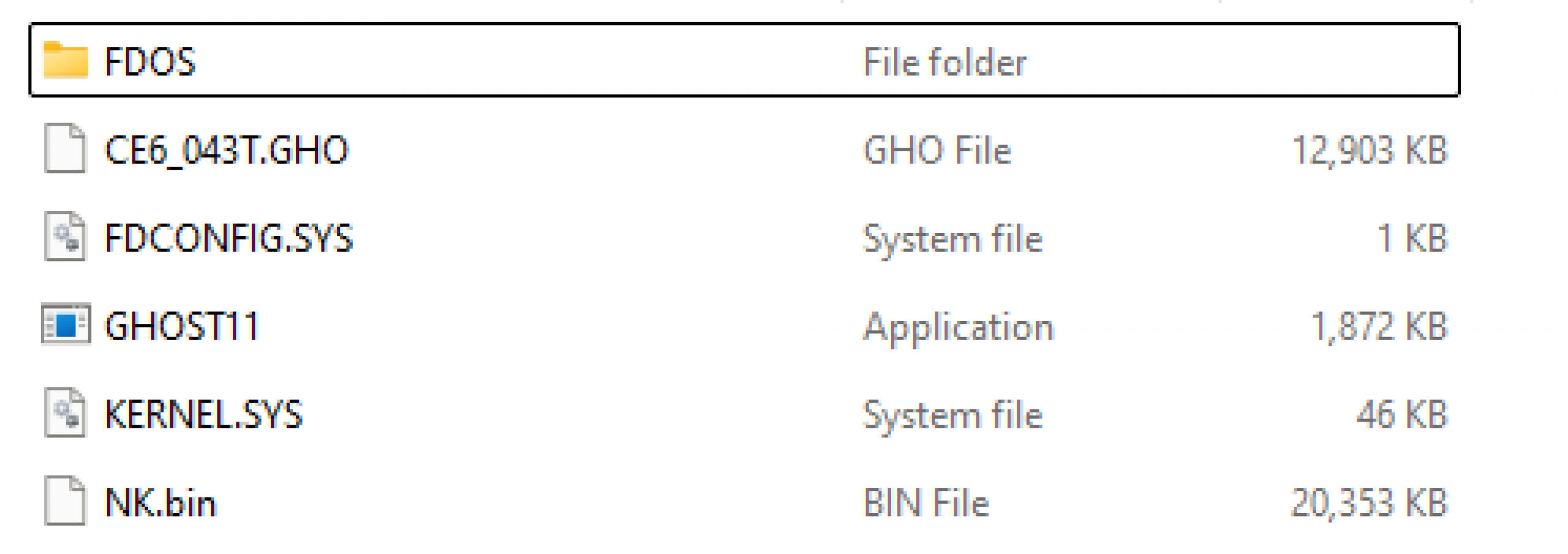
- 開啟檔案後,您將看到以下檔案:
步驟 2:設定 HMI-043T 裝置以進行安裝
- 將可開機媒體插入 HMI-043T-EM4XX-B01
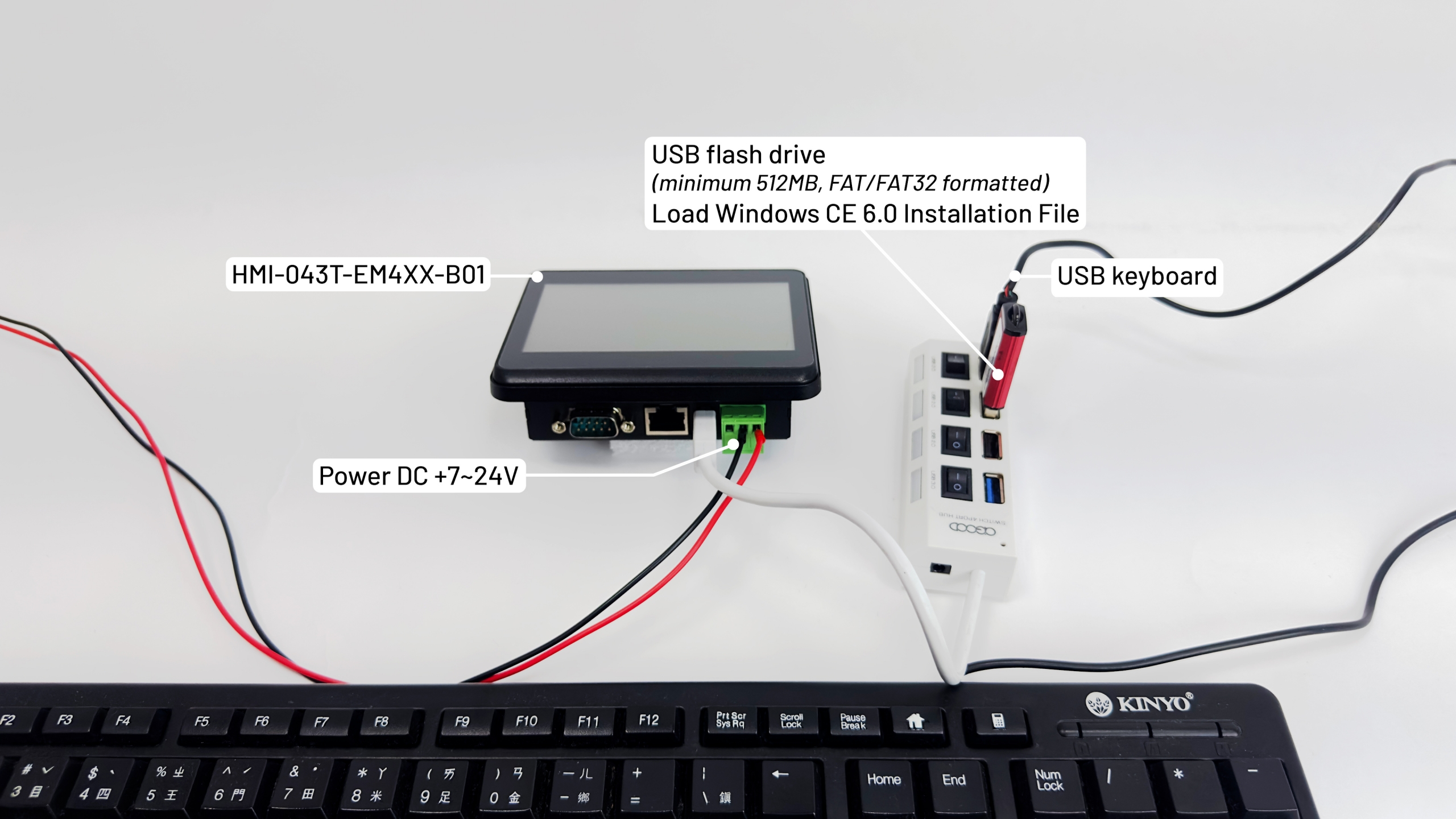
- 按下
F12選擇開機裝置 - 選取
2選擇 USB 隨身碟
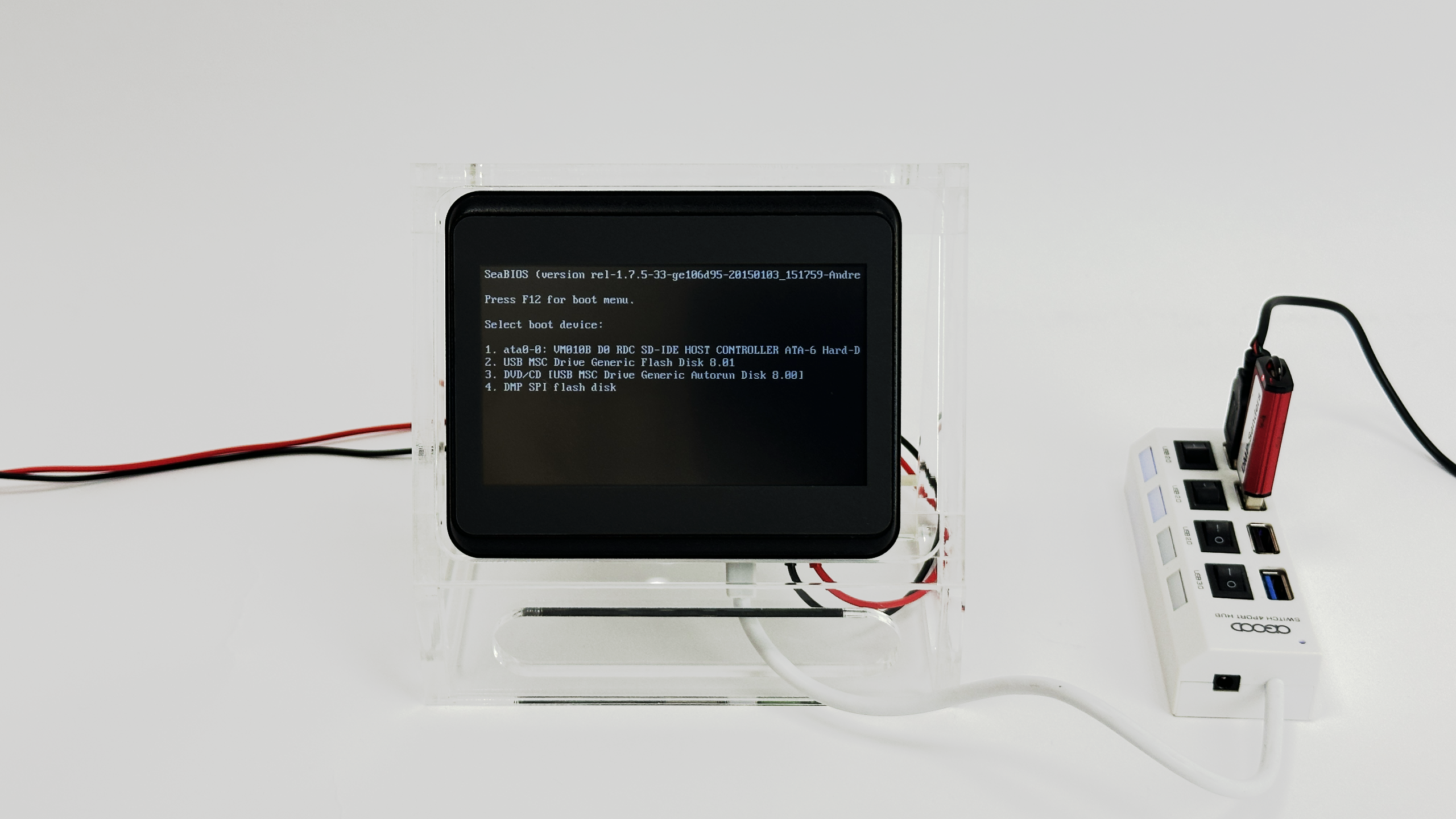
- 選擇選項 1 並按下
輸入
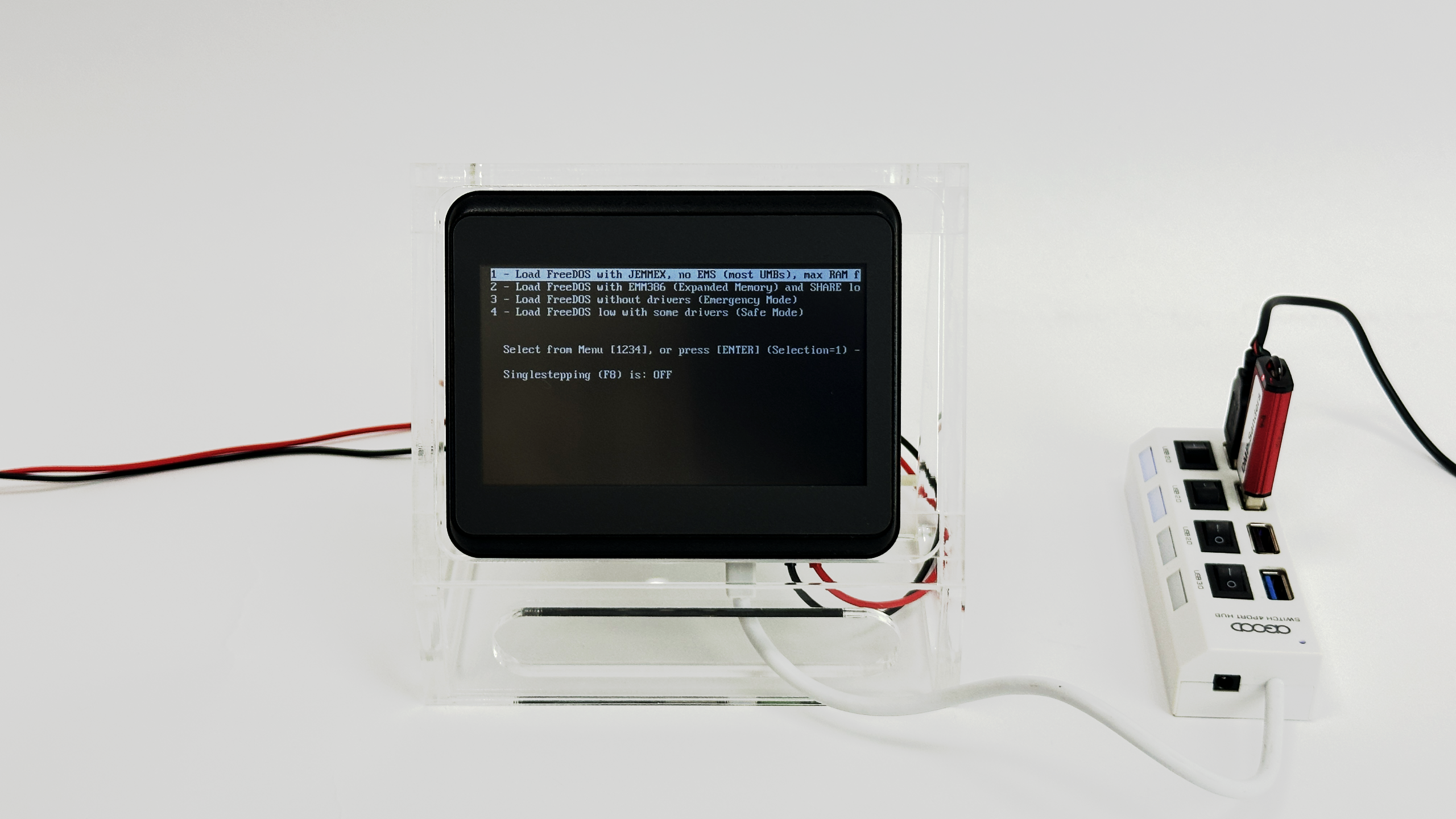
- 您將看到下方畫面,請輸入
cls清除螢幕指令
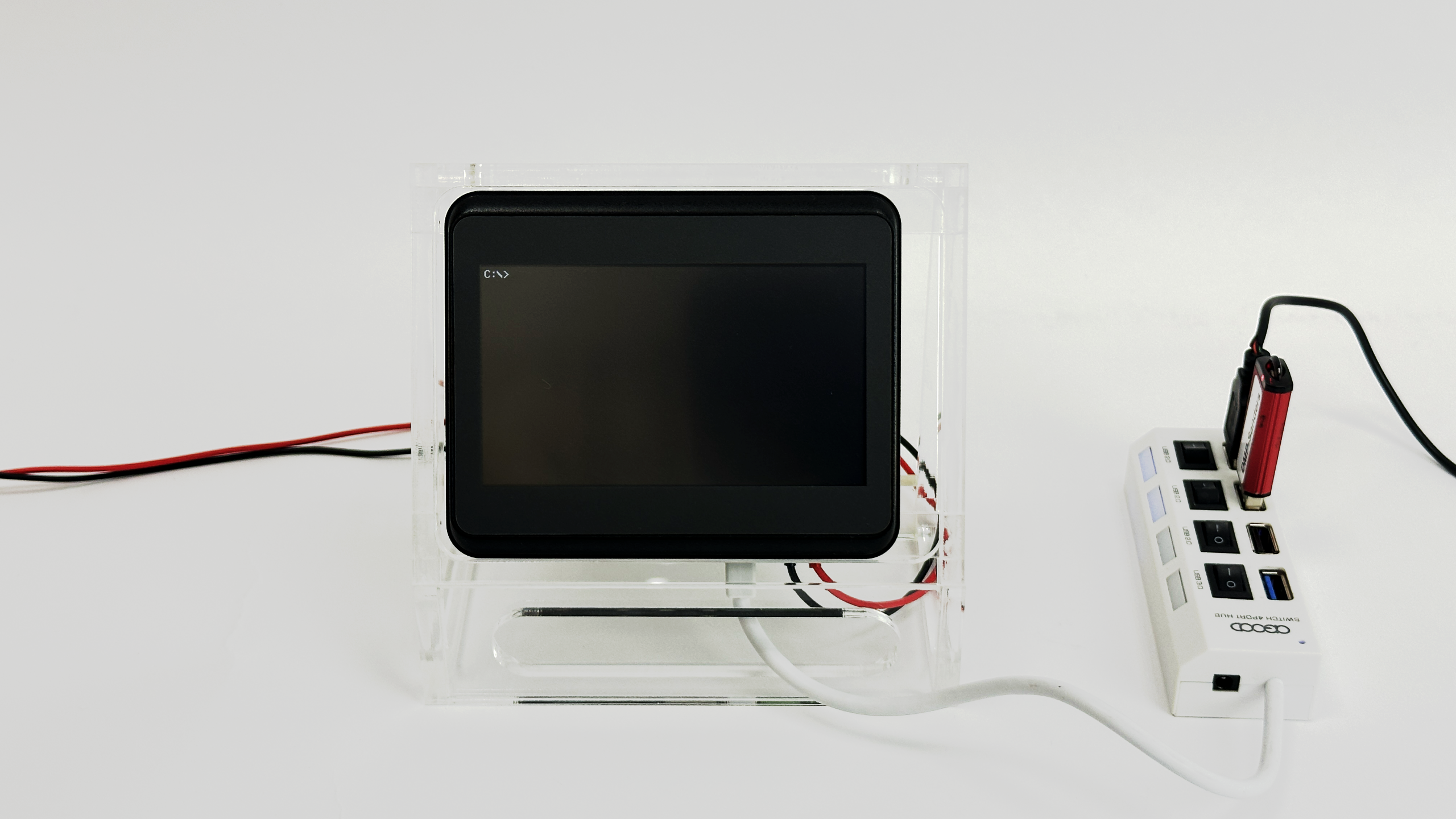
- 輸入
ghost11以執行 ghost11.exe
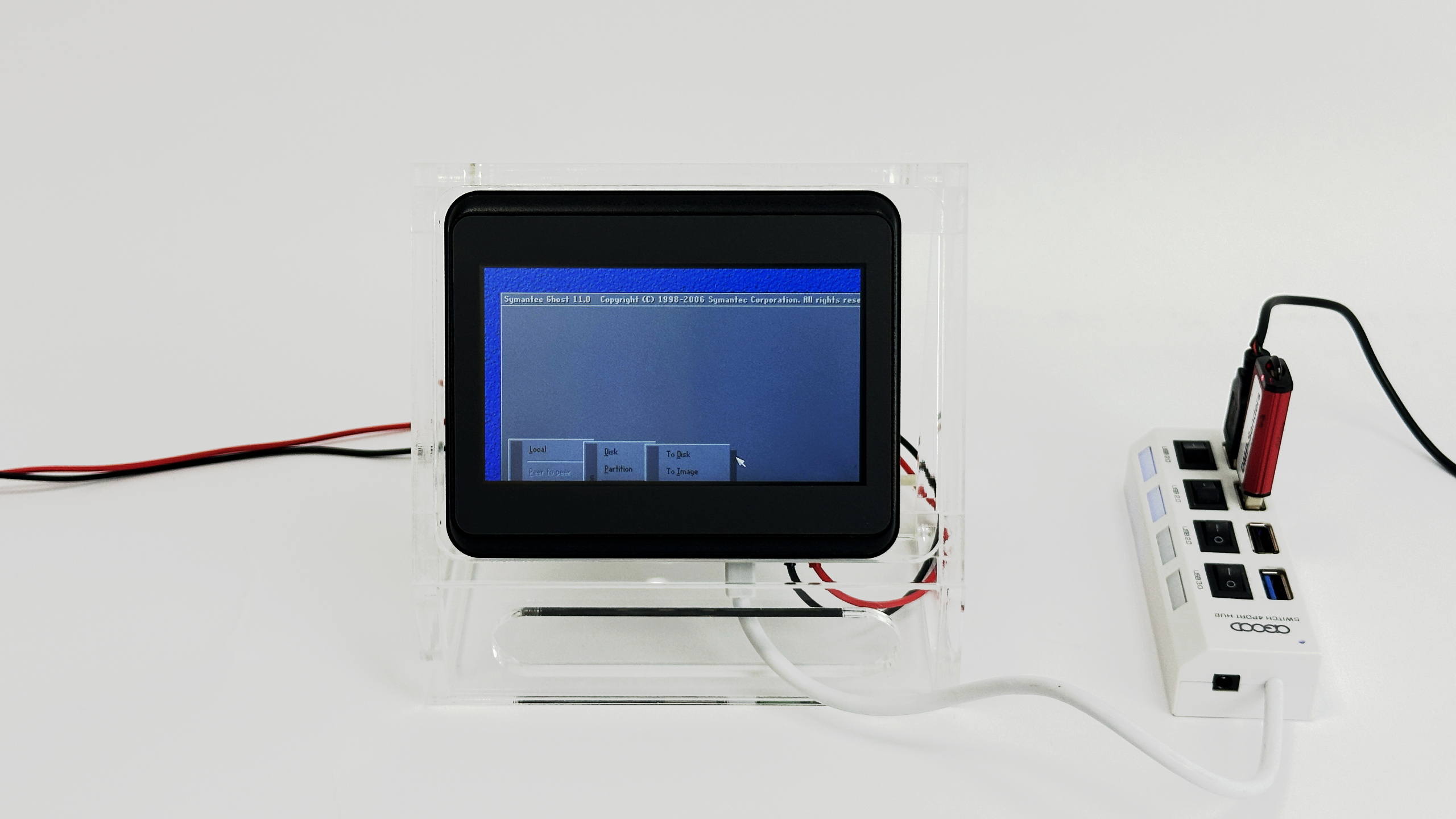
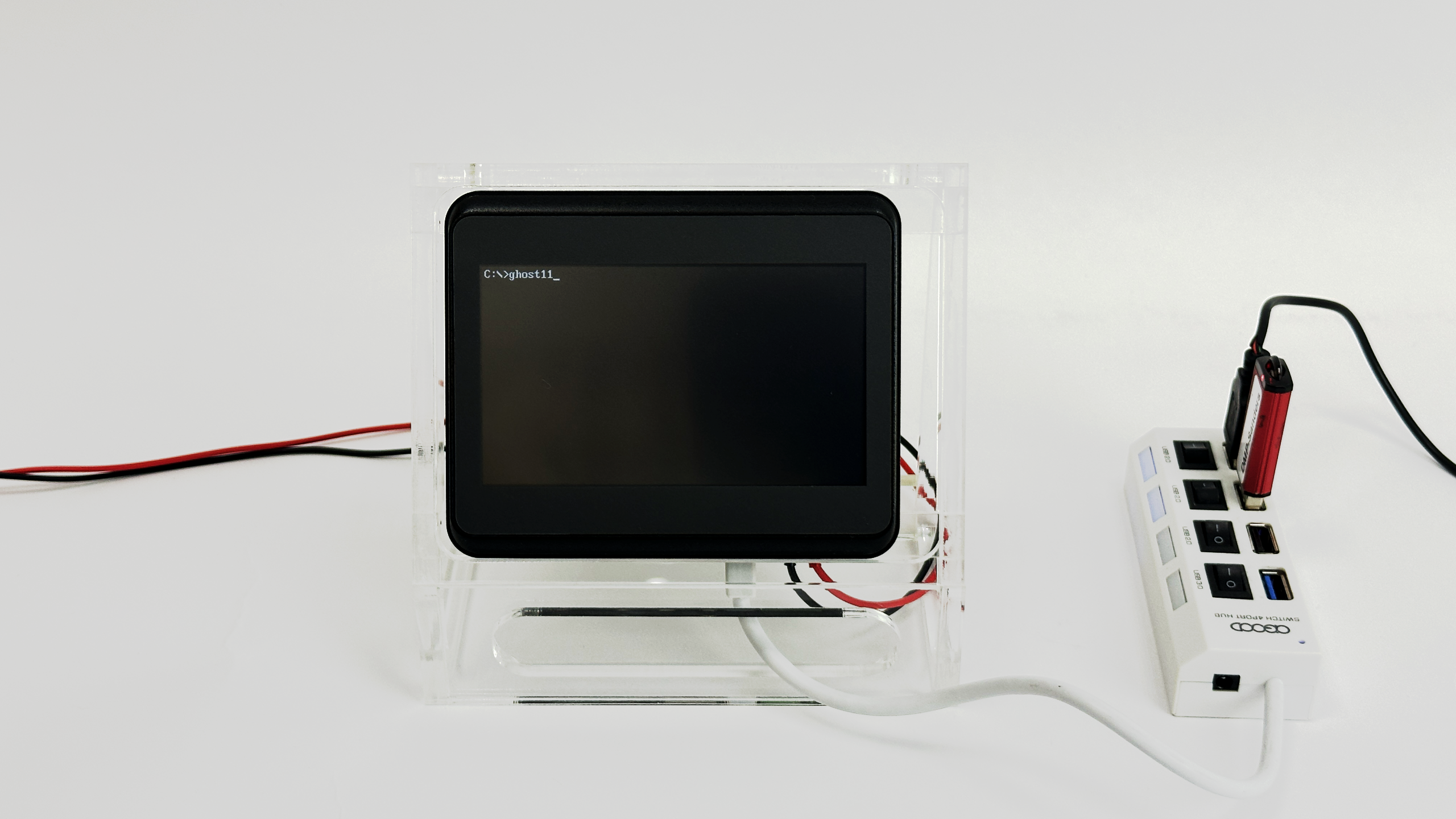 *由於解析度問題,畫面將被攔截,因此您無法看到後續的所有操作。
 - 選取
輸入並選取Local->Disk->From Image你將會看到下方的螢幕
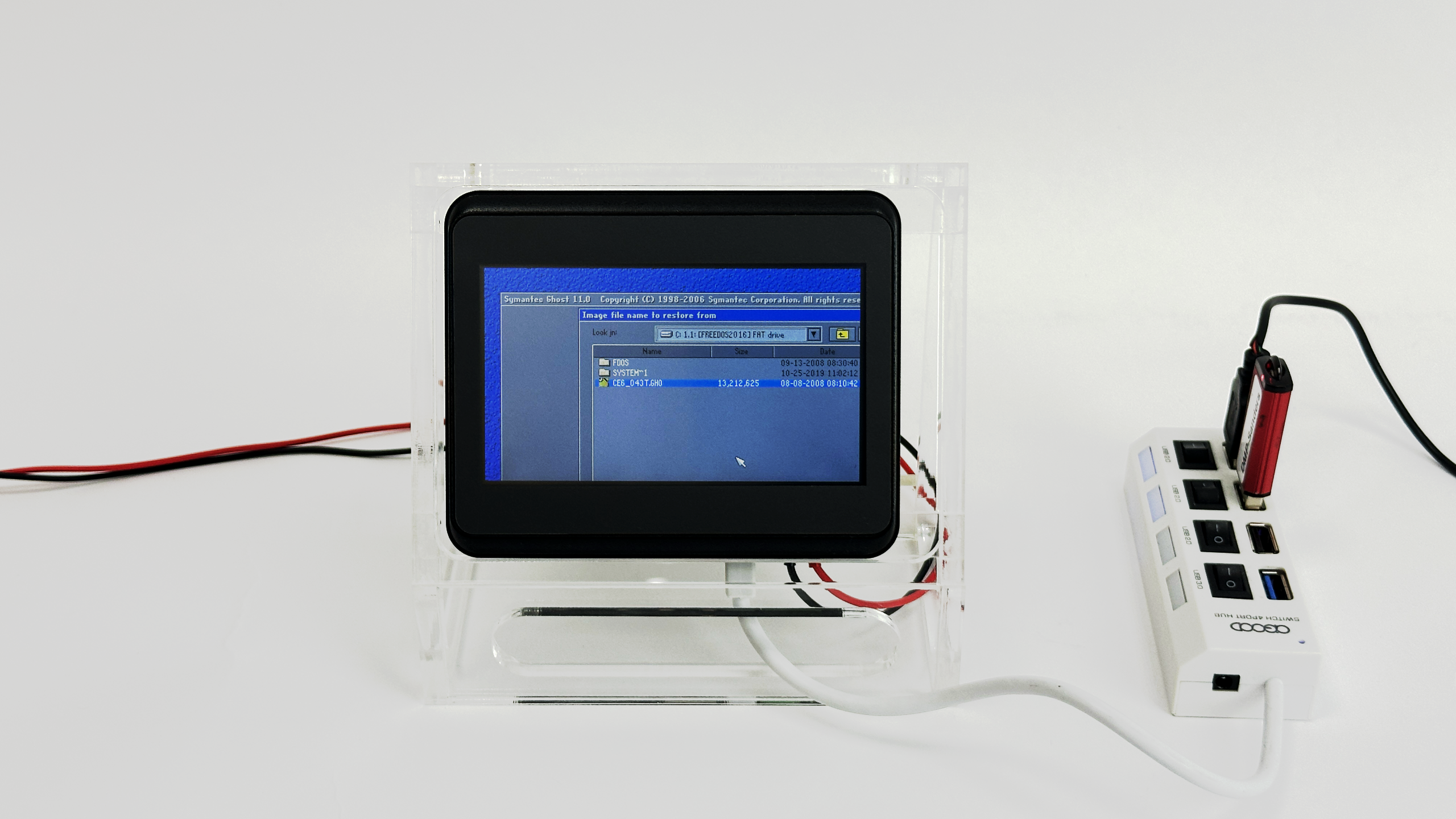
- 選取 CE6_043T.GHO ghost 檔案
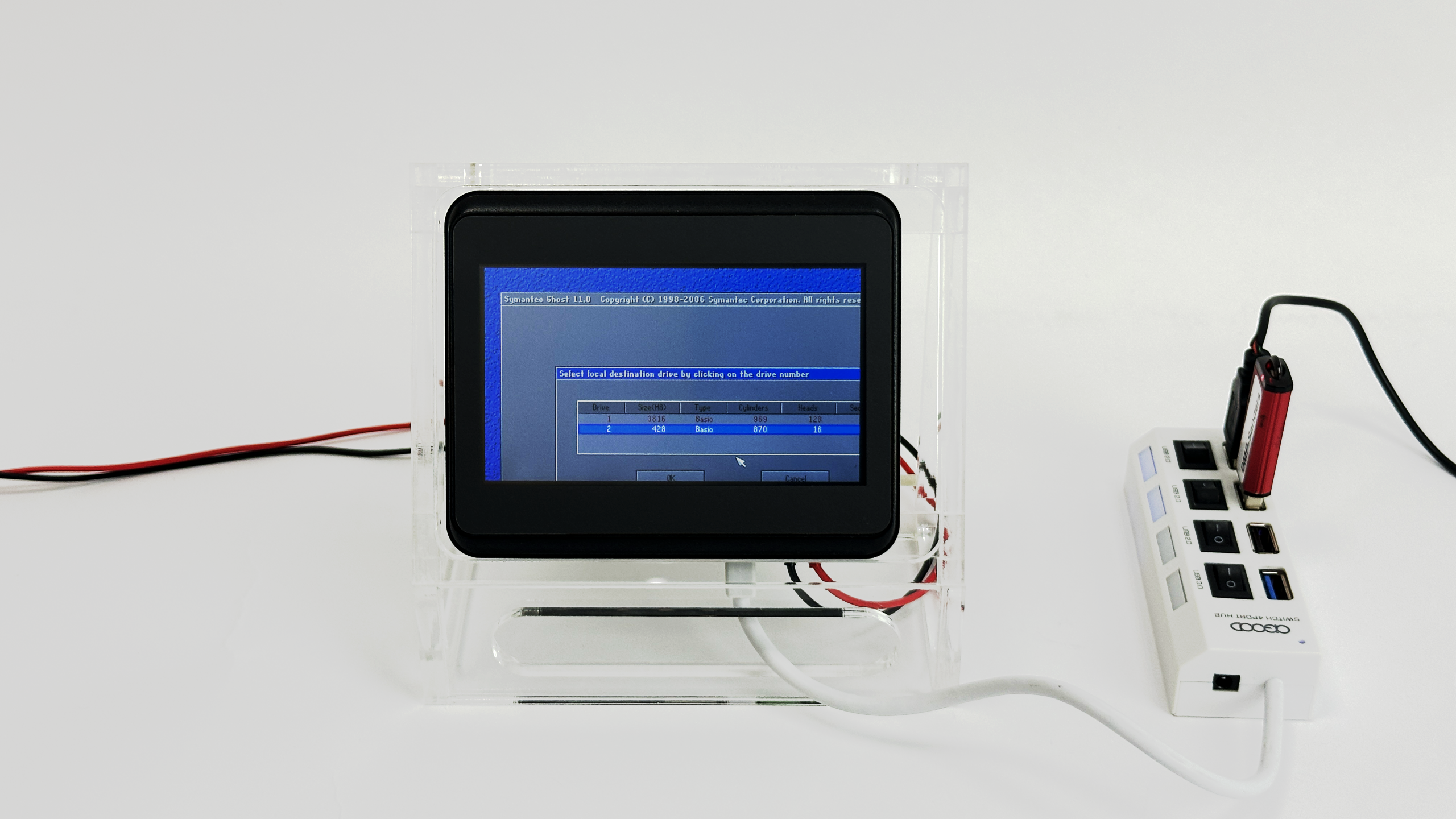
- 選擇您要安裝的磁碟,然後按下
OK以執行
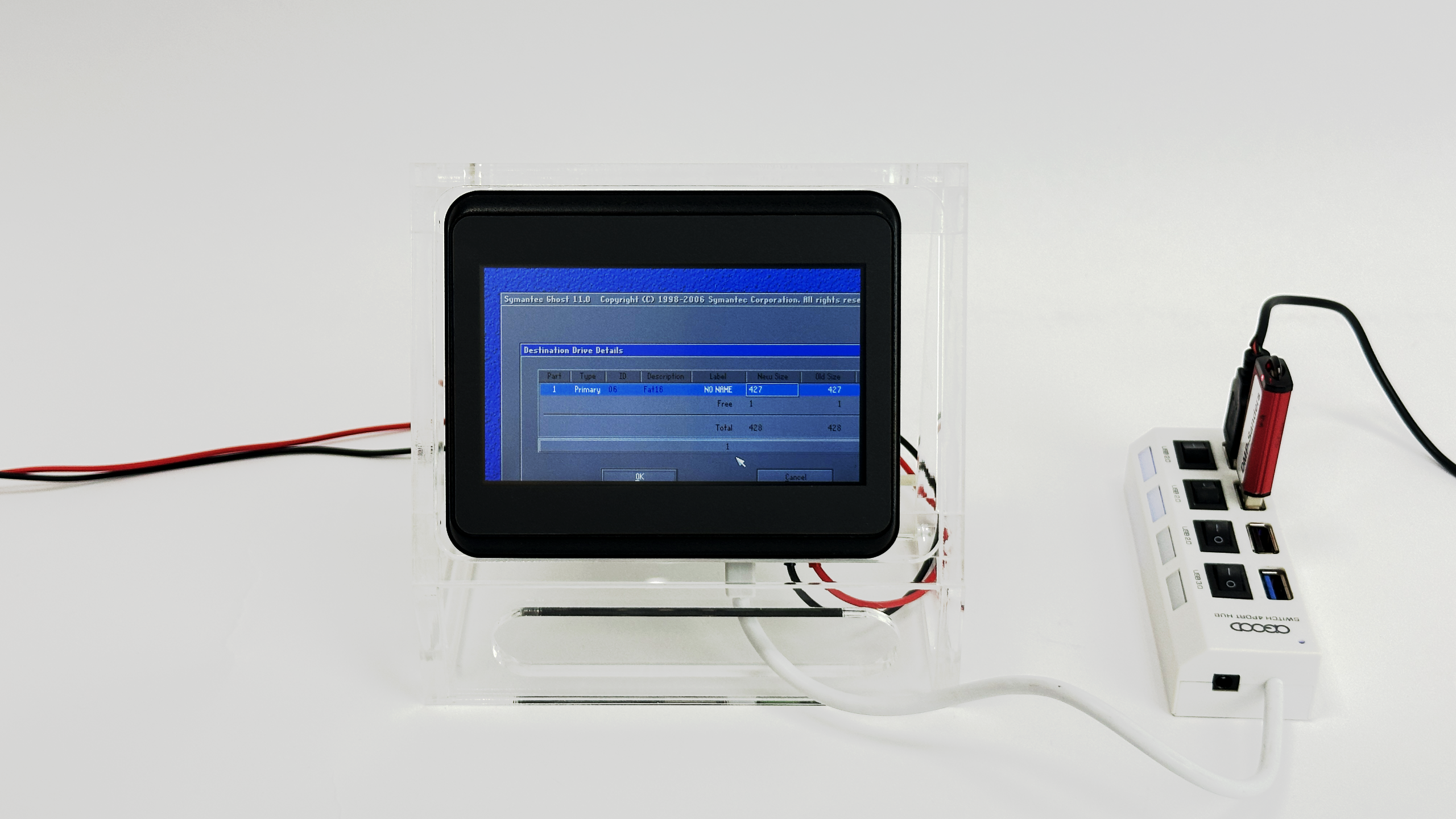
- 選取
Tab選擇 “OK”
- 選擇
Yesto retore the disk
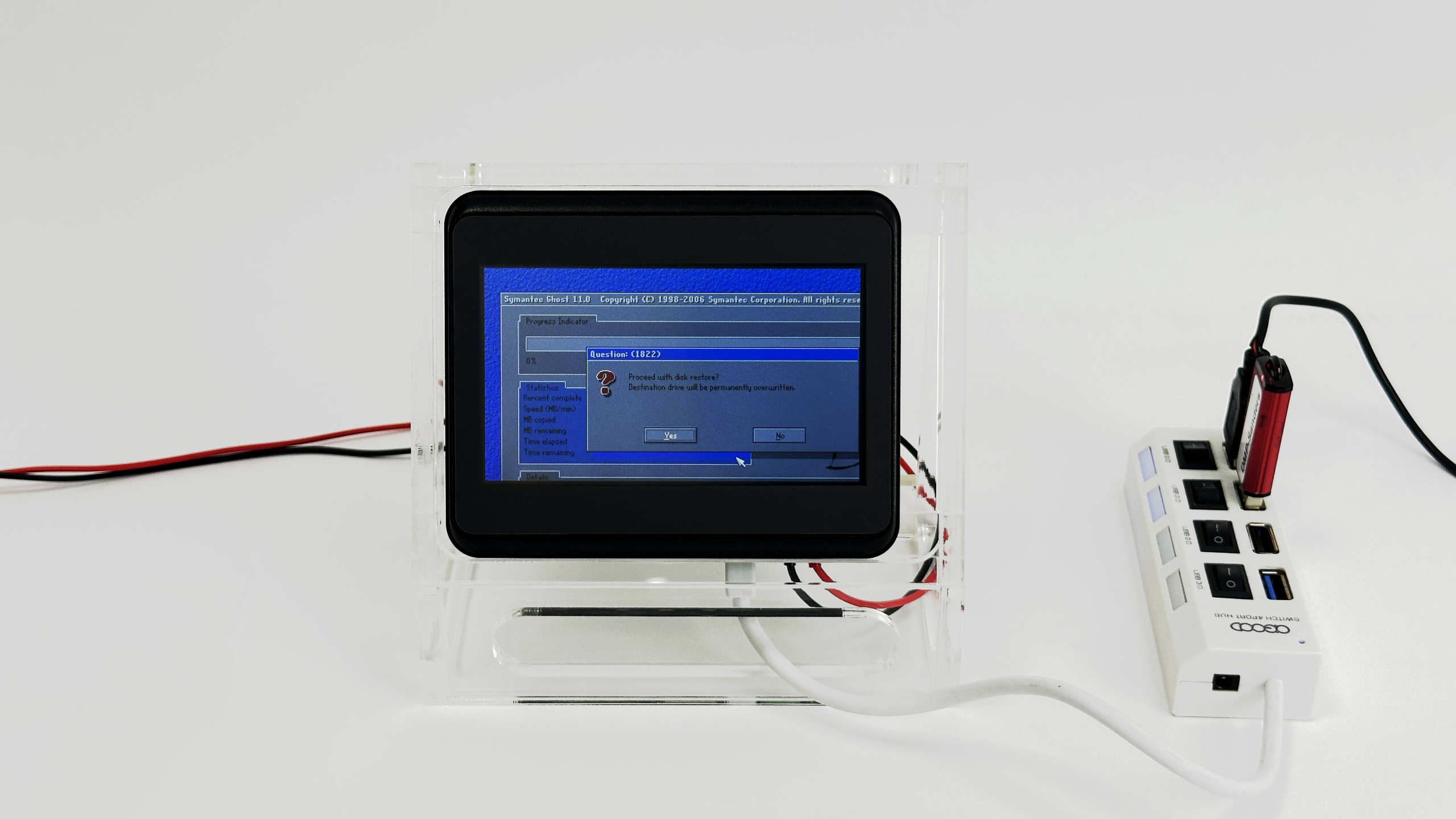
- Select the right option
Reset Computerto complete the clone and reboot
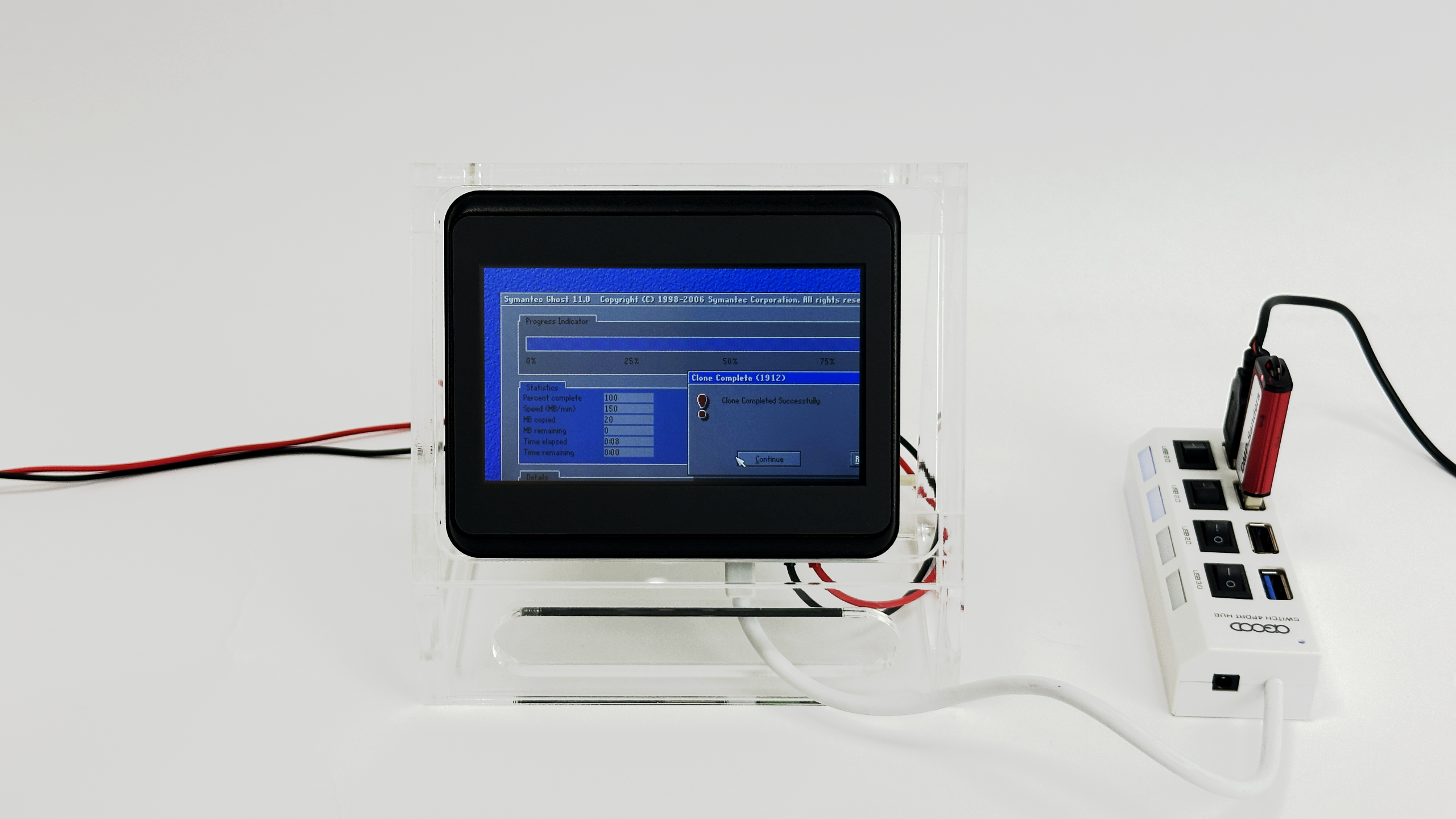
- Please Unplug the USB and reboot the system, and you will see the Windows CE6.0 boot up from HMI-043T storage (EMMC)
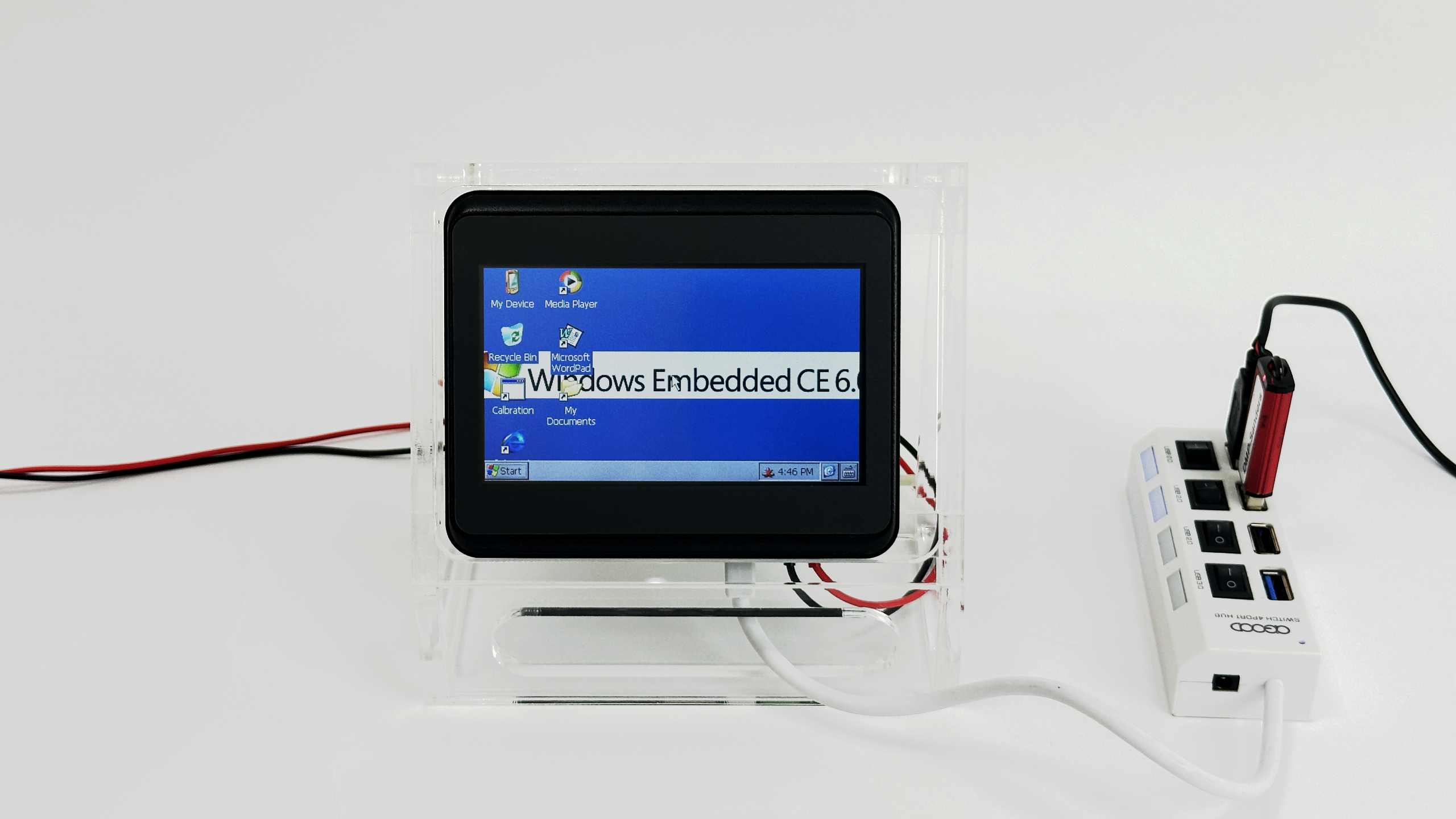
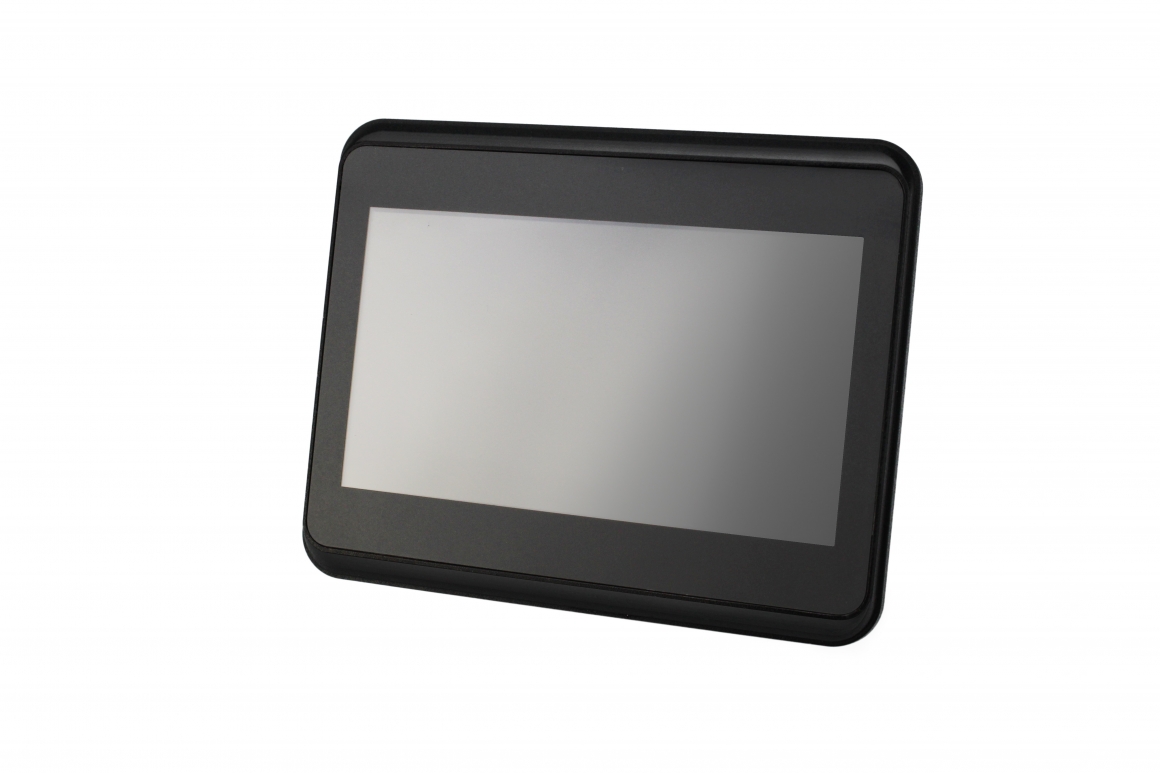
主要特色 HMI-043T-EM4XX-B01:
- DM&P SoC Vortex86EX- 400MHz
- 板載 128MB / 256MB DDR3
- S/U/LAN/eMMC/SD//7~24V
- 4.3 英吋 TFT 480×272 分辨率液晶螢幕顯示器,帶電阻式觸控螢幕
- 操作溫度:0 ~ +50°C / -20 ~ +60°C(可選)
- CE / FCC / VCCI 認證,IP65 前面板防水,衝擊和震動
- 寬電壓輸入,DC+7~24V
- Optional: WLAN
如需更多資訊或索取樣品,請電郵至 info@icop.com.tw,聯絡您附近的 ICOP 分公司,或聯繫我們的 全球授權經銷商.

![[Technical Tips] Upload the LCD BIOS by using the batch file to the VDX boards](https://icop-shop.com/wp-content/uploads/2026/02/Technical-Tips-Upload-the-LCD-BIOS-by-using-the-batch-file-to-the-VDX-boards-300x201.png)
![[Technical tips] Start Guides for QEC-M-01 and SANYO DENKI SANMOTION G Series (CSP PP)](https://icop-shop.com/wp-content/uploads/2026/02/Technical-tips-Start-Guides-for-QEC-M-01-and-SANYO-DENKI-SANMOTION-G-Series-CSP-PP-300x201.png)
 English
  繁體中文
繁體中文  日本語
日本語