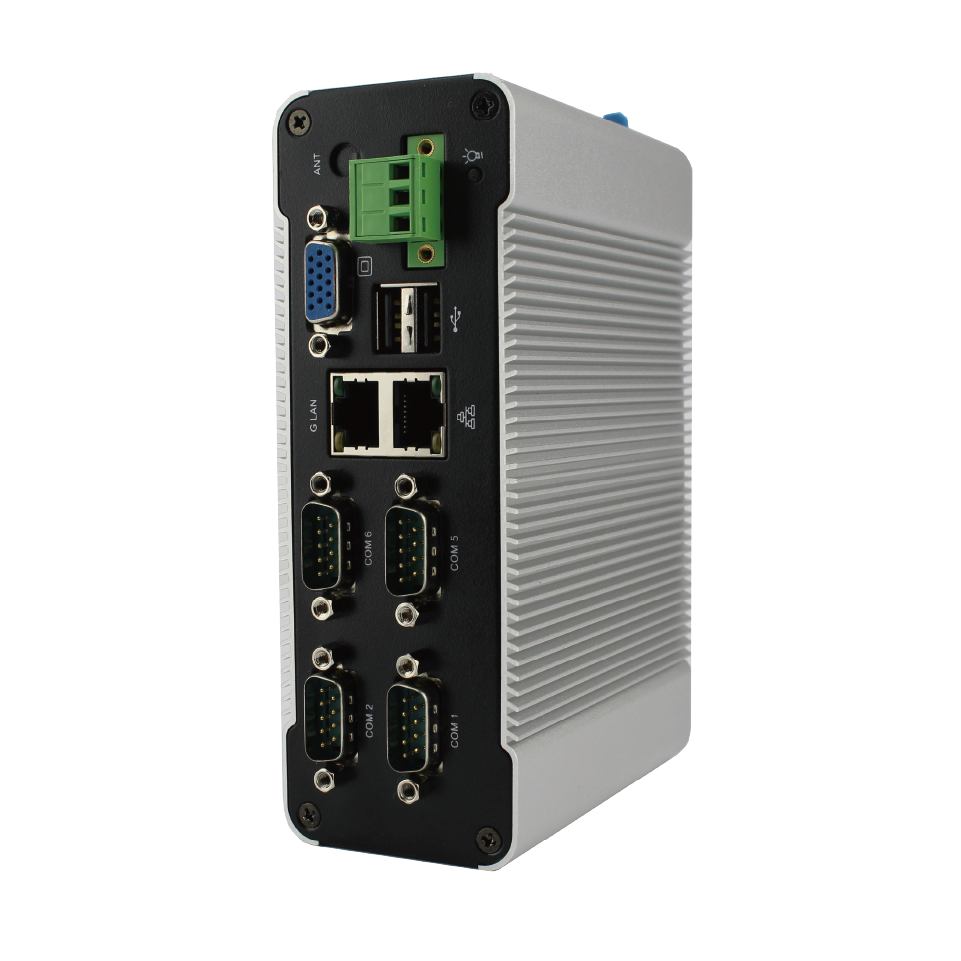
This installation guide demonstrates how to install openSUSE 13.1 on the DIN Rail PC-336x Series. In this guide, a Windows PC is used with Rufus to create a USB installer by loading the openSUSE 13.1 ISO image onto a USB drive, which will then be used to install the system on the D-336x DIN PC.
We recommend that the target device has at least 1GB of RAM, or 2GB for installations with a graphical desktop environment to ensure smoother performance. The USB drive (or corresponding storage) should have a minimum capacity of 8GB. User can download the openSUSE-13.1-DVD-i586.iso image from the official download site to obtain the installation media.
Hardware Preparation
- DIN Rail PC-336x Series
- USB drive x1 pcs (minimum required capacity is 8GB)
- Corresponding storage (minimum required capacity is 8GB)
SATA DOM, 2.5” SSD/HDD, SD card (SD,SDHC)
Software Preparation
- Rufus Tool
- openSUSE-13.1-DVD-i586.iso image
(Images official download site)
Use Rufus tool to create openSUSE 13.1 installer:
- Connect USB drive to Windows PC, and double click rufus-4.x to execute.
- Select Boot selection as
openSUSE-13.1-DVD-i586.iso - Click START
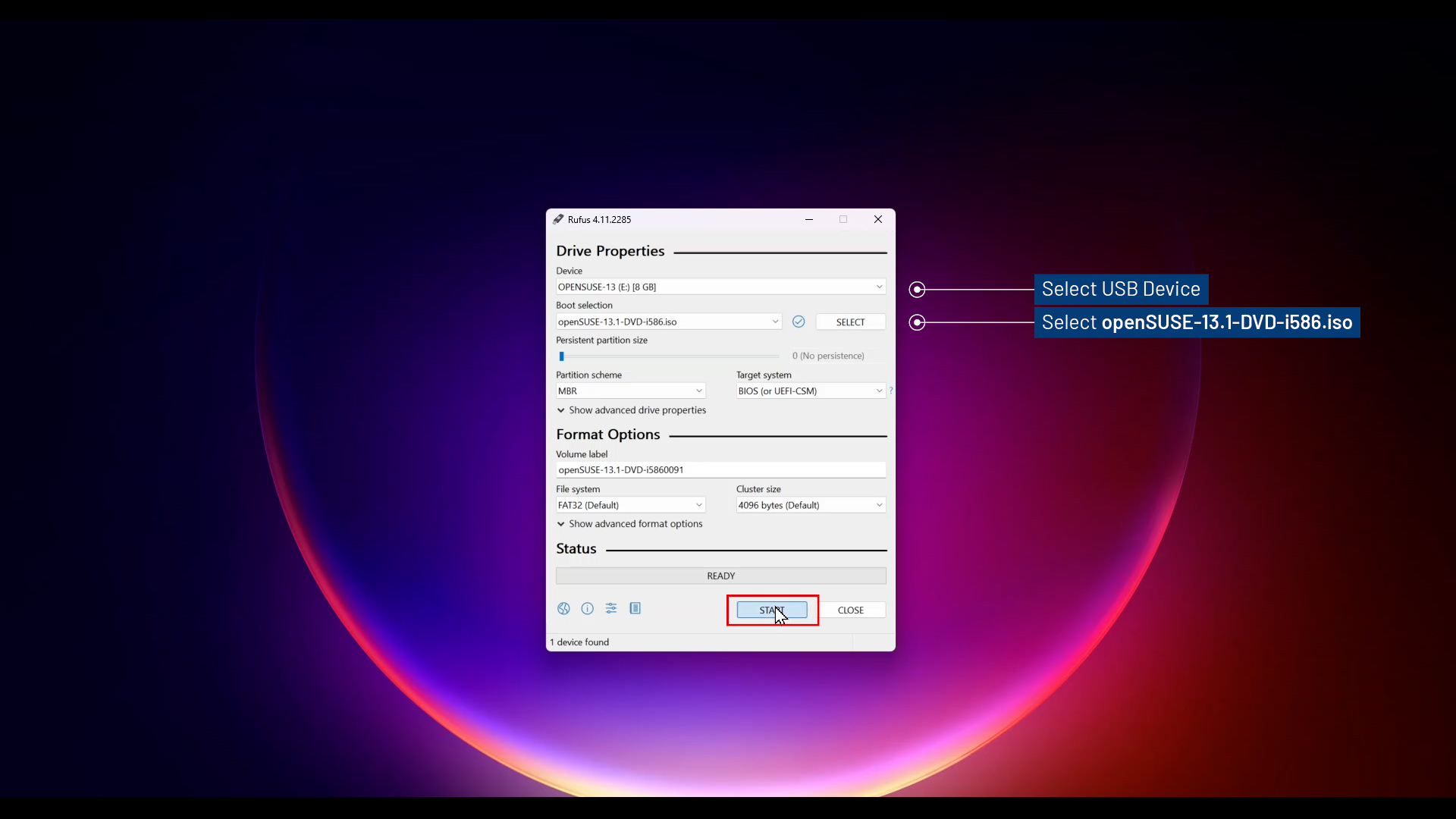
![[Technical tips] DIN Rail PC-336x openSUSE 13.1 Installation Guide EBOX_openSUSE](https://www.icop.com.tw/datas/upload/files/NEWS/Resources/EBOX_openSUSE13.1_Installation/openSUSE123.jpg)
- ISOHybrid image detected, select Write in ISO Image mode and click OK.
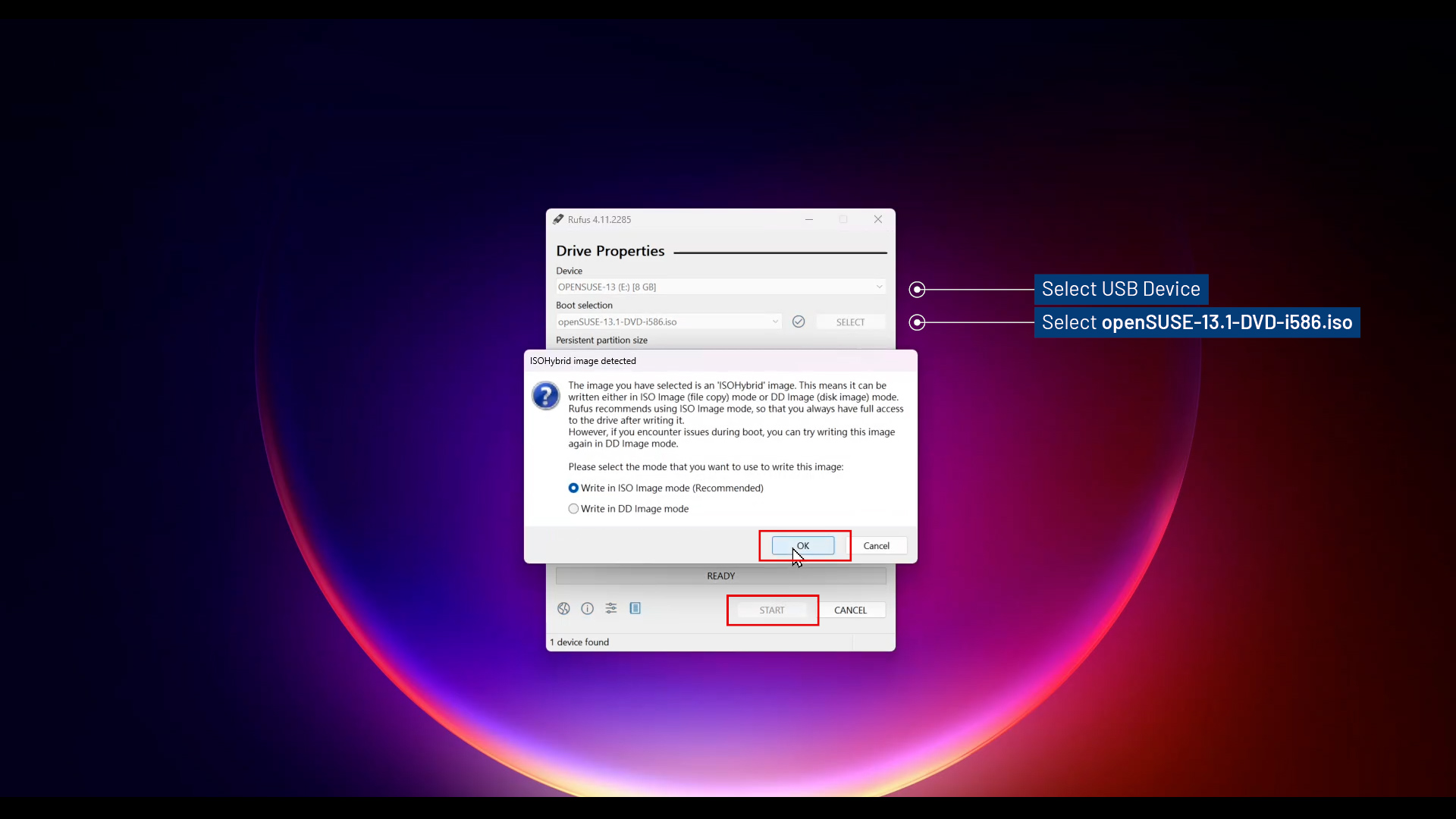
![[Technical tips] DIN Rail PC-336x openSUSE 13.1 Installation Guide EBOX_openSUSE](https://www.icop.com.tw/datas/upload/files/NEWS/Resources/EBOX_openSUSE13.1_Installation/openSUSE5.jpg)
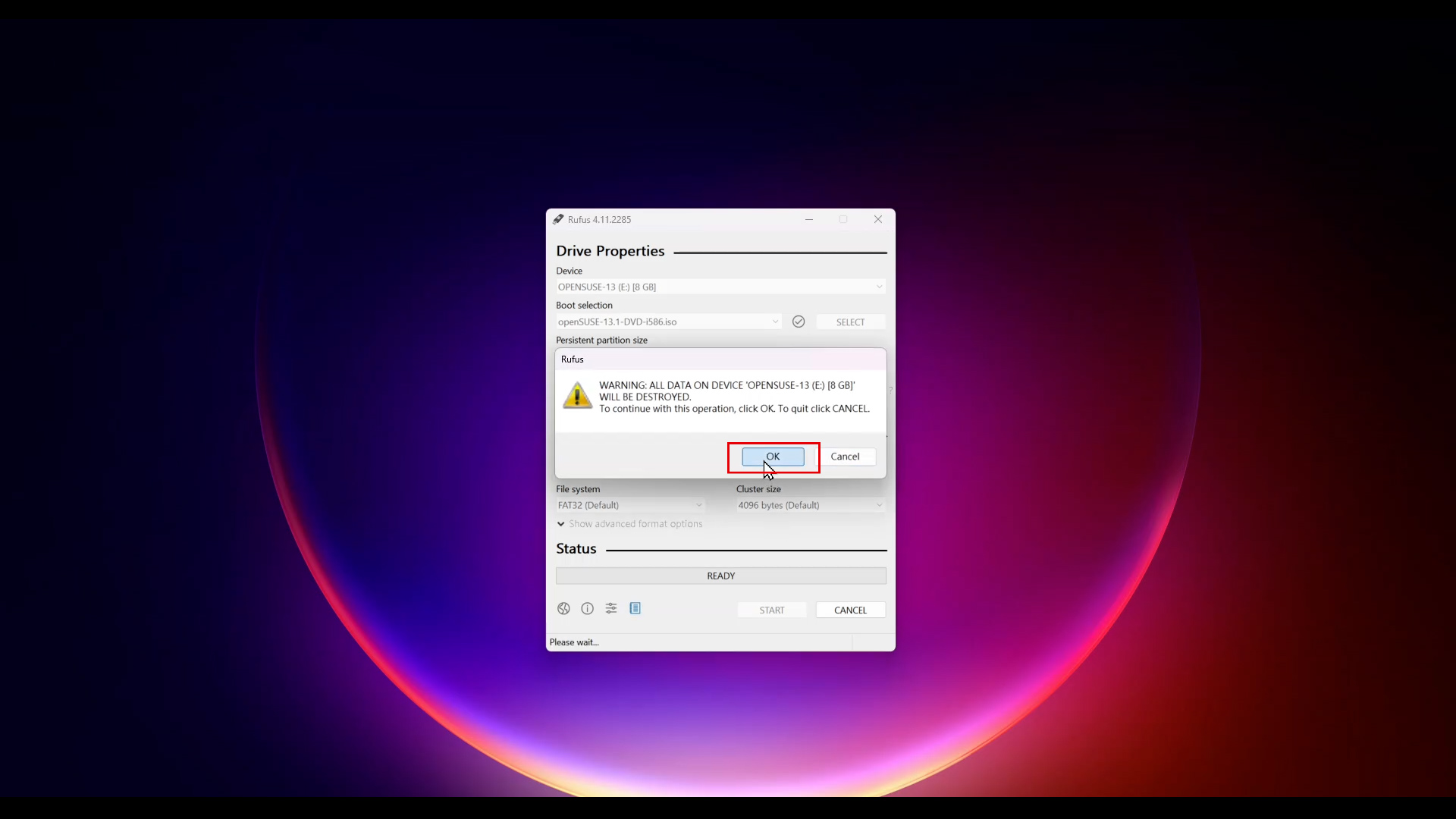
- A warning message appear, click OK to continue this operation.
![[Technical tips] DIN Rail PC-336x openSUSE 13.1 Installation Guide EBOX_openSUSE](https://www.icop.com.tw/datas/upload/files/NEWS/Resources/EBOX_openSUSE13.1_Installation/openSUSE4.jpg)
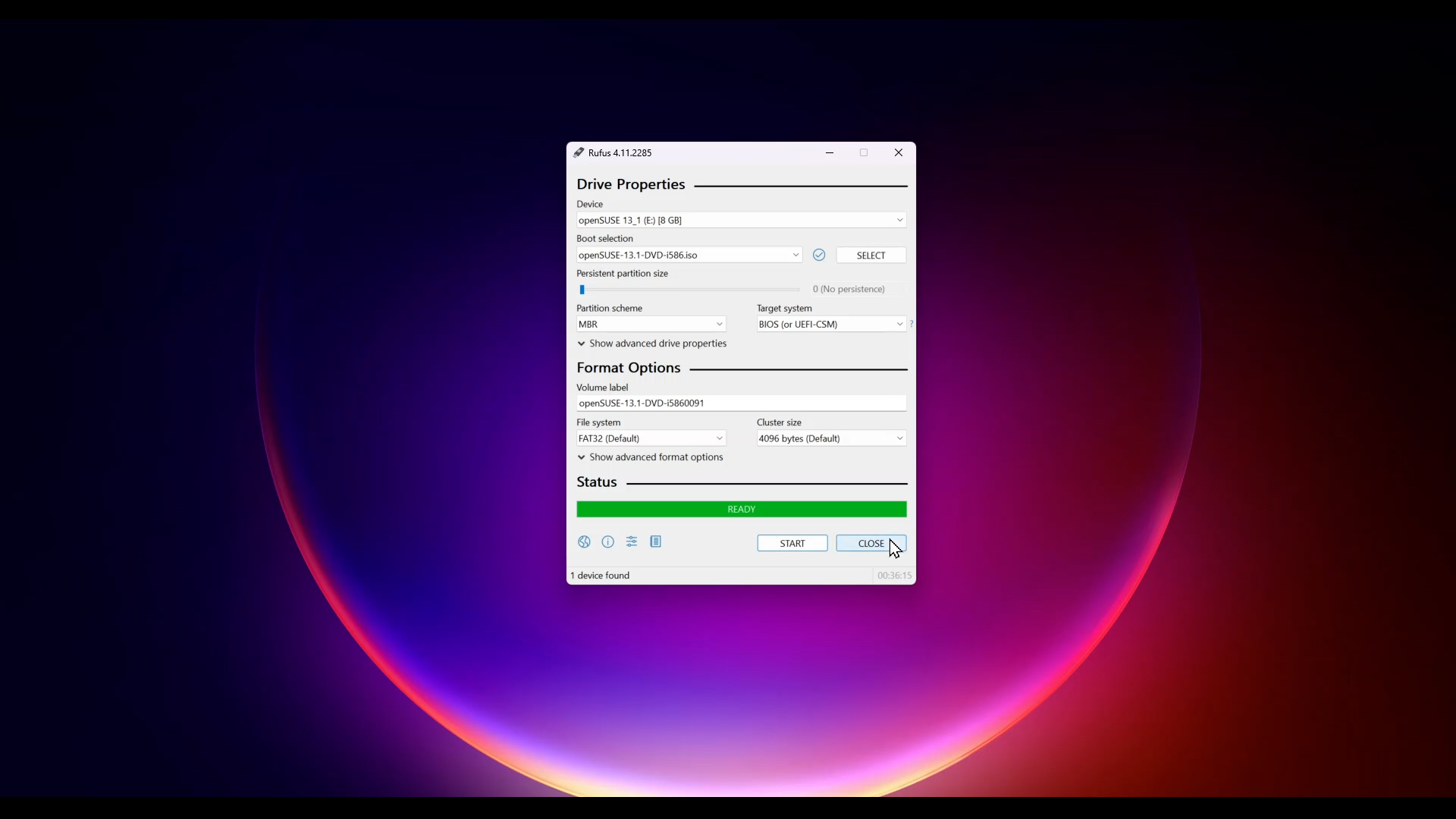
- Click CLOSE and remove USB drive from Windows PC. SUSE 13.1 installer is created!
![[Technical tips] DIN Rail PC-336x openSUSE 13.1 Installation Guide EBOX_openSUSE](https://www.icop.com.tw/datas/upload/files/NEWS/Resources/EBOX_openSUSE13.1_Installation/openSUSE6.jpg)
Install openSUSE 13.1 to D-3360:
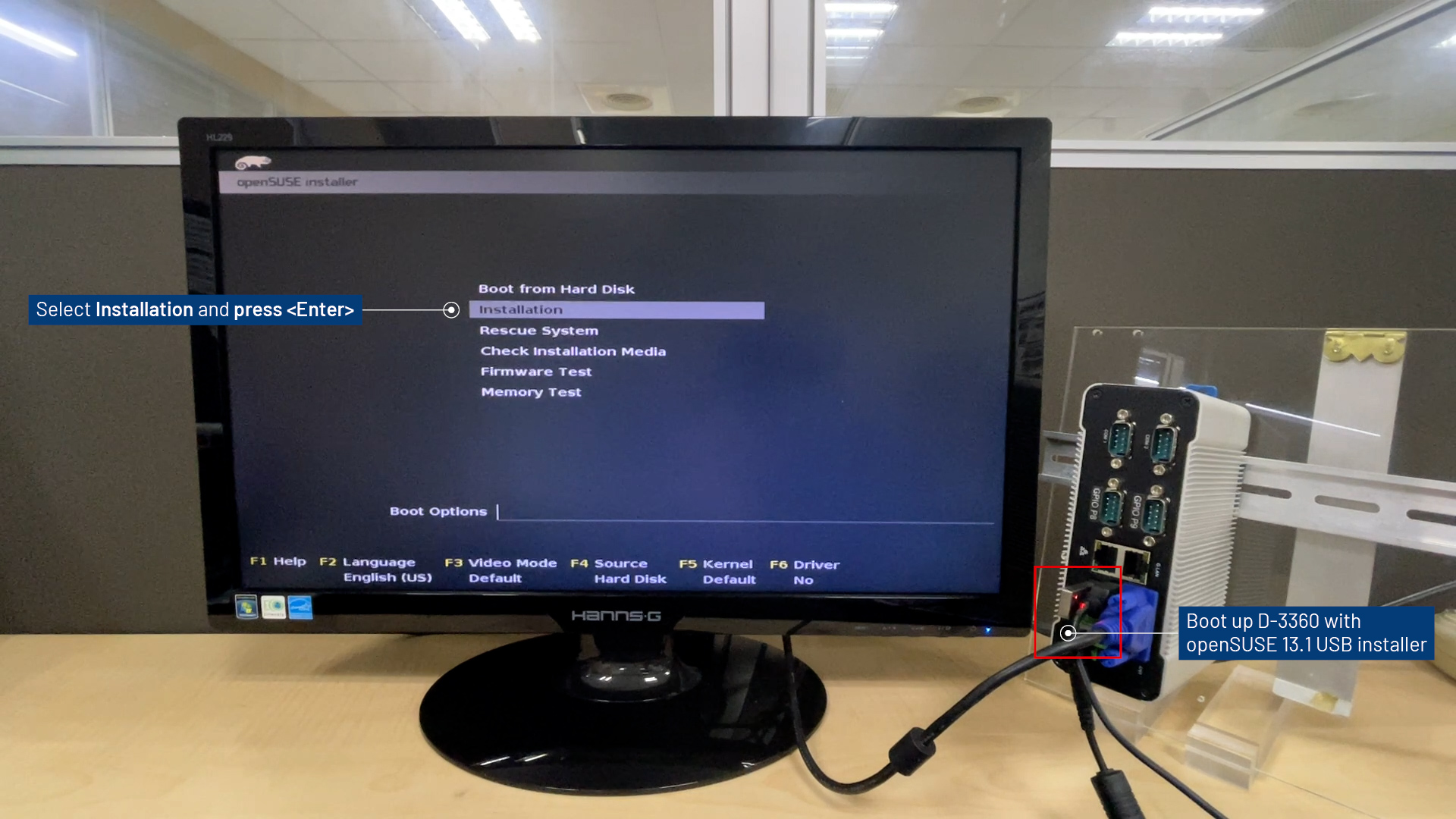
- Boot up D-3360 with openSUSE 13.1 installer.
- Select
インストールand press Enter.
![[Technical tips] DIN Rail PC-336x openSUSE 13.1 Installation Guide EBOX_openSUSE](https://www.icop.com.tw/datas/upload/files/NEWS/Resources/EBOX_openSUSE13.1_Installation/openSUSE21.jpg)
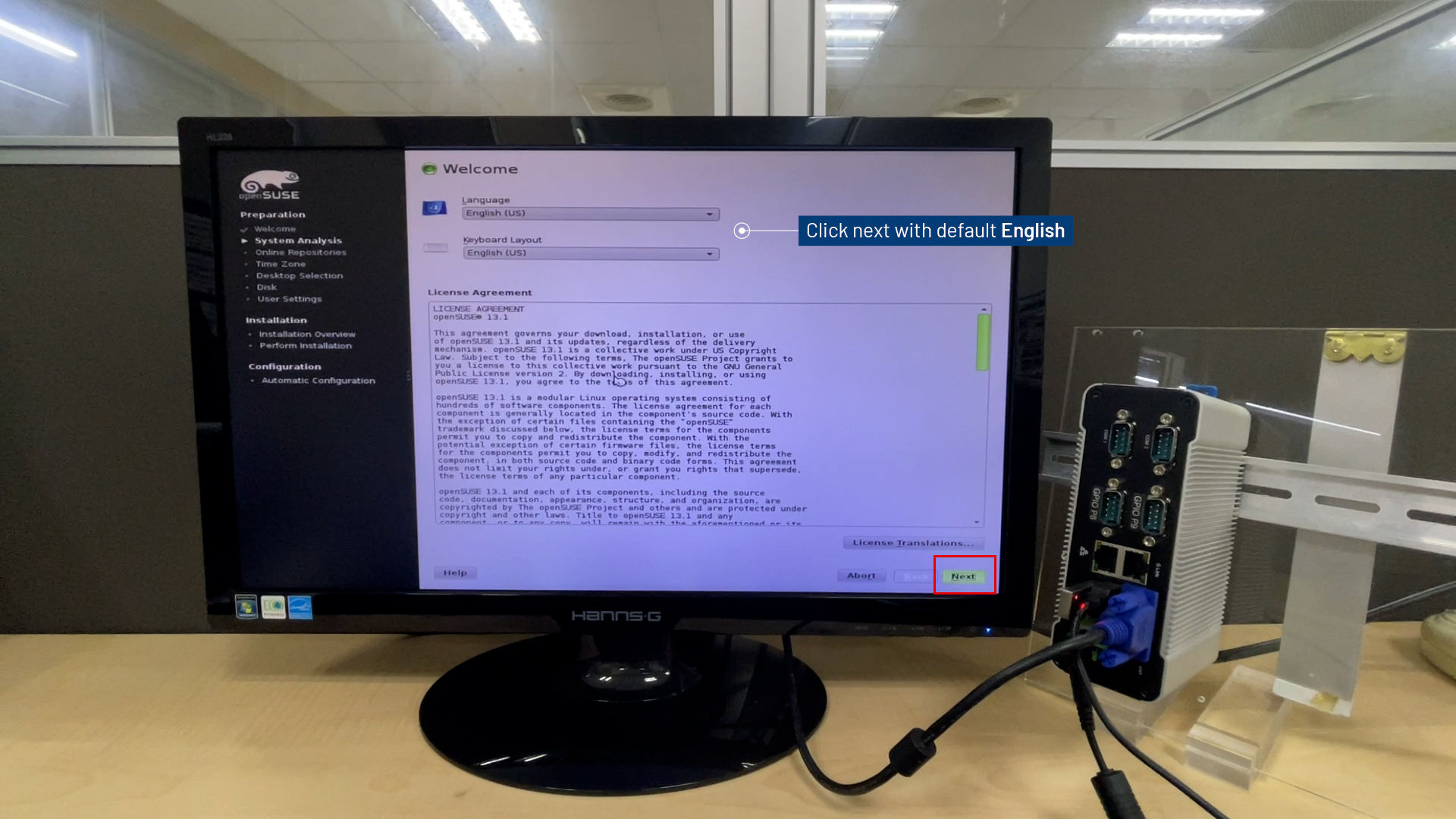
- Click Next with default
English.
![[Technical tips] DIN Rail PC-336x openSUSE 13.1 Installation Guide EBOX_openSUSE](https://www.icop.com.tw/datas/upload/files/NEWS/Resources/EBOX_openSUSE13.1_Installation/openSUSE23.jpg)
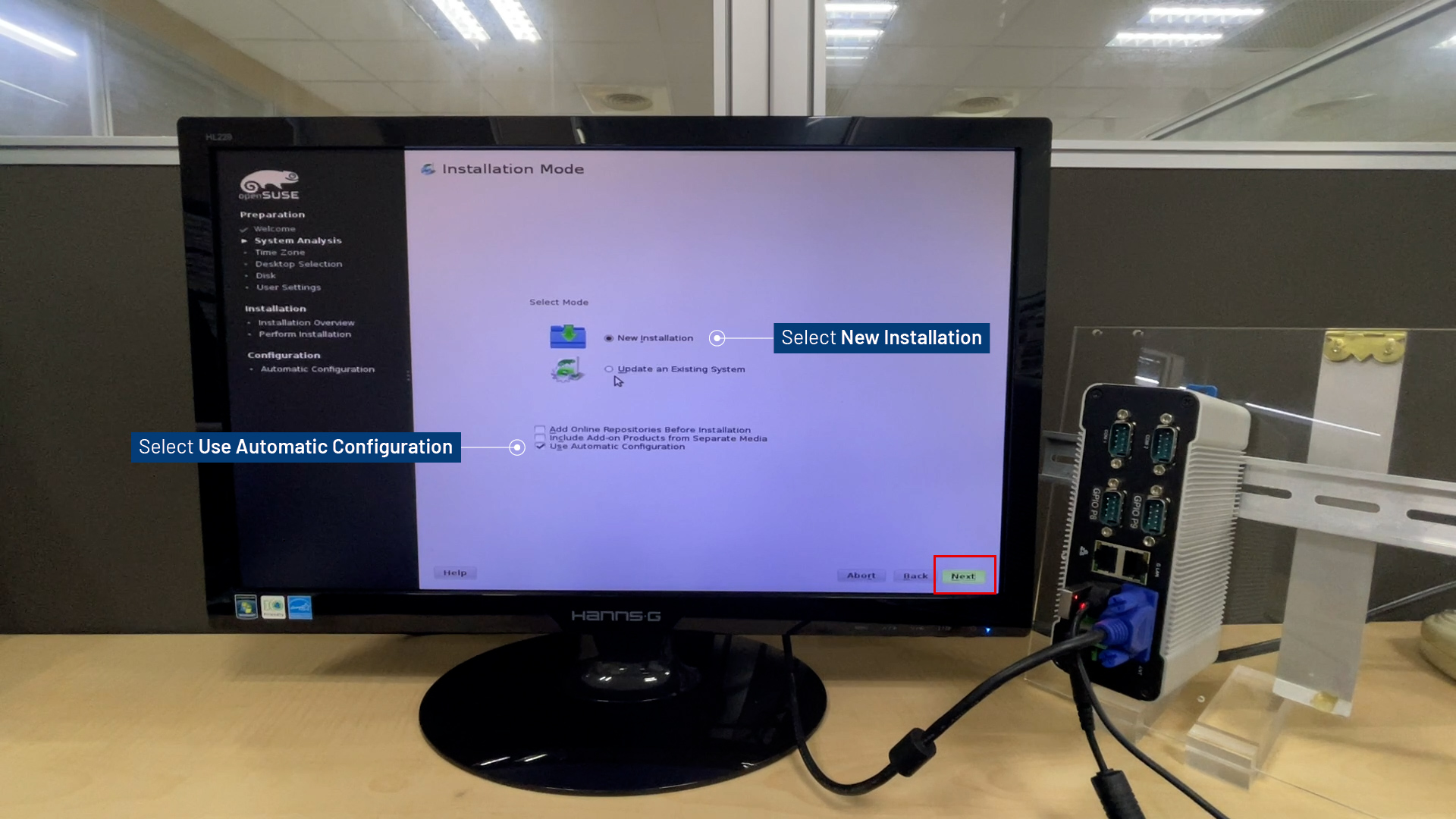
- Select
New installation.
CheckUse Automatic Configurationand click Next.
![[Technical tips] DIN Rail PC-336x openSUSE 13.1 Installation Guide EBOX_openSUSE](https://www.icop.com.tw/datas/upload/files/NEWS/Resources/EBOX_openSUSE13.1_Installation/openSUSE24.jpg)
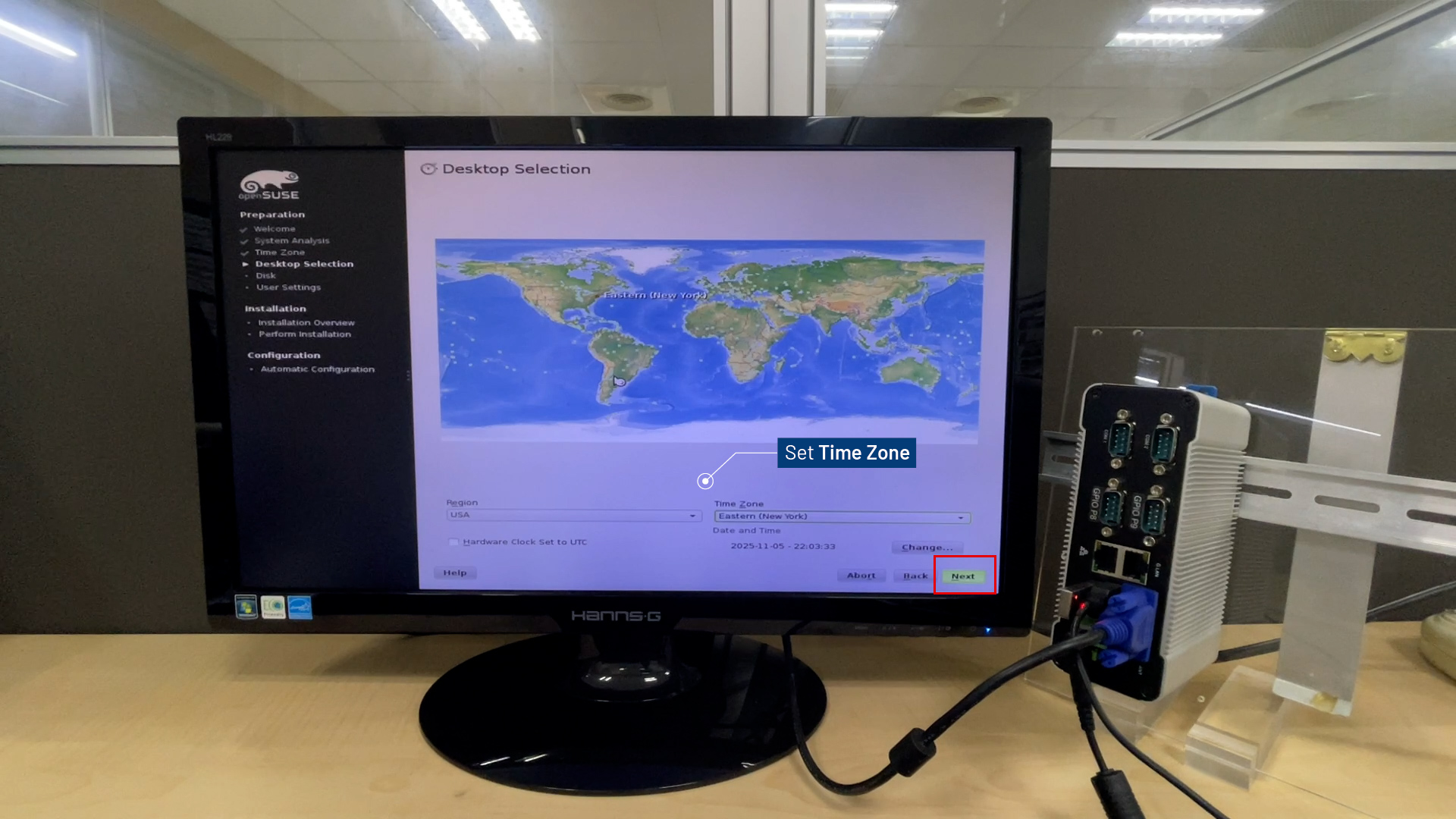
- Set
Time Zoneand click Next.
![[Technical tips] DIN Rail PC-336x openSUSE 13.1 Installation Guide EBOX_openSUSE](https://www.icop.com.tw/datas/upload/files/NEWS/Resources/EBOX_openSUSE13.1_Installation/openSUSE25.jpg)
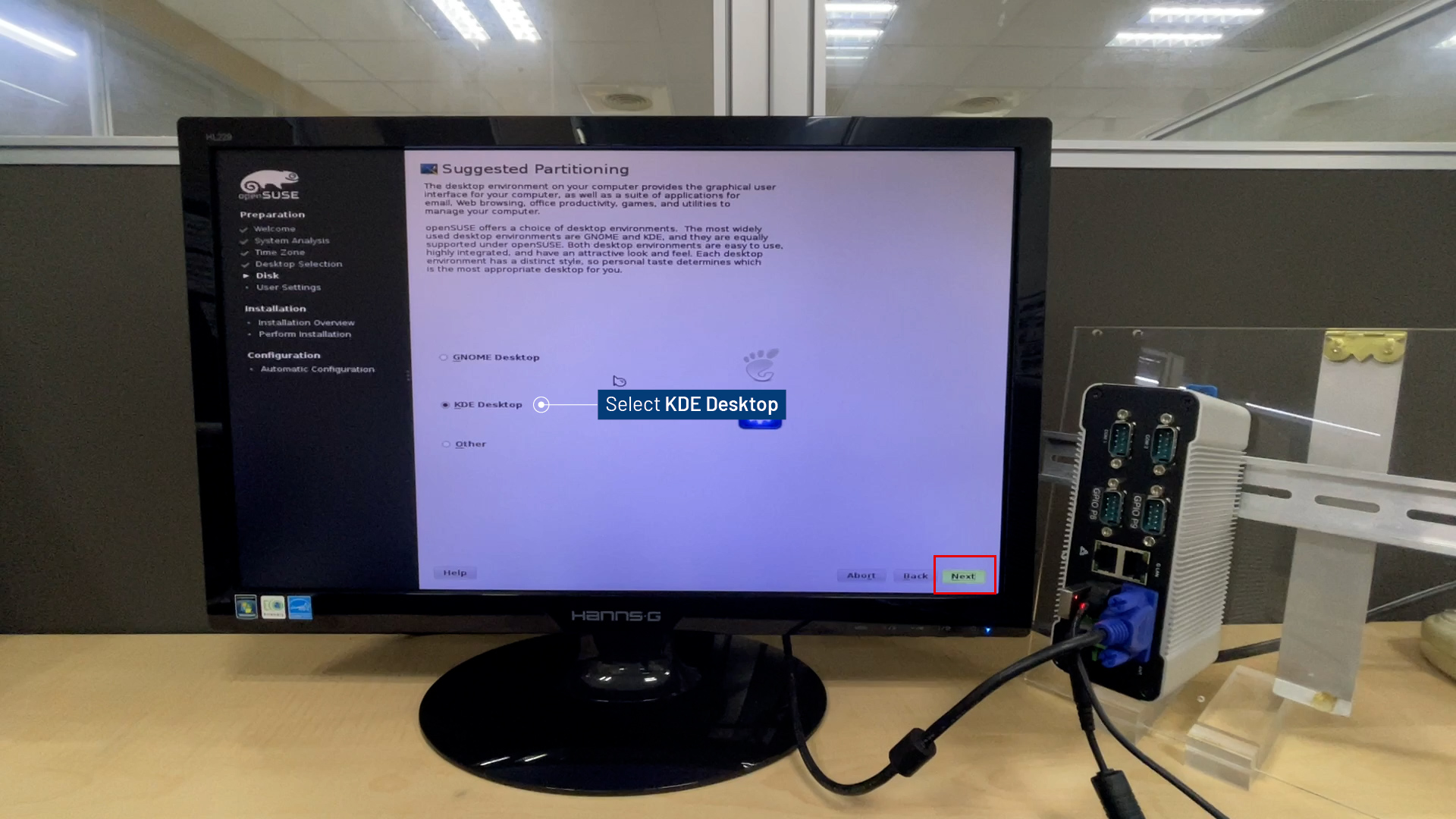
- Set
KDE Desktopfor Next.
![[Technical tips] DIN Rail PC-336x openSUSE 13.1 Installation Guide EBOX_openSUSE](https://www.icop.com.tw/datas/upload/files/NEWS/Resources/EBOX_openSUSE13.1_Installation/openSUSE26.jpg)
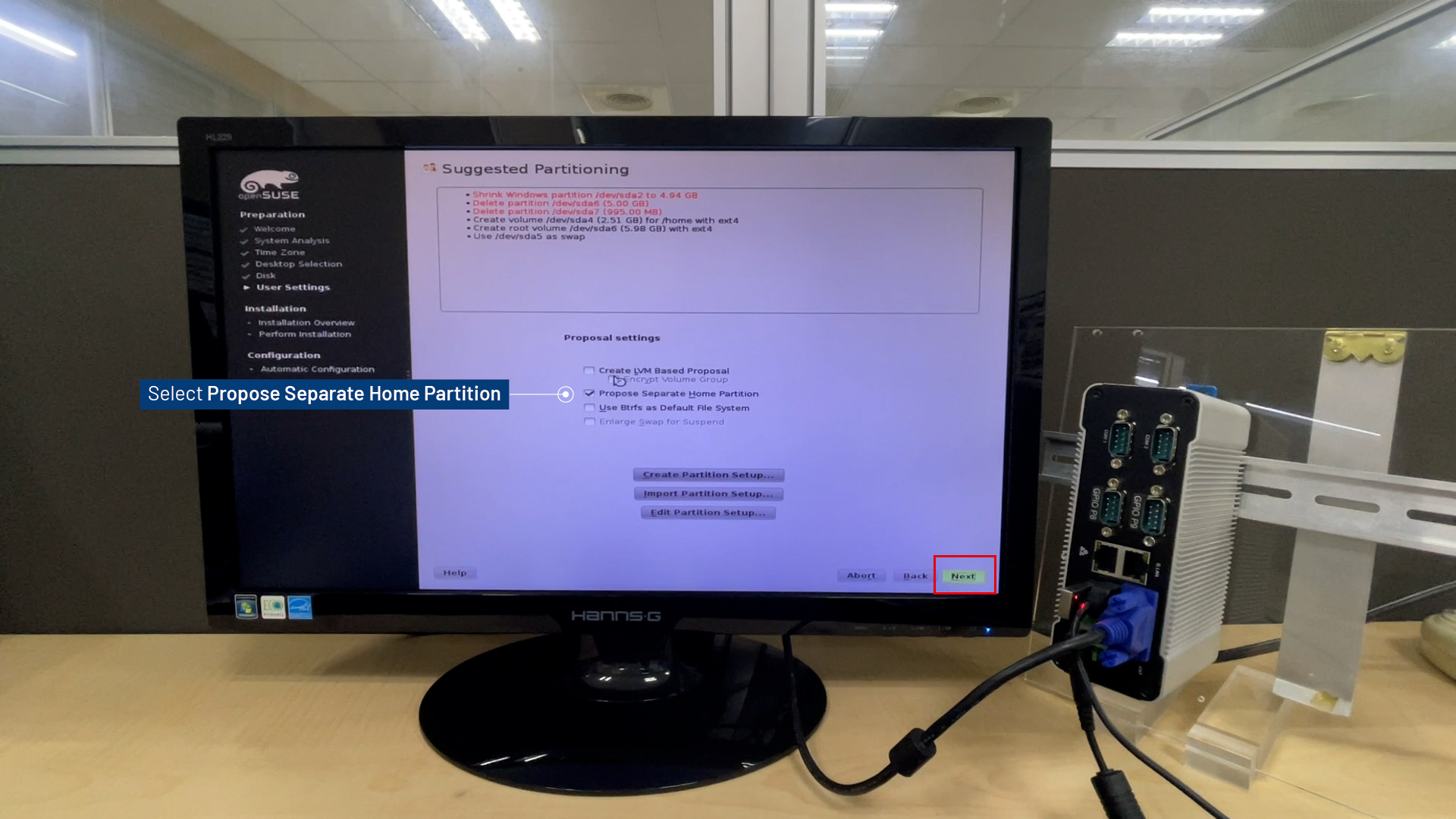
- Check
Propose Separate Home Partitioand click Next.
![[Technical tips] DIN Rail PC-336x openSUSE 13.1 Installation Guide EBOX_openSUSE](https://www.icop.com.tw/datas/upload/files/NEWS/Resources/EBOX_openSUSE13.1_Installation/openSUSE27.jpg)
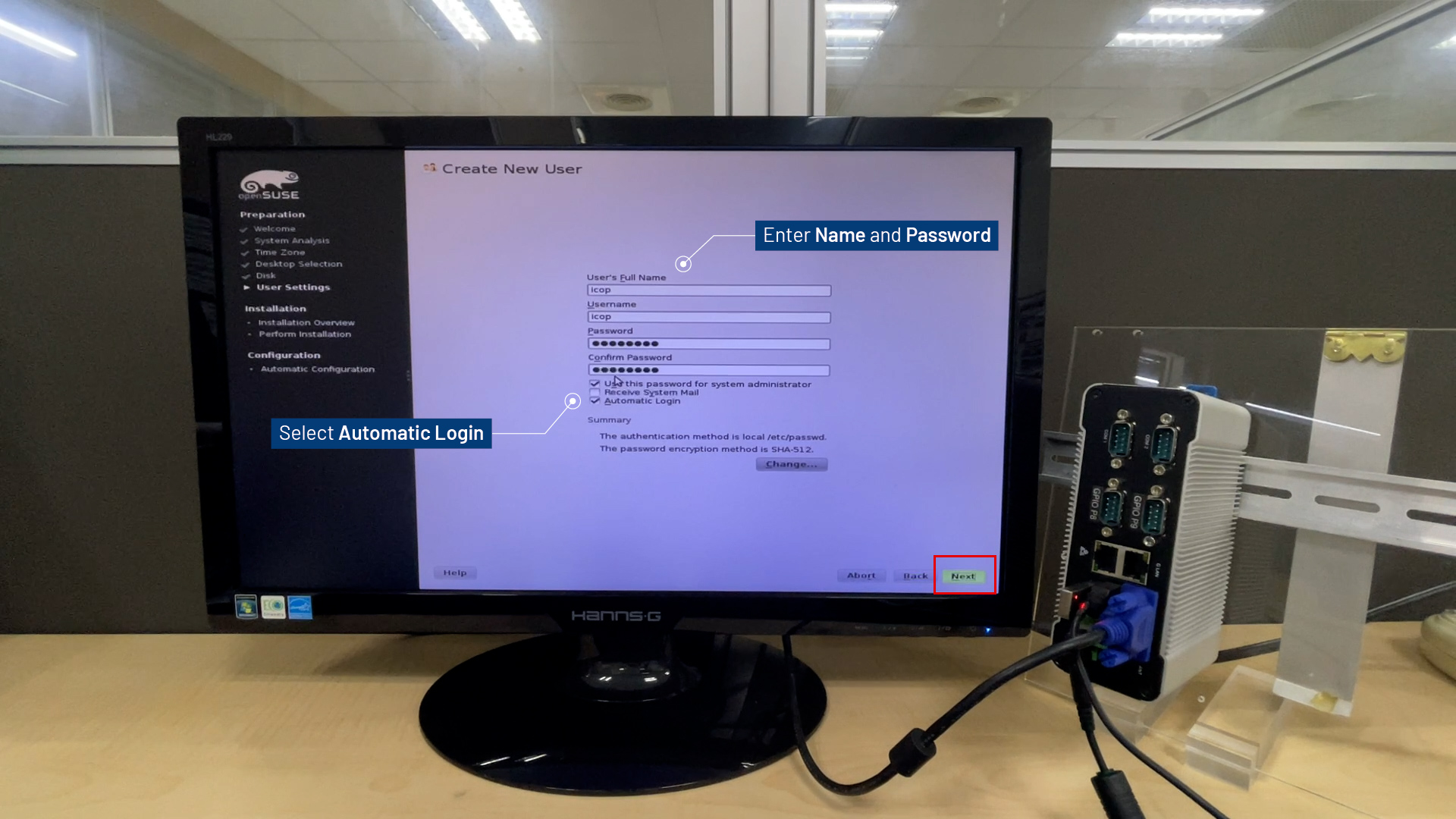
- Enter
UsernameandPassword, selectAutomatic Login for Next.
![[Technical tips] DIN Rail PC-336x openSUSE 13.1 Installation Guide EBOX_openSUSE](https://www.icop.com.tw/datas/upload/files/NEWS/Resources/EBOX_openSUSE13.1_Installation/openSUSE28.jpg)
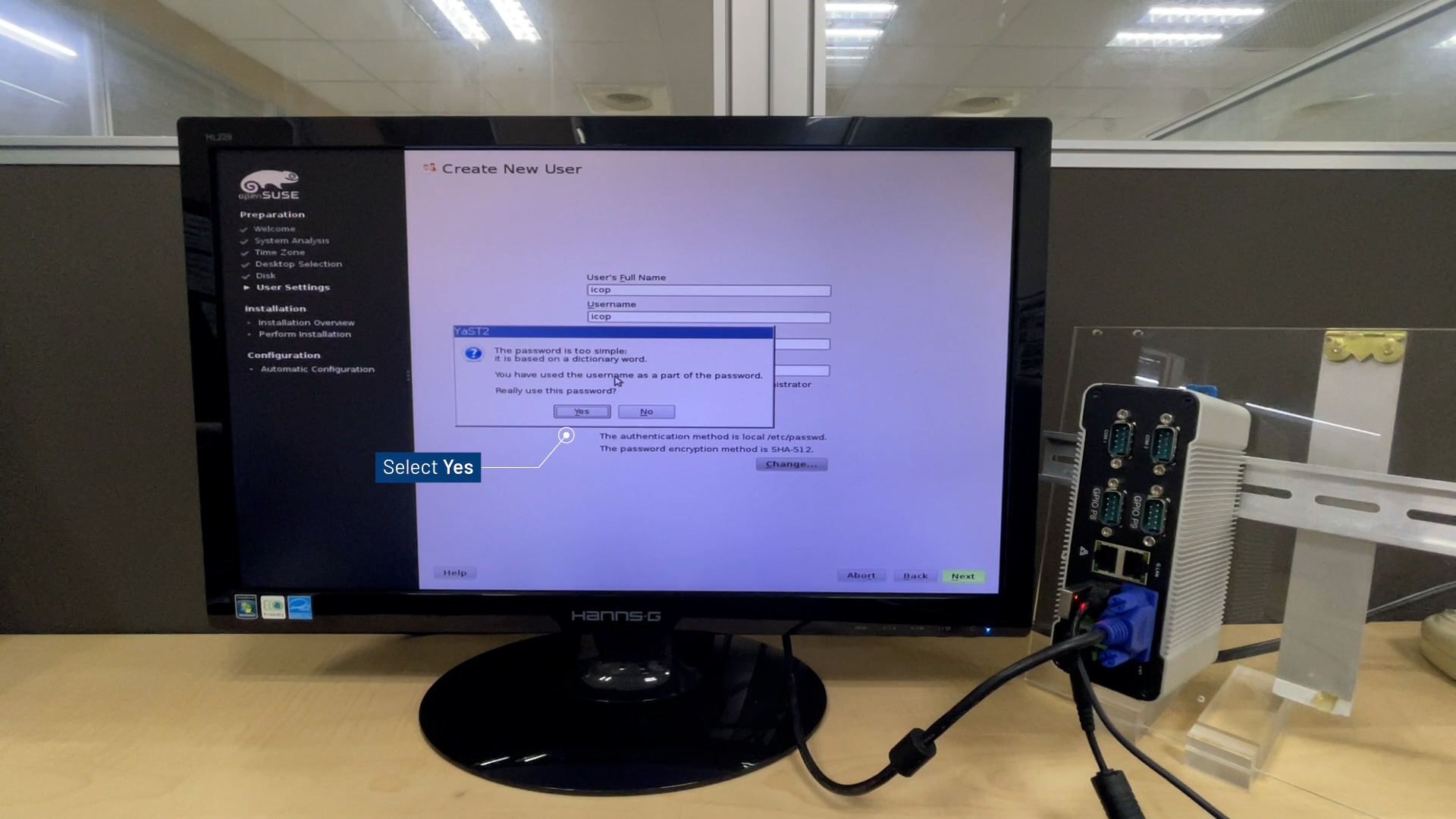
- Click
Yesto confirm the password, and then click Next.
![[Technical tips] DIN Rail PC-336x openSUSE 13.1 Installation Guide EBOX_openSUSE](https://www.icop.com.tw/datas/upload/files/NEWS/Resources/EBOX_openSUSE13.1_Installation/openSUSE29.jpg)
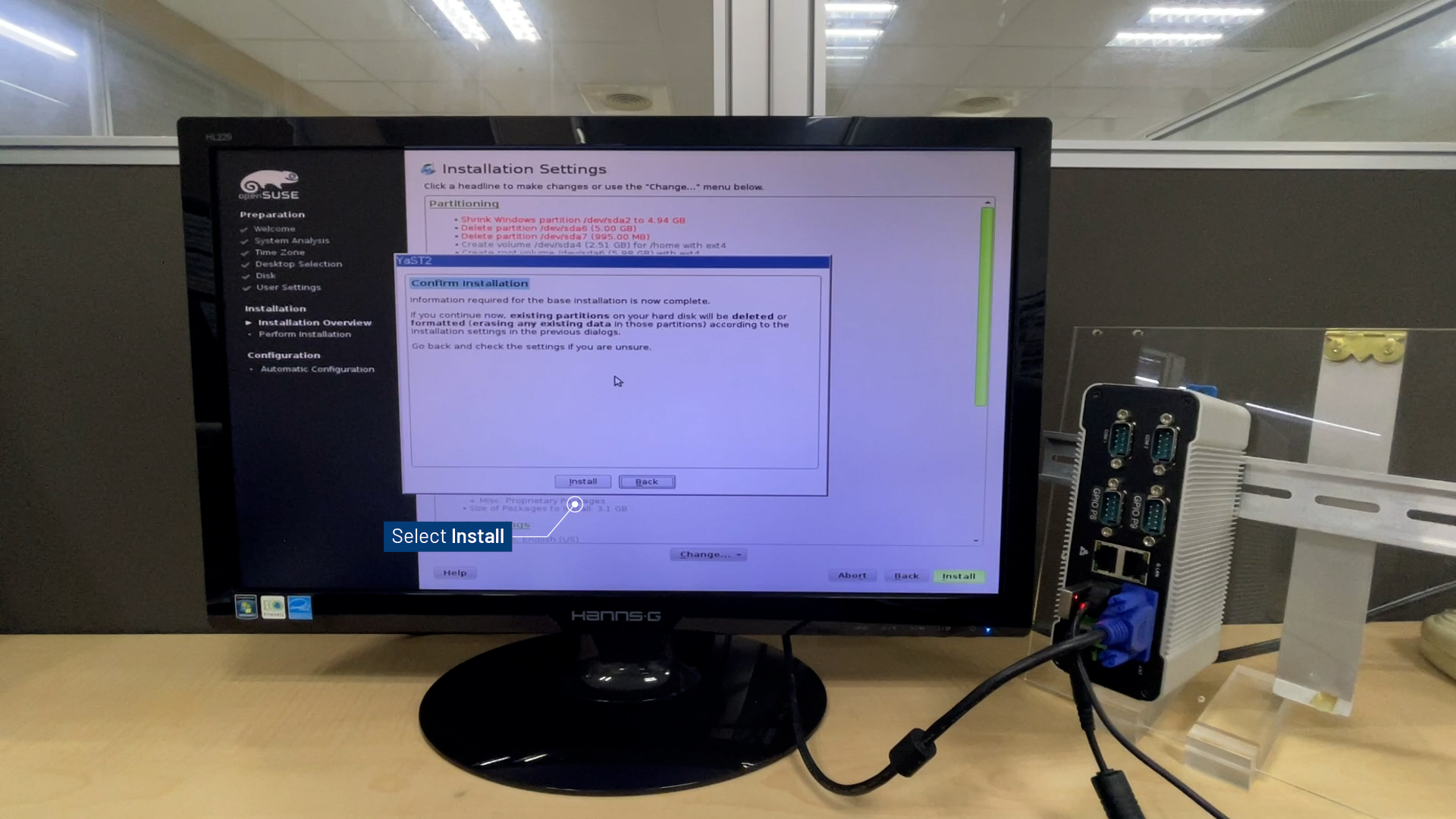
- Click
Installto begin the installation.
![[Technical tips] DIN Rail PC-336x openSUSE 13.1 Installation Guide EBOX_openSUSE](https://www.icop.com.tw/datas/upload/files/NEWS/Resources/EBOX_openSUSE13.1_Installation/openSUSE210.jpg)
- Reboot D-3360 and press
Delto enter BIOS Menu.
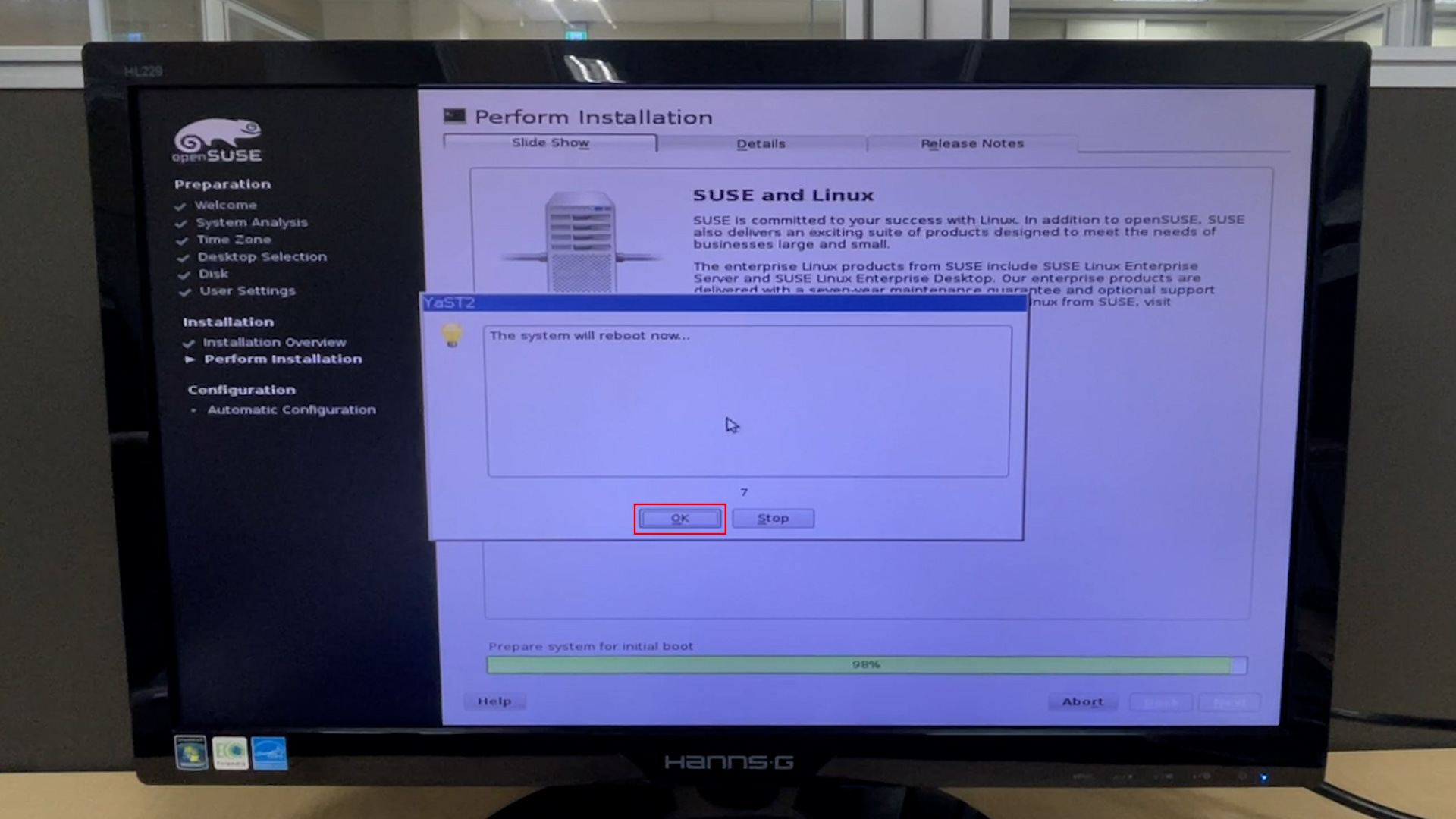
![[Technical tips] DIN Rail PC-336x openSUSE 13.1 Installation Guide EBOX_openSUSE](https://www.icop.com.tw/datas/upload/files/NEWS/Resources/EBOX_openSUSE13.1_Installation/openSUSE211.jpg)
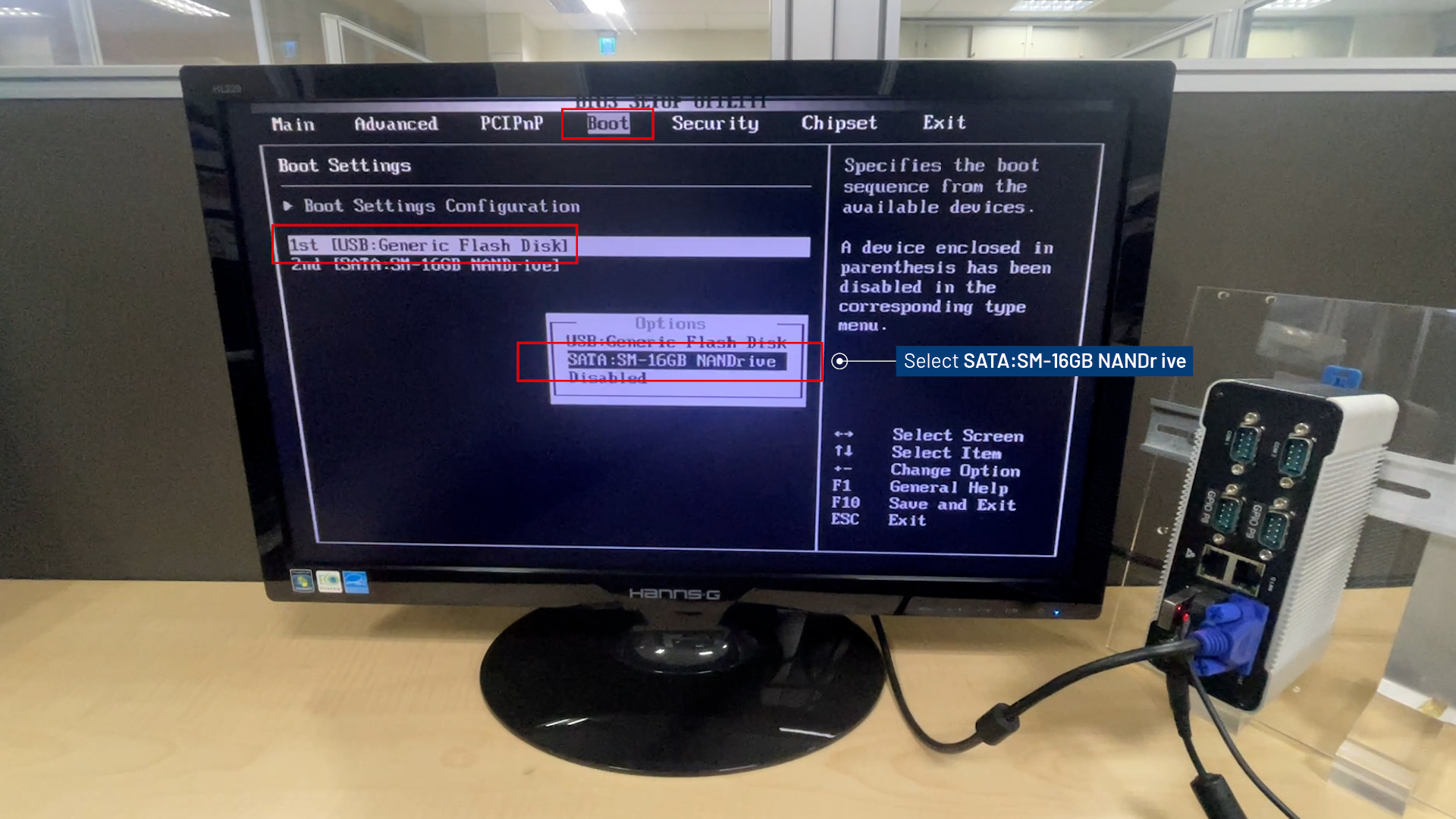
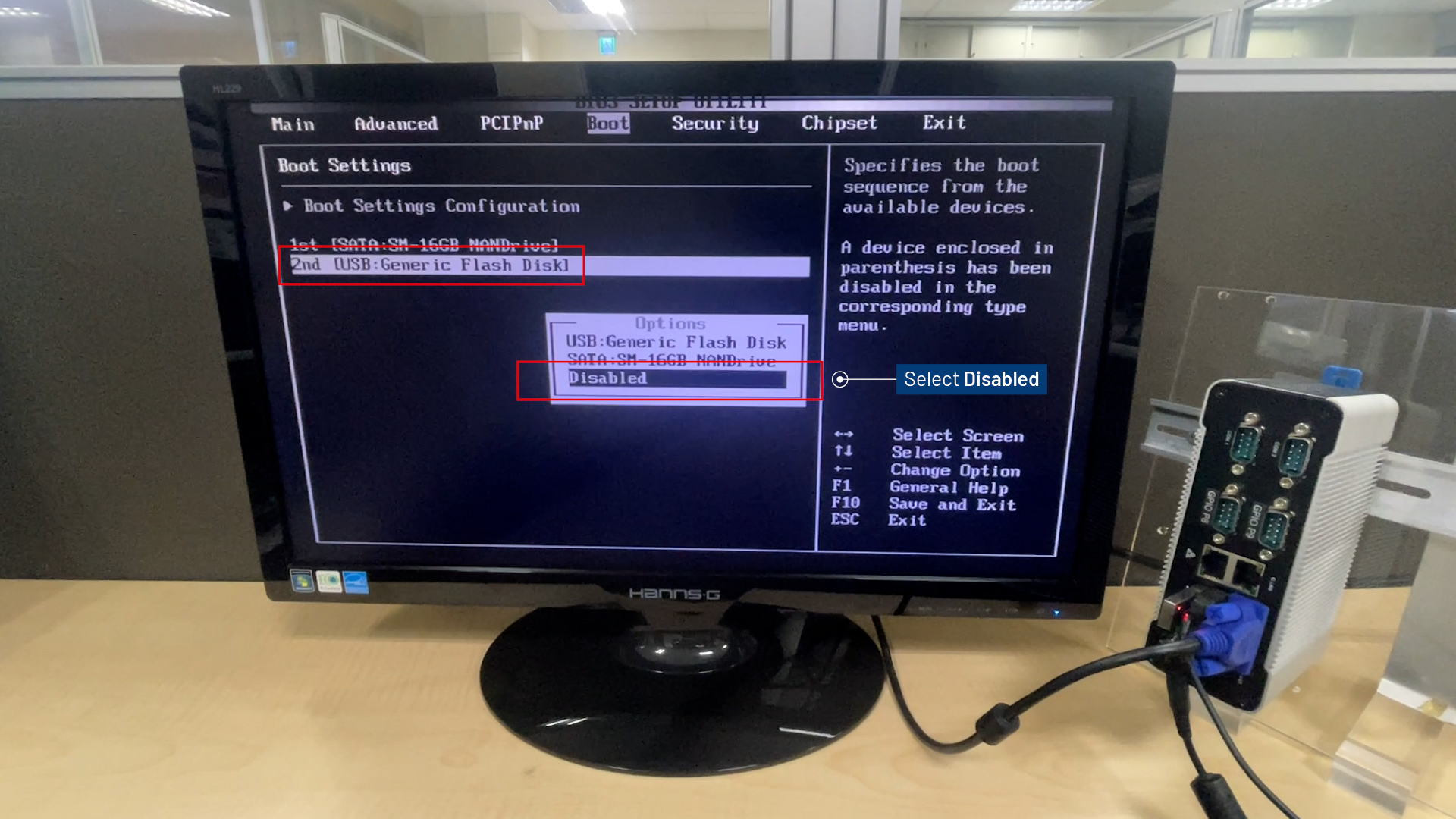
- In the Boot menu, configure the 1st boot device as
SATAandDisablethe 2nd boot option (USB).
![[Technical tips] DIN Rail PC-336x openSUSE 13.1 Installation Guide EBOX_openSUSE](https://www.icop.com.tw/datas/upload/files/NEWS/Resources/EBOX_openSUSE13.1_Installation/openSUSEbios1.jpg)
![[Technical tips] DIN Rail PC-336x openSUSE 13.1 Installation Guide EBOX_openSUSE](https://www.icop.com.tw/datas/upload/files/NEWS/Resources/EBOX_openSUSE13.1_Installation/openSUSEbios2.jpg)
- Press
F10to save and exit BIOS Menu.
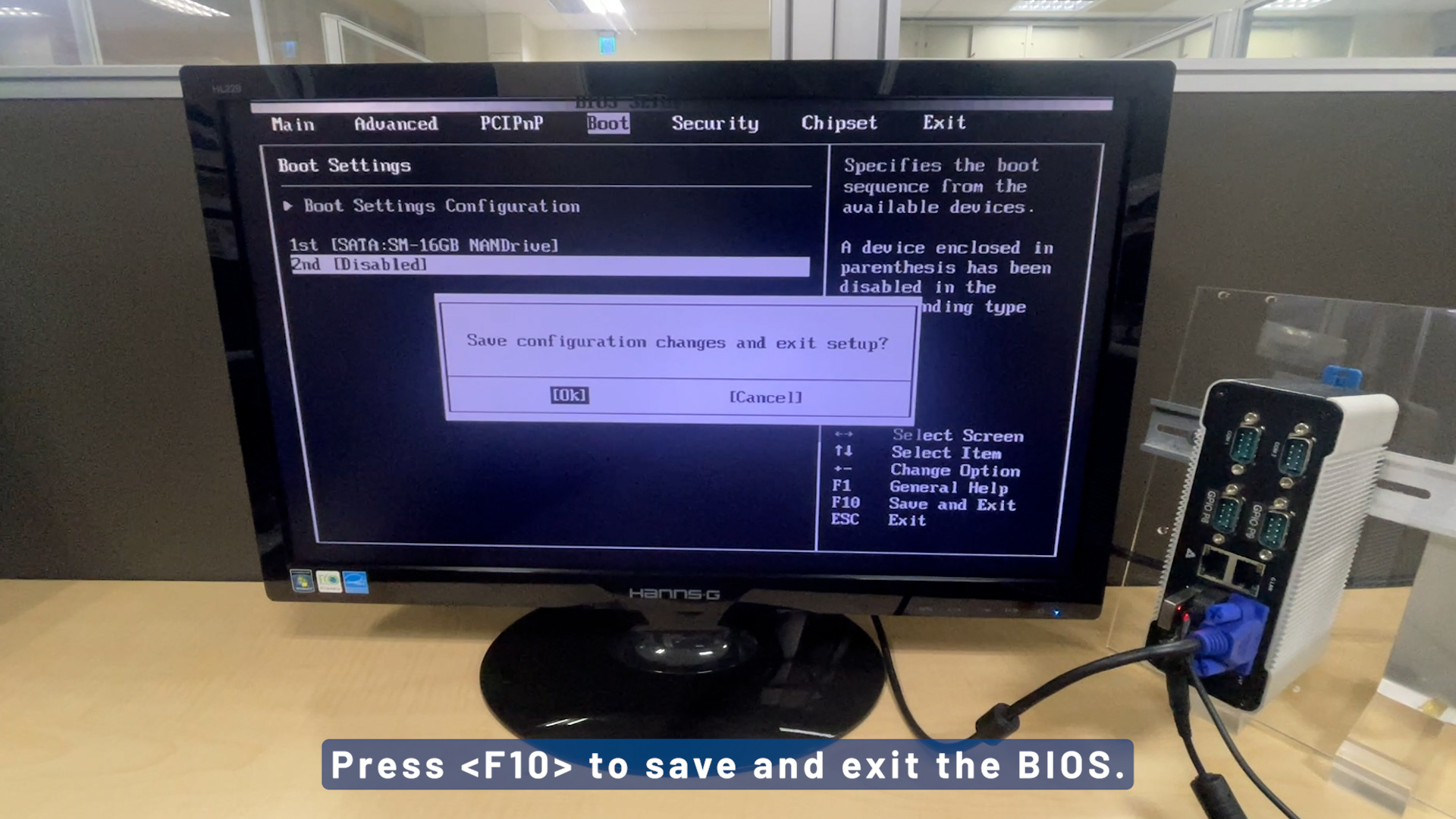
![[Technical tips] DIN Rail PC-336x openSUSE 13.1 Installation Guide EBOX_openSUSE](https://www.icop.com.tw/datas/upload/files/NEWS/Resources/EBOX_openSUSE13.1_Installation/openSUSEbios3.jpg)
- Remove the USB installer and reboot D-3360 to continue the installation.
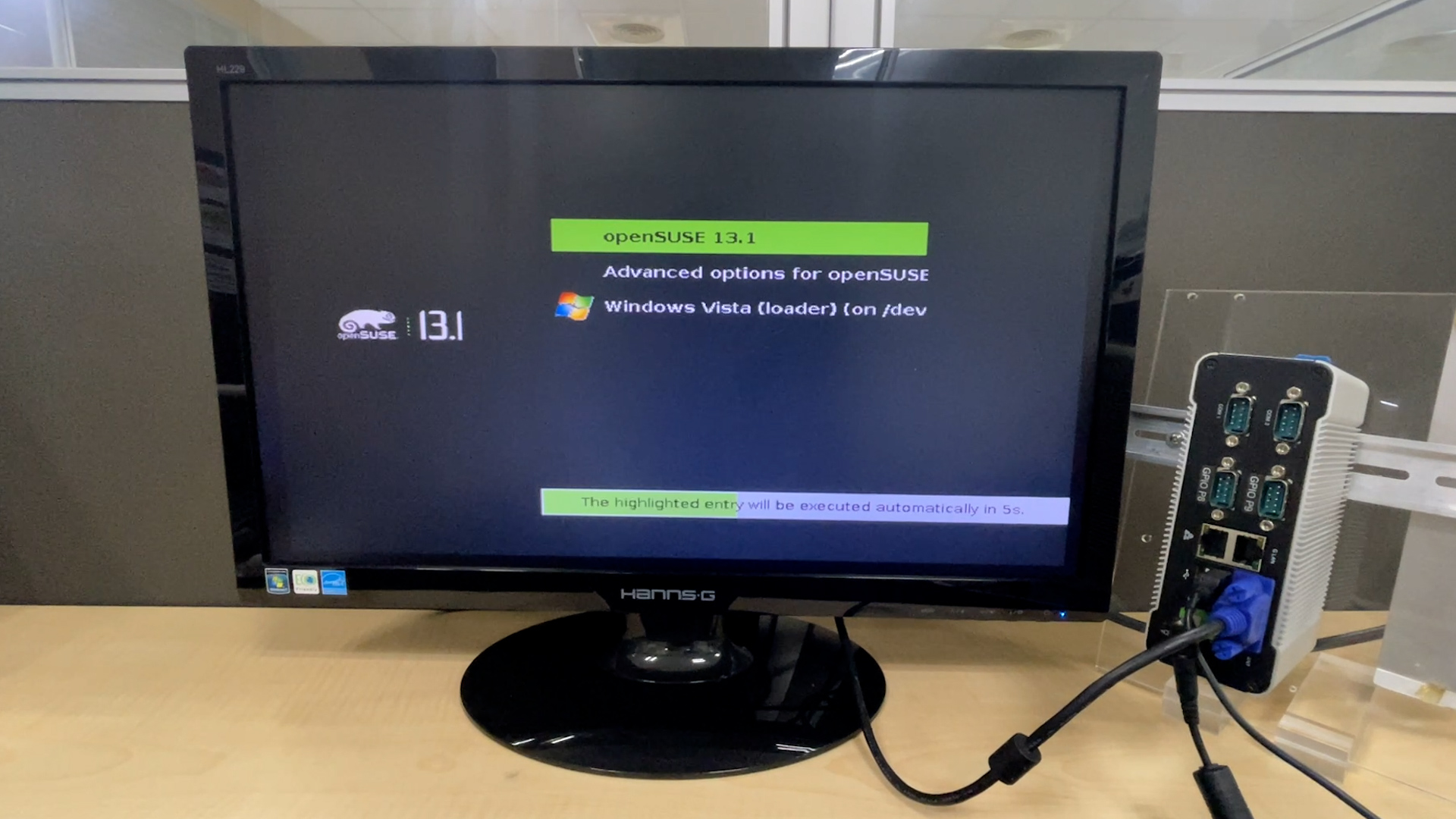
![[Technical tips] DIN Rail PC-336x openSUSE 13.1 Installation Guide EBOX_openSUSE](https://www.icop.com.tw/datas/upload/files/NEWS/Resources/EBOX_openSUSE13.1_Installation/openSUSE214.jpg)
- openSUSE 13.1 installed successfully!
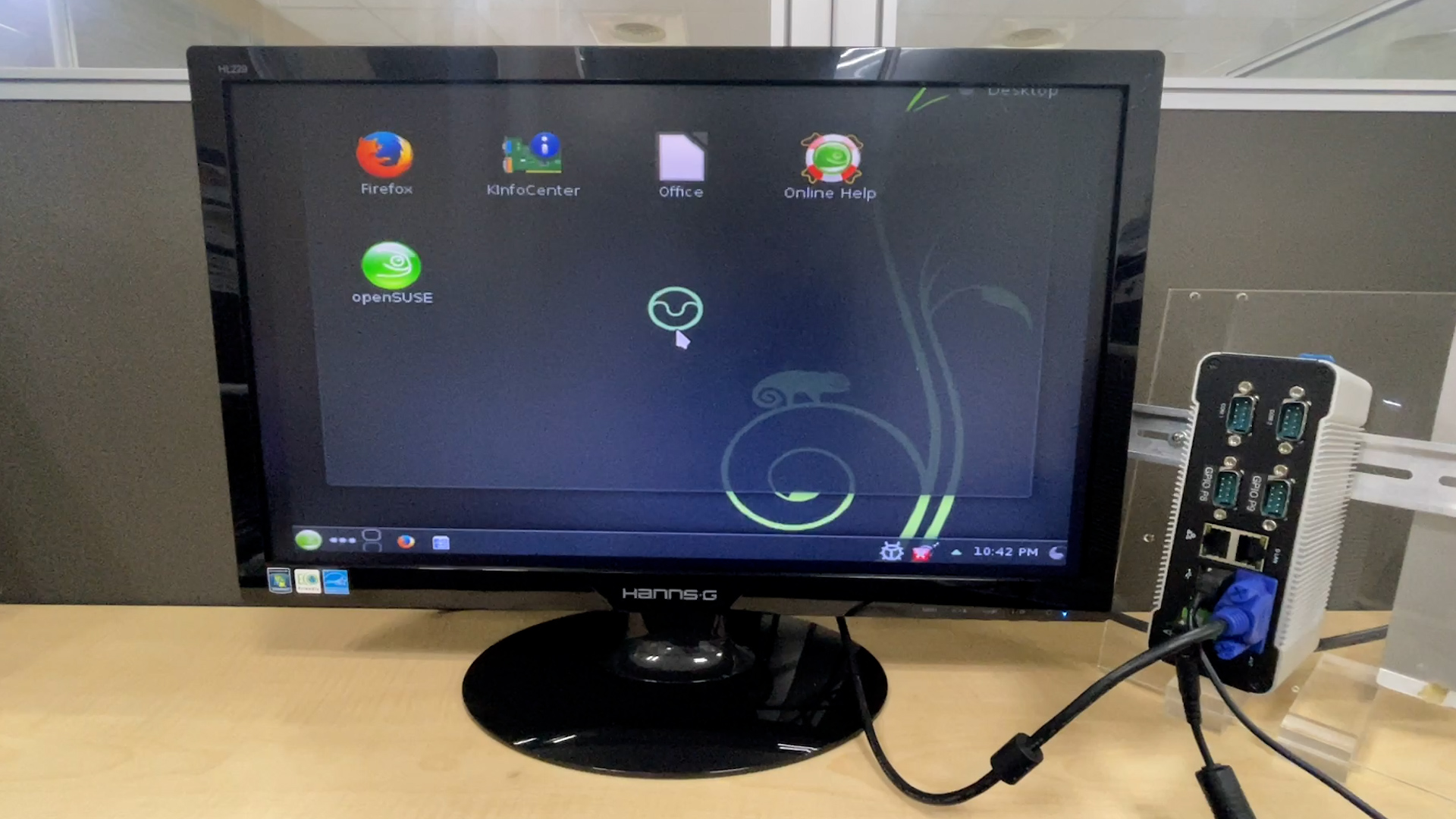
![[Technical tips] DIN Rail PC-336x openSUSE 13.1 Installation Guide EBOX_openSUSE](https://www.icop.com.tw/datas/upload/files/NEWS/Resources/EBOX_openSUSE13.1_Installation/openSUSE215.jpg)
Main features of DIN Rail PC-336x Series:
- DM&P Vortex86DX3- 1.0GHz SoC
- DDR3 1GB / 2GB onboard
- Dual LAN, Multi-COM RS232/485/422/GPIO ports, USB x3, Audio, VGA
- SATA Gen1 x1, 7-pin internal (Support 2.5 inch SATA HDD/SSD), SD Slot x1 (SD, SDHC) Internal at Primary Channel
- Operation Temperature: 0~60℃ / -20~+70℃
- DC +8V~+24V (Pluggable Terminal Block 3-Pin 5.00mm Pitch)
詳細およびサンプルのリクエストについては、次の宛先までご連絡ください。 info@icop.com.twお近くの ICOP支店にお電話いただくか、 世界各国の公式代理店にお問い合わせください。
![[Technical tips] DIN Rail PC-336x openSUSE 13.1 Installation Guide EBOXopenSUSE13](https://www.icop.com.tw/datas/upload/files/NEWS/Resources/EBOX_openSUSE13.1_Installation/D3360.png)


![[Technical Tips] Upload the LCD BIOS by using the batch file to the VDX boards](https://icop-shop.com/wp-content/uploads/2026/02/Technical-Tips-Upload-the-LCD-BIOS-by-using-the-batch-file-to-the-VDX-boards-300x201.png)