
![[Technical tips] How to Install Ubuntu 10.04 on EBOX-336x Series](https://icop-shop.com/wp-content/uploads/2026/10/tipsEB-3362-C2DMI.jpg)
This Technical tips demonstrates how to install Ubuntu 10.04 on the EB-3362-C2DMI using a 64GB SD card as the installation media.
The installation process includes creating a bootable SD card with Rufus, booting the EB-3362-C2DMI from the SD card, and completing the Ubuntu installation through the graphical installer.
Note: The EB-336x Series uses a 32-bit x86 processor. Make sure to use the compatible Ubuntu 10.04 i386 (32-bit) ISO image.
1. Create a Bootable SD Card with Rufus
First, download the Ubuntu 10.04 i386 ISO image and install Rufus on a Windows PC.
Insert the 64GB SD card into the PC and open Rufus.
- Select the SD card under Device.
- Click SELECT and choose the Ubuntu 10.04 ISO file.
- Click START to create the bootable SD card.
- Select ISO Image mode if prompted.
- Wait until the process is completed.
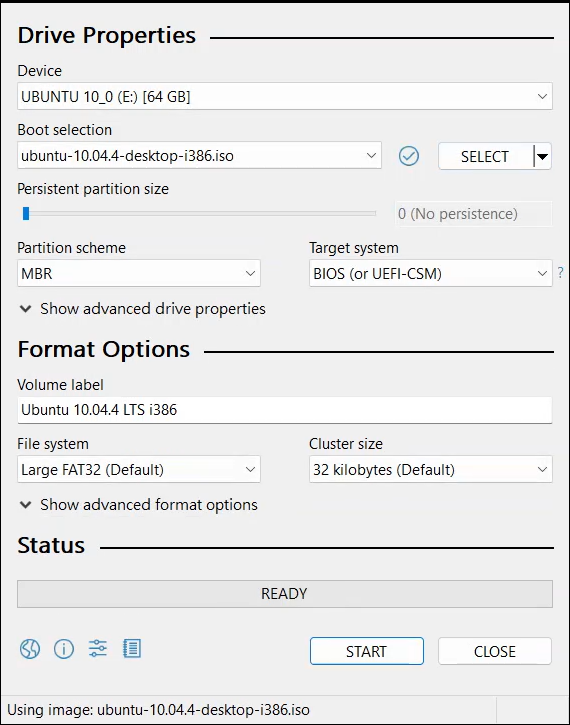
Warning: Creating the bootable media will erase all data on the SD card. Back up important files before proceeding.
2. Boot the EB-3362-C2DMI
Insert the prepared SD card into the EB-3362-C2DMI.
Connect the display, keyboard, mouse, and power supply, then power on the EBOX.
The system should boot from the SD card and load the Ubuntu 10.04.4 LTS desktop.
Troubleshooting: If the system does not boot from the SD card, check the BIOS boot settings and make sure the SD card is detected as a boot device.
3. Start the Ubuntu Installation
On the Ubuntu desktop, double-click: Install Ubuntu 10.04.4 LTS
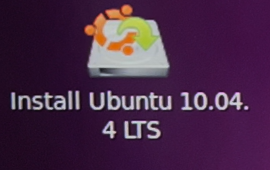
The installation wizard will guide you through several configuration steps.
Select Language
Choose your preferred installation language and click Forward.
Select Location and Time Zone
Select your country or region. For example: Taipei / Taiwan
Click Forward to continue.
Select Keyboard Layout
Choose the keyboard layout that matches your keyboard, such as USA, and click Forward.
4. Configure the Disk
Select the storage device where Ubuntu will be installed.
For a dedicated Ubuntu installation, select:
Erase and use the entire disk
Then click Forward.
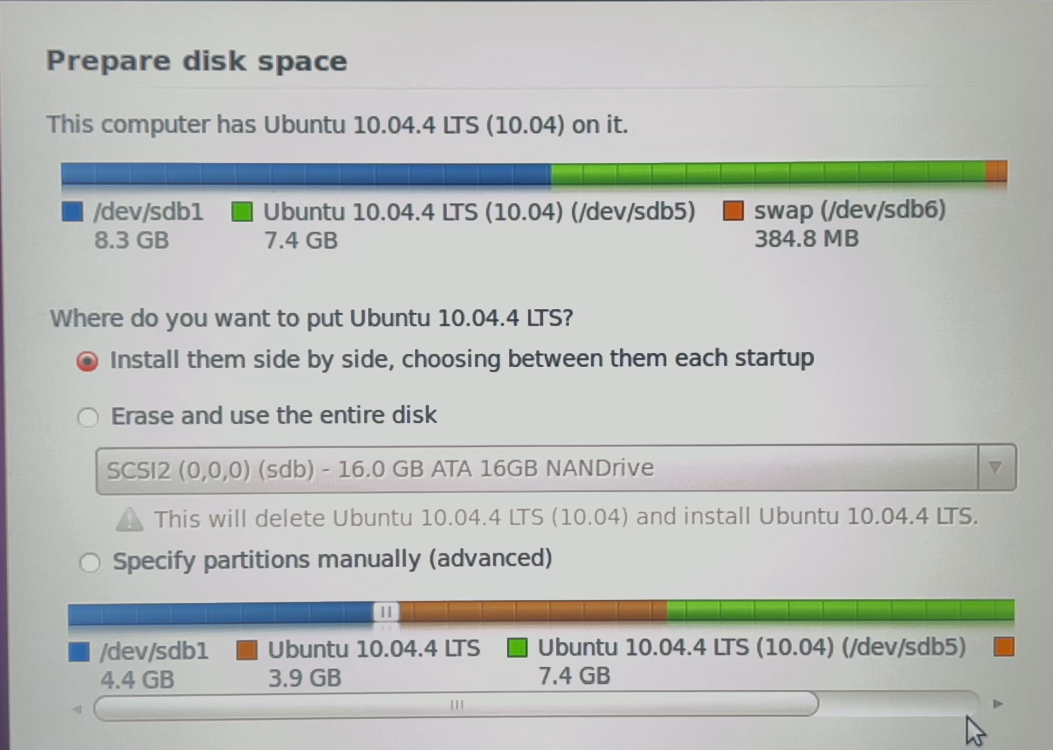
Warning: This option will erase existing data on the selected disk. Make sure the correct storage device is selected before continuing.
Review the partition information and click Install Now.
5. Create a User Account
Enter the required user information:
- Your name
- Computer name
- Username
- Password
Click Forward to continue.
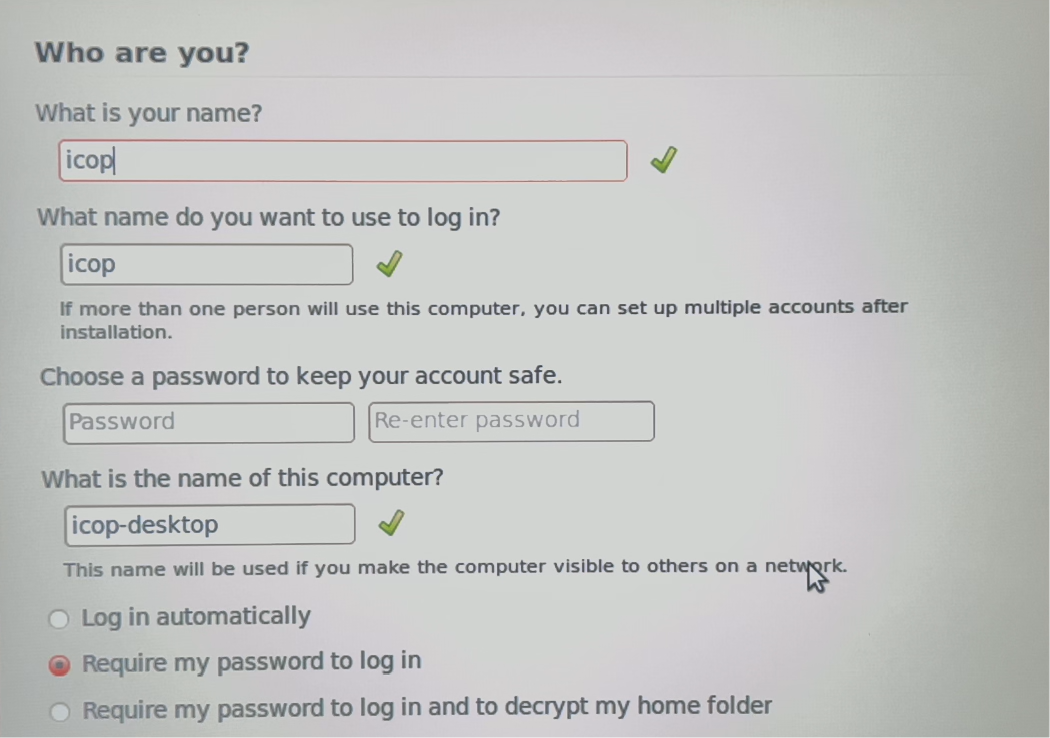
Ubuntu will then begin copying files and installing the system.
6. Complete the Installation
Wait for the installation process to finish.
When the installation is complete, click Restart Now.
Remove the SD card when prompted, then allow the EBOX-3362 to restart.
After rebooting, log in with the account created during installation.
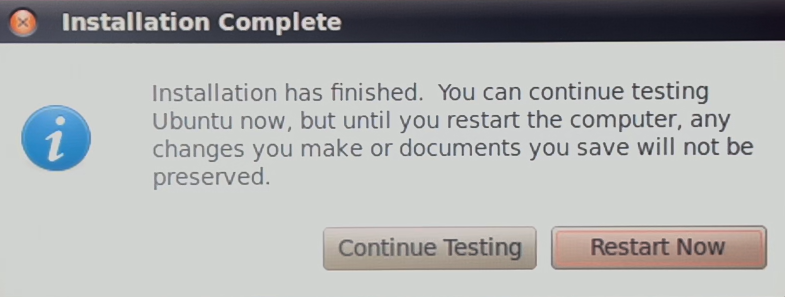
Ubuntu 10.04.4 LTS is now installed and ready to use on the EB-3362-C2DMI.
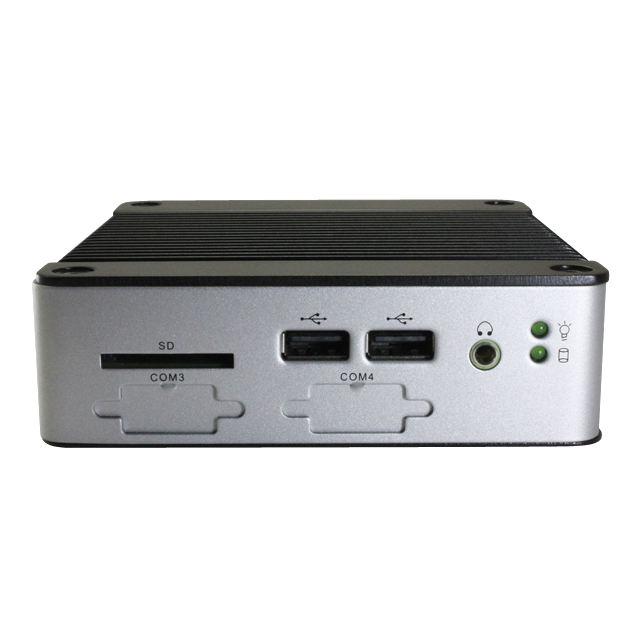
Main features of EB-3362-C2DMI
- DM&P 32ビットx86 Vortex86DX3 Dual Core1.0GHz SoC
- 2GB DDR3-1600MHz onboard memory
- SD card slot x1 (SD, SDXC)
- RS-232 x2, HDMI x1
- 10/100 Mbps LAN x1
- USB 2.0 x4 (Front x2, Rear x1, Internal x1)
- 自動電源オン対応
- PXE Diskless Boot support
- DC +8V ~ +24V
- Operating Temperature: 0 ~ +60°C
![[Technical tips] How to Install Ubuntu 10.04 on EBOX-336x Series](https://icop-shop.com/wp-content/uploads/2026/10/tipsEB-3362-C2DMI-300x201.jpg)
 English
  繁體中文
繁體中文  日本語
日本語